Everything LogTicks does today
Each section below shows the real screen from the product. Where a feature has a limit, the limit is written next to it.
Time and timesheets
Three ways to record time, all landing on the same weekly sheet.
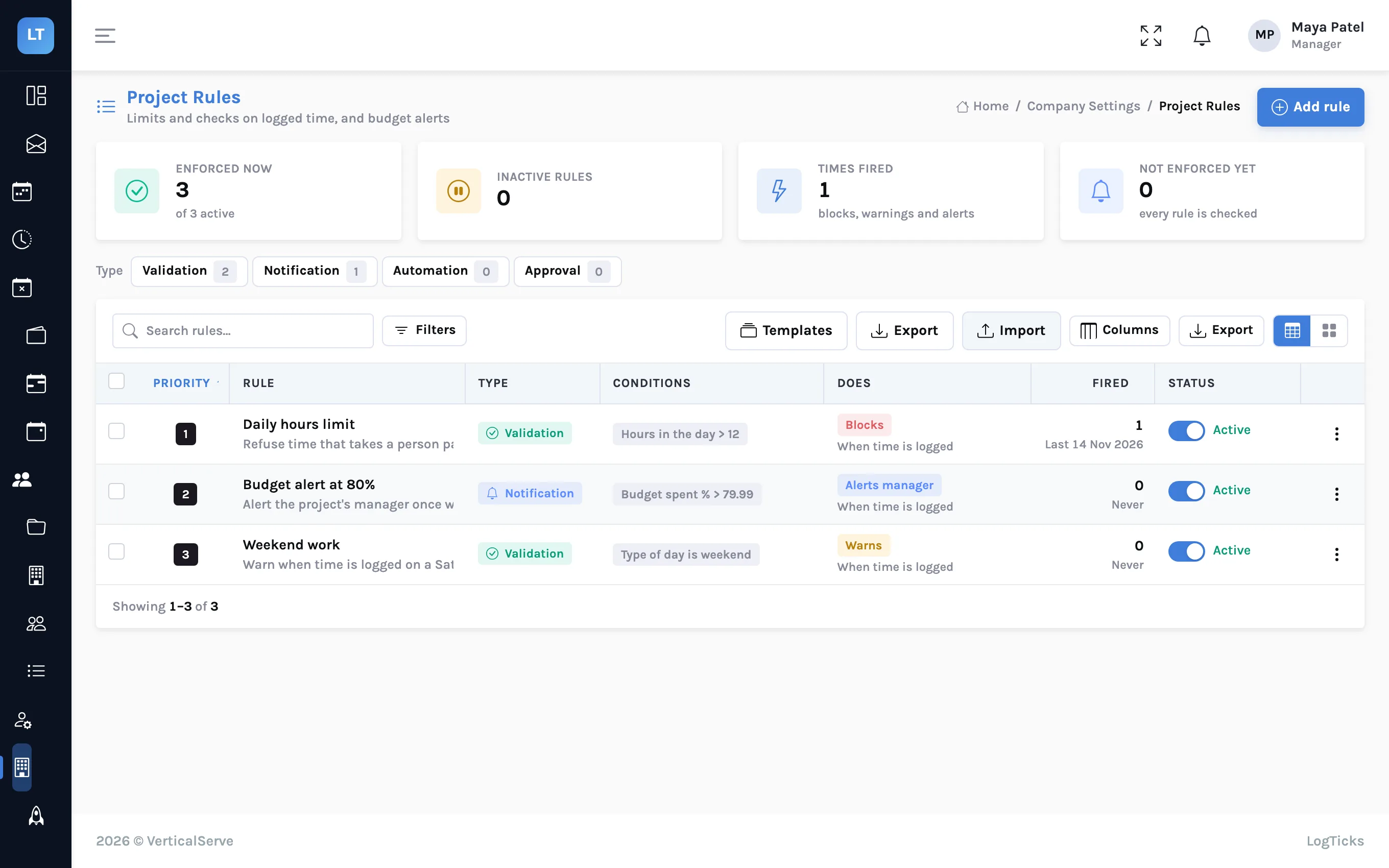
Hours by project and day
The week is a grid of projects against days. Type hours into a cell and it saves on its own. Open a day to add a note or choose the task the time was for.
- Daily and weekly totals, with the billable share and overtime
- "Copy last week" and "Fill a 40-hour week" for regular schedules
- Export the week as a PDF
- A history tab with every week and its status
- Once a week is submitted it accepts no new time until it is revoked or sent back
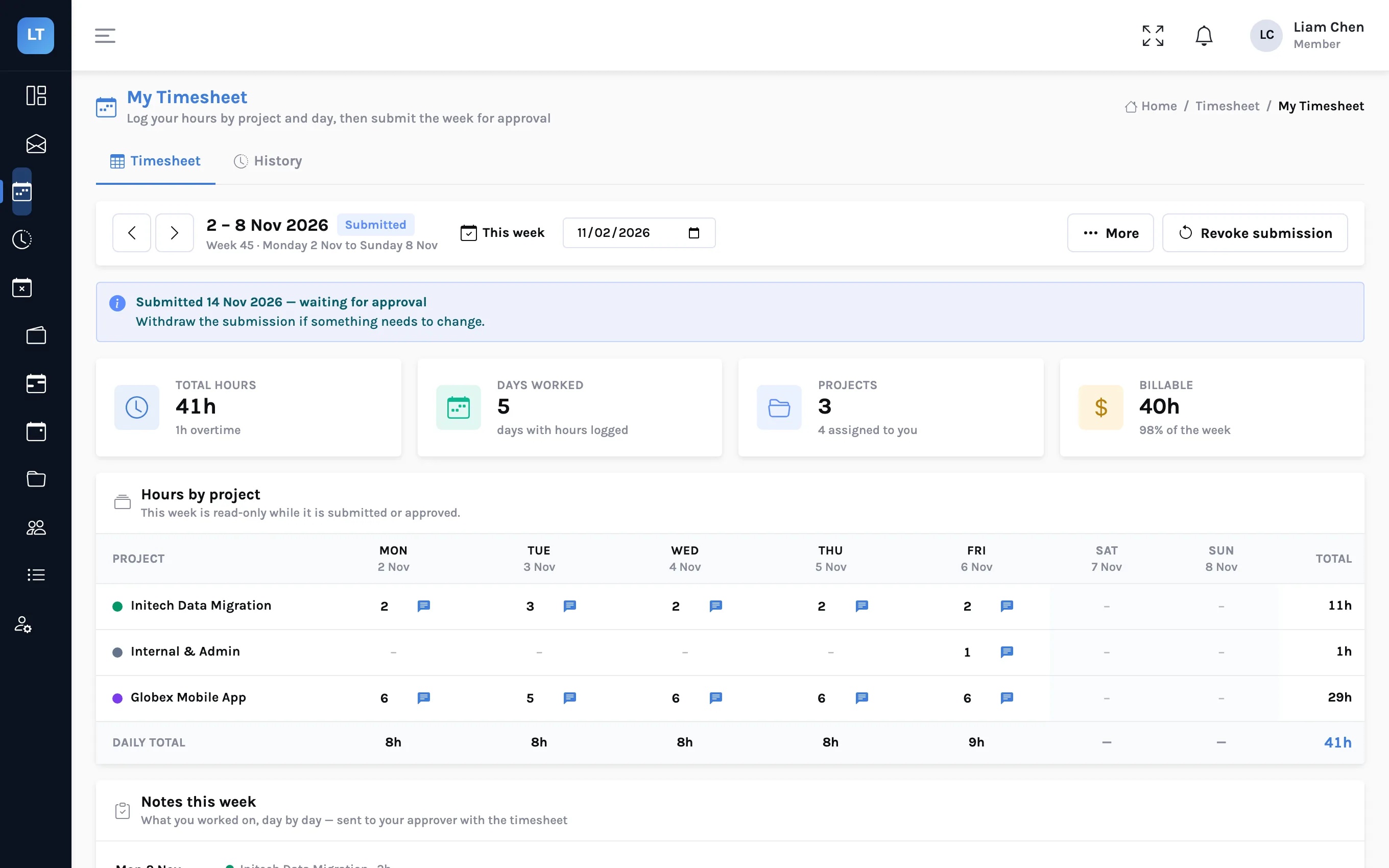
A timer that runs on the server
Pick a project and, if you like, a task, and start the timer. It is kept on the server, so it survives a reload, shows on your other devices, and sits as a pill in the top bar on every page.
- Edit the note while it runs; stop to log the time to that day, or discard it
- A timer that crosses midnight is split between the two days
- One click restarts a recent project
- A single timer runs for at most 24 hours
Guide: timing work across devices, and logging it against tasks
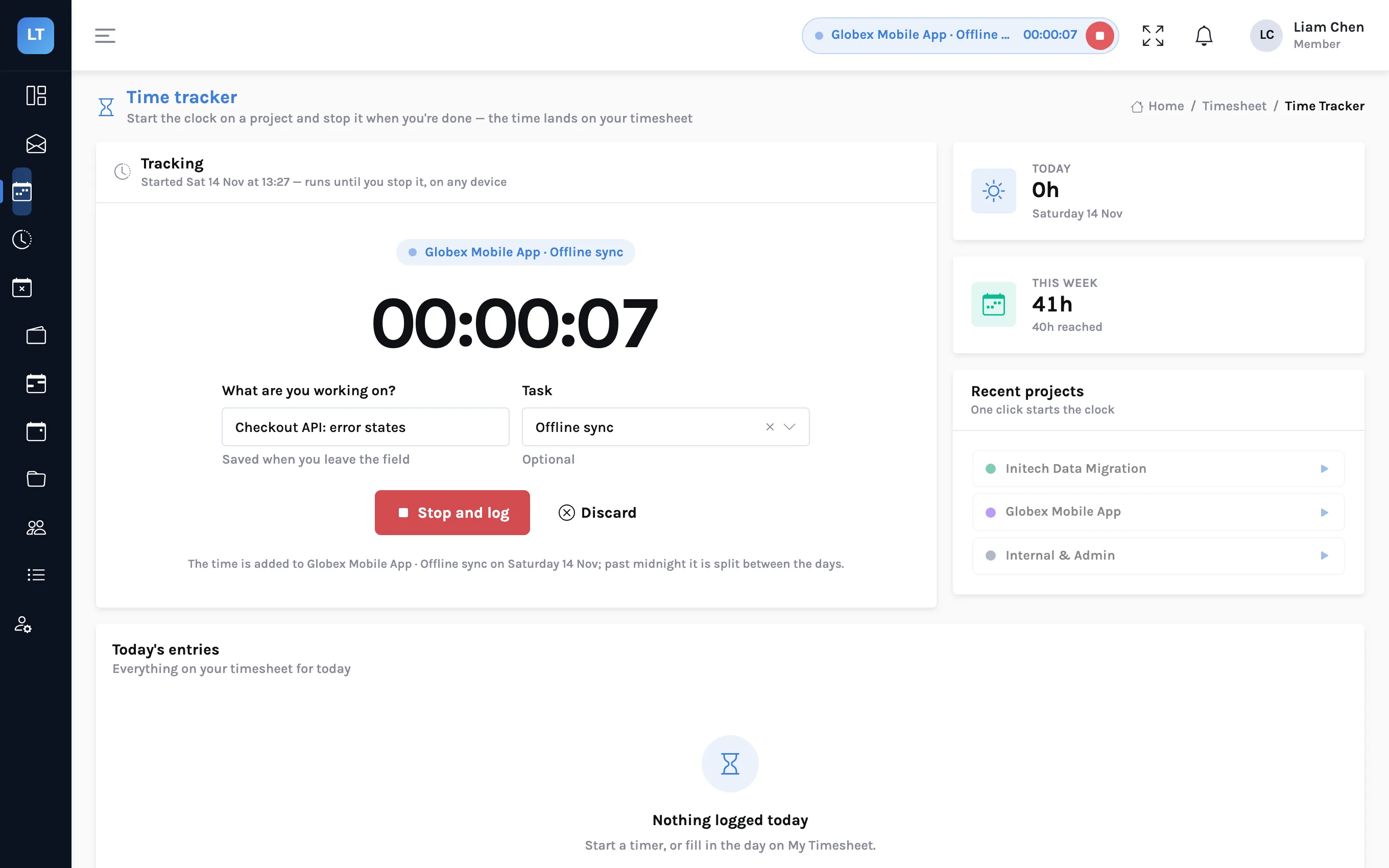
Log a day without opening the grid
A short form for one project and one day, in hours or as a start and end time, with an optional task. Quick-fill buttons set common amounts, including Monday to Friday at 8 hours each.
- "Describe it instead": type last Friday 1h30 or yesterday 9am to 12:30 and the day and hours fill in
- It understands "yesterday", weekday names, dates and durations. It is pattern matching, not a language model, and it does not choose the project
- Nothing is saved until you press Save
- Offline, Quick entry queues what you enter and sends it when you are back online
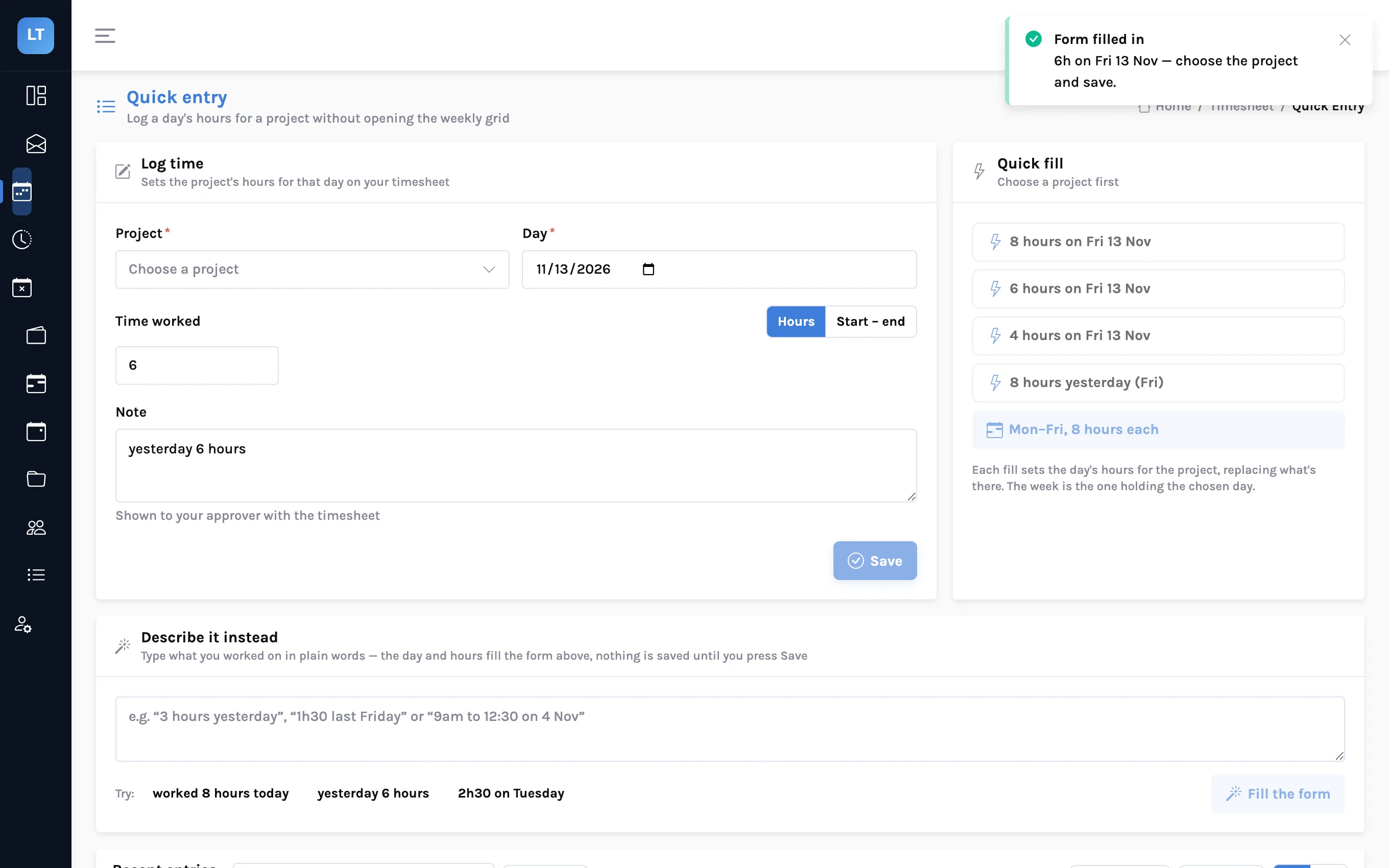
Project rules
Checks on logged time that are applied when it is saved, not discovered at month end.
Block, warn, or alert the manager
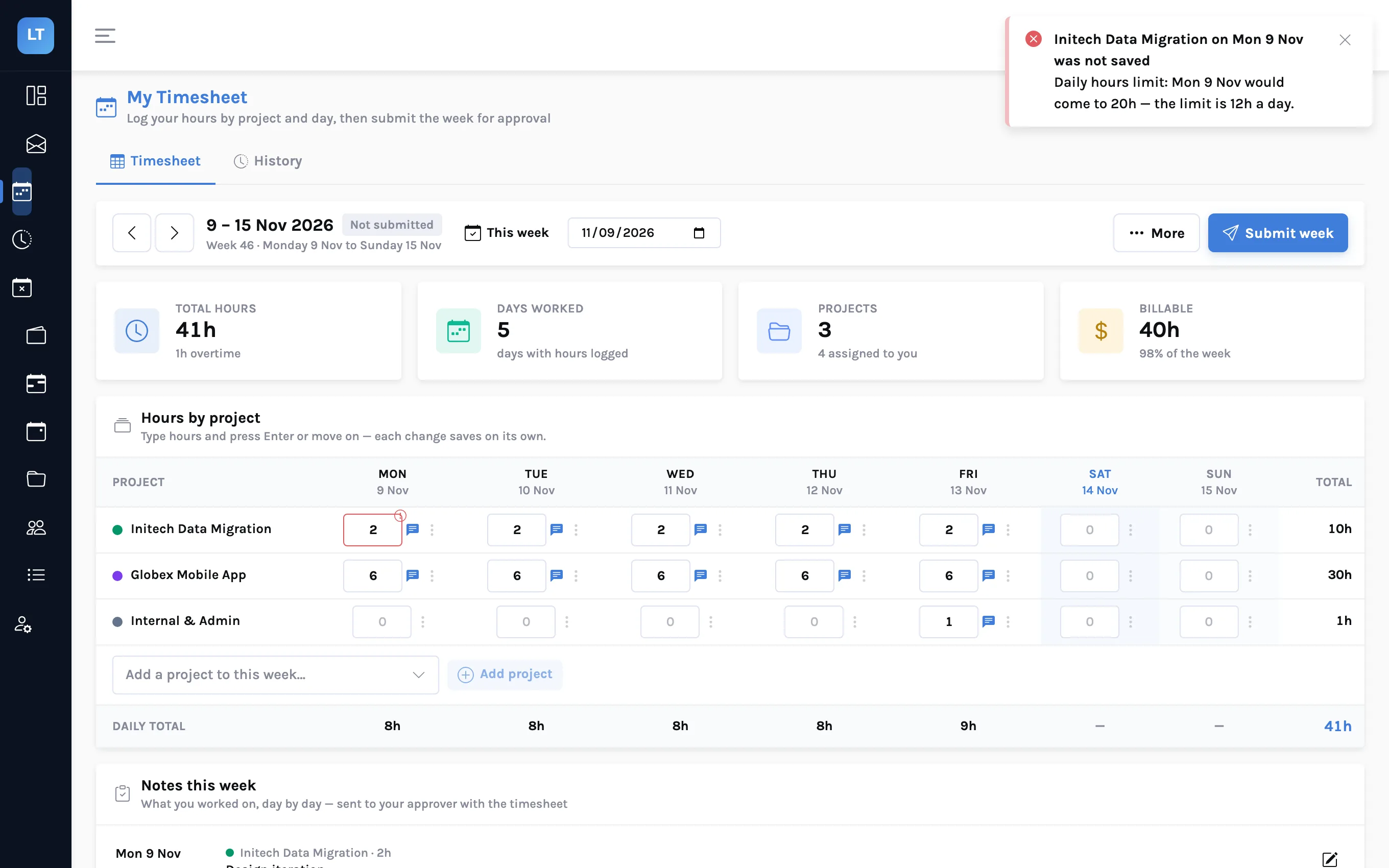
A manager builds a rule from a condition and an action. When someone saves time that breaks a blocking rule, the save is refused and they see the rule's message.
- Conditions on a time entry: hours in the day, hours in the week, hours in one entry, how many days in the past or future, a missing description, a weekend or holiday
- Conditions at submission: the week's total hours too low or too high, entries without a note
- Budget and estimate alerts when a project passes a percentage spent
- Limit a rule to chosen projects; 13 templates to start from
- Every time a rule fires it is recorded in the rule's run history
- A rule type that cannot be enforced is labelled "Not enforced yet". A budget alert fires once per rule and project, and weeks run Monday to Sunday
Guide: rules that stop a bad timesheet before it is submitted
The person finds out at once
The rule's message appears where the mistake was made, while it is still a two-second fix, and the cell goes back to what it was.
- A blocked save changes nothing
- A warning saves the time and says why it was flagged
- A project's own "description required" setting warns on save and on submit; it does not block
Approvals and client sign-off
A submitted week is read-only until someone decides. Up to two people decide: your manager, then the client.
One queue for every submitted week
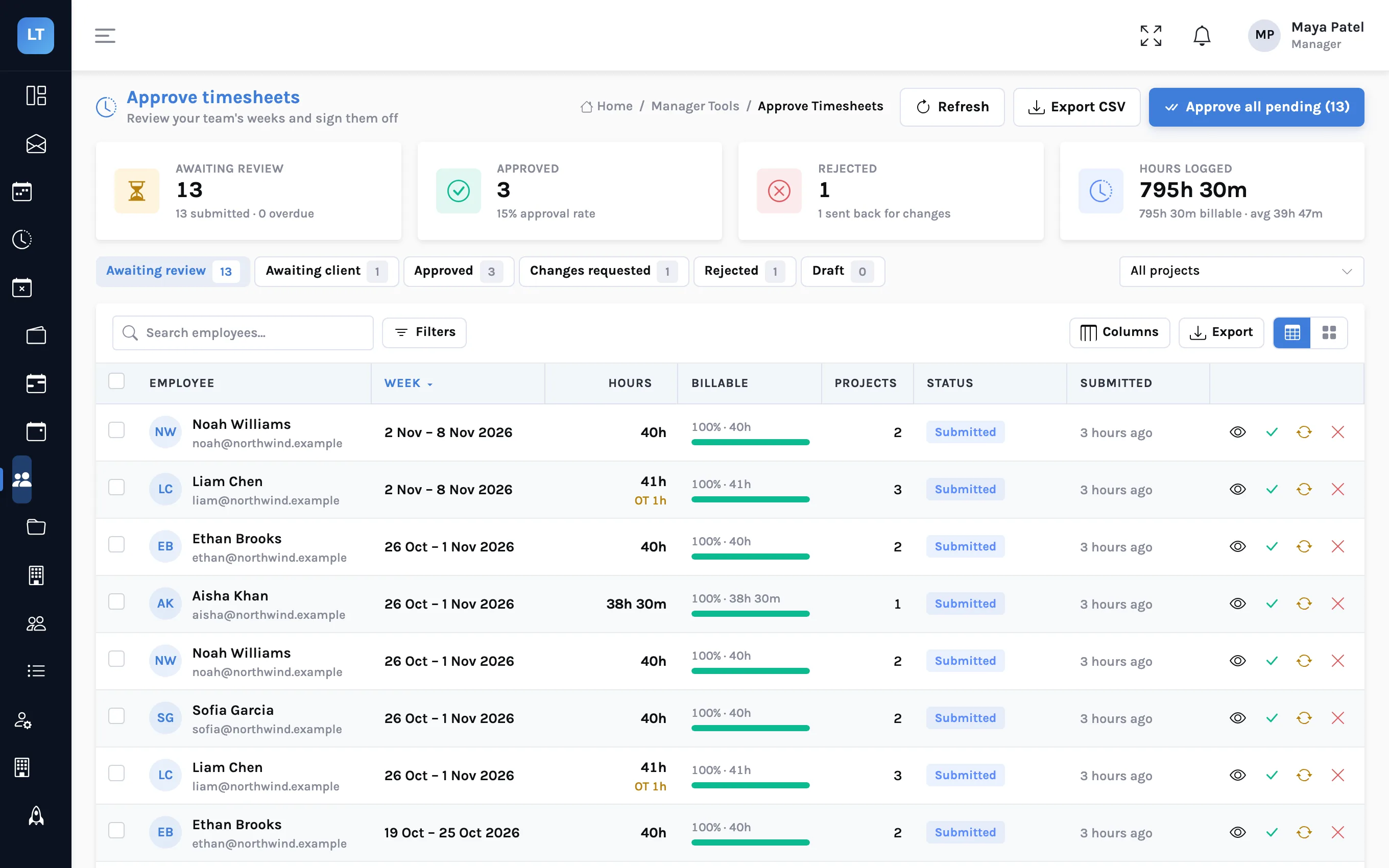
Managers see submitted weeks with hours, billable share and how long each has been waiting. Open a row for the full review sheet, or act from the list.
- Approve, request changes or reject; a reason is required for the last two
- Bulk actions on selected rows, and "Approve all pending"
- Filter by status and project; export to CSV
- The employee can revoke a submission while it is still waiting, and reopen an approved week for changes
A second approval by the client's own person
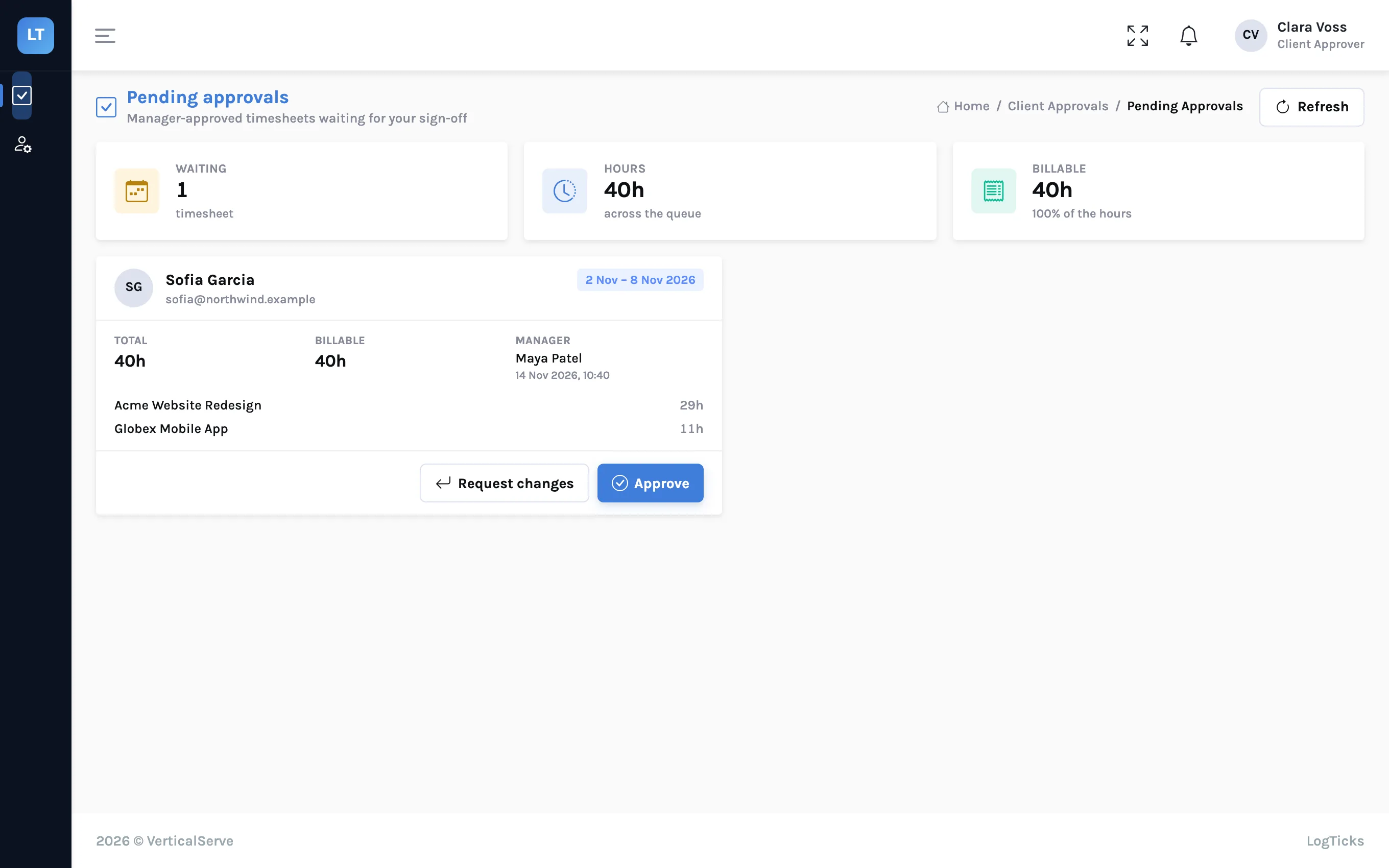
Give a project a client approver. After the manager approves a week worked mostly on that project, the week moves to "Awaiting client" and appears in the client approver's queue.
- The client approver role sees only pending approvals and their own approval history
- They see hours by project for the projects they approve; anything else in the week is one "Other work" line
- Approve with an optional note, or send back saying what needs to change
- A project with no client approver ends at the manager's approval
Keep the client's signed sheet with the week
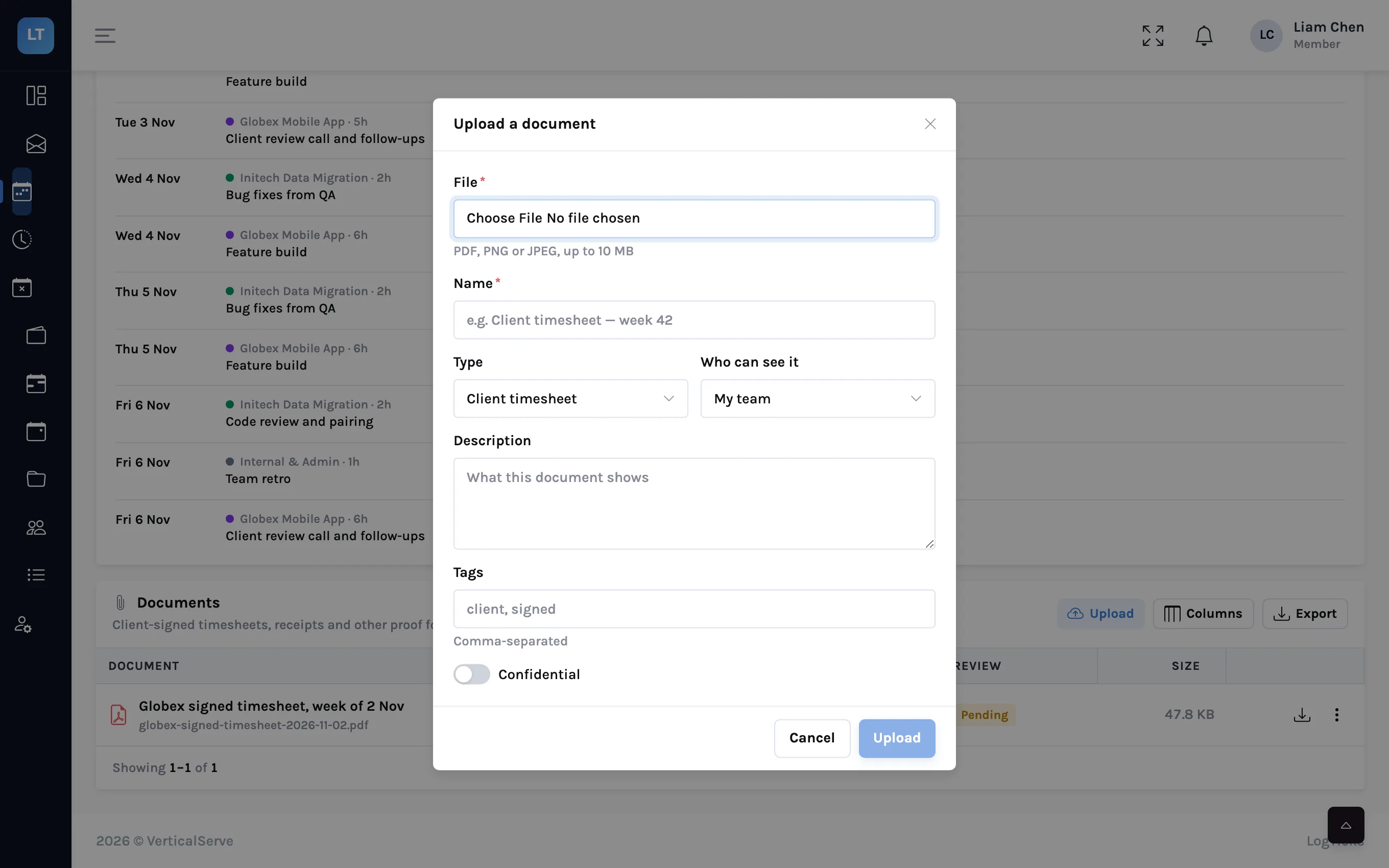
Once a week is submitted, attach files to it: the timesheet signed in the client's system, a receipt, a contract. The approver sees the attachments in the review sheet.
- PDF, PNG or JPEG, up to 10 MB each
- Types: client timesheet, supporting document, receipt, invoice, contract, other
- Choose who can see each file
- Adding or removing a file on an approved week sends it back for approval
Stand-ups
A daily status in three questions, without a meeting.
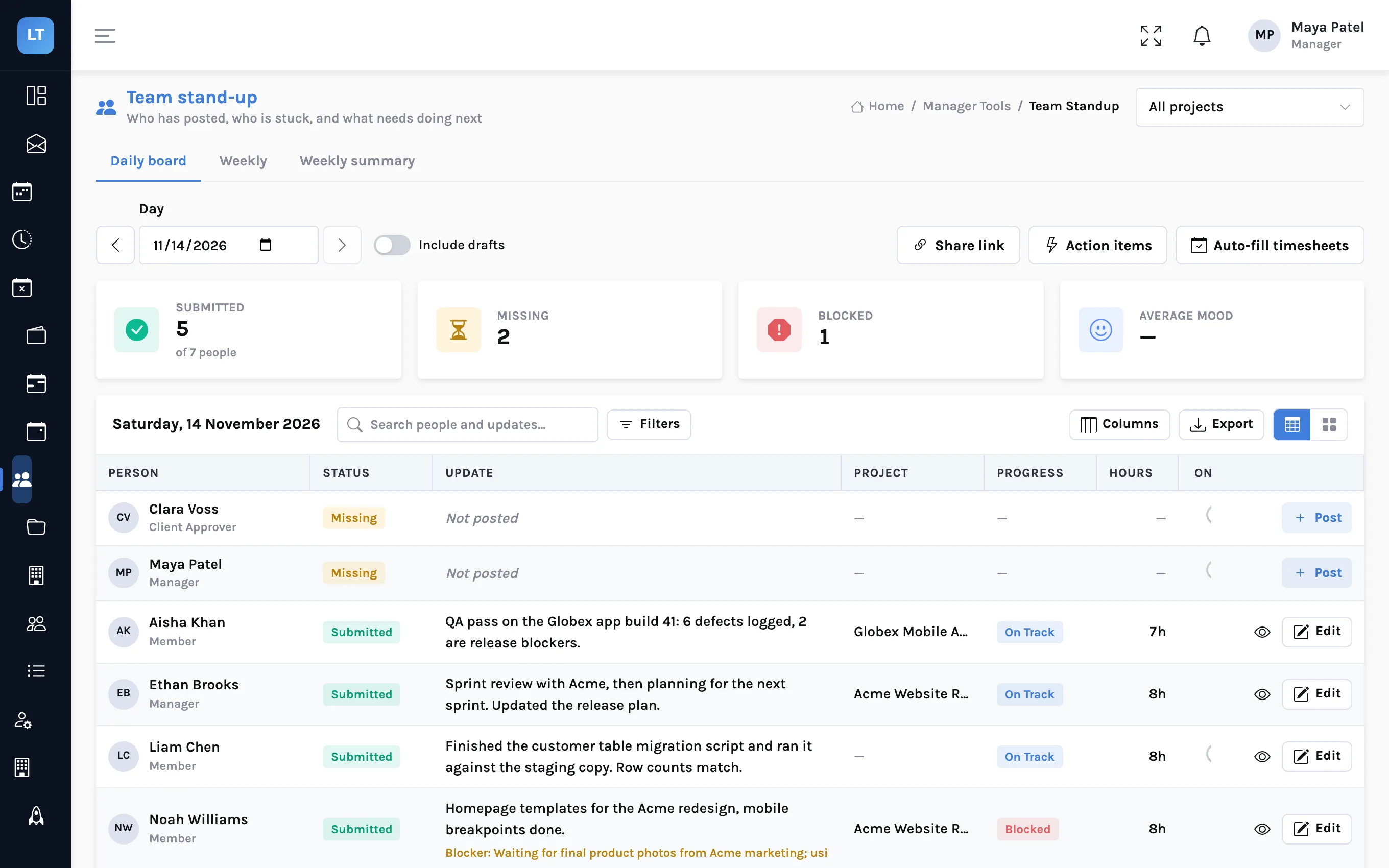
Who posted, who is blocked
Each person posts what they did, what is in the way and what comes next, with hours, progress and a completion percentage. The manager's board lists everyone for the day.
- A manager can post a status on someone's behalf, and paste their chat message for AI to fill in the fields
- AI-drafted action items from the day's statuses
- Weekly view per person, and a weekly summary of accomplishments, blockers and what is coming up
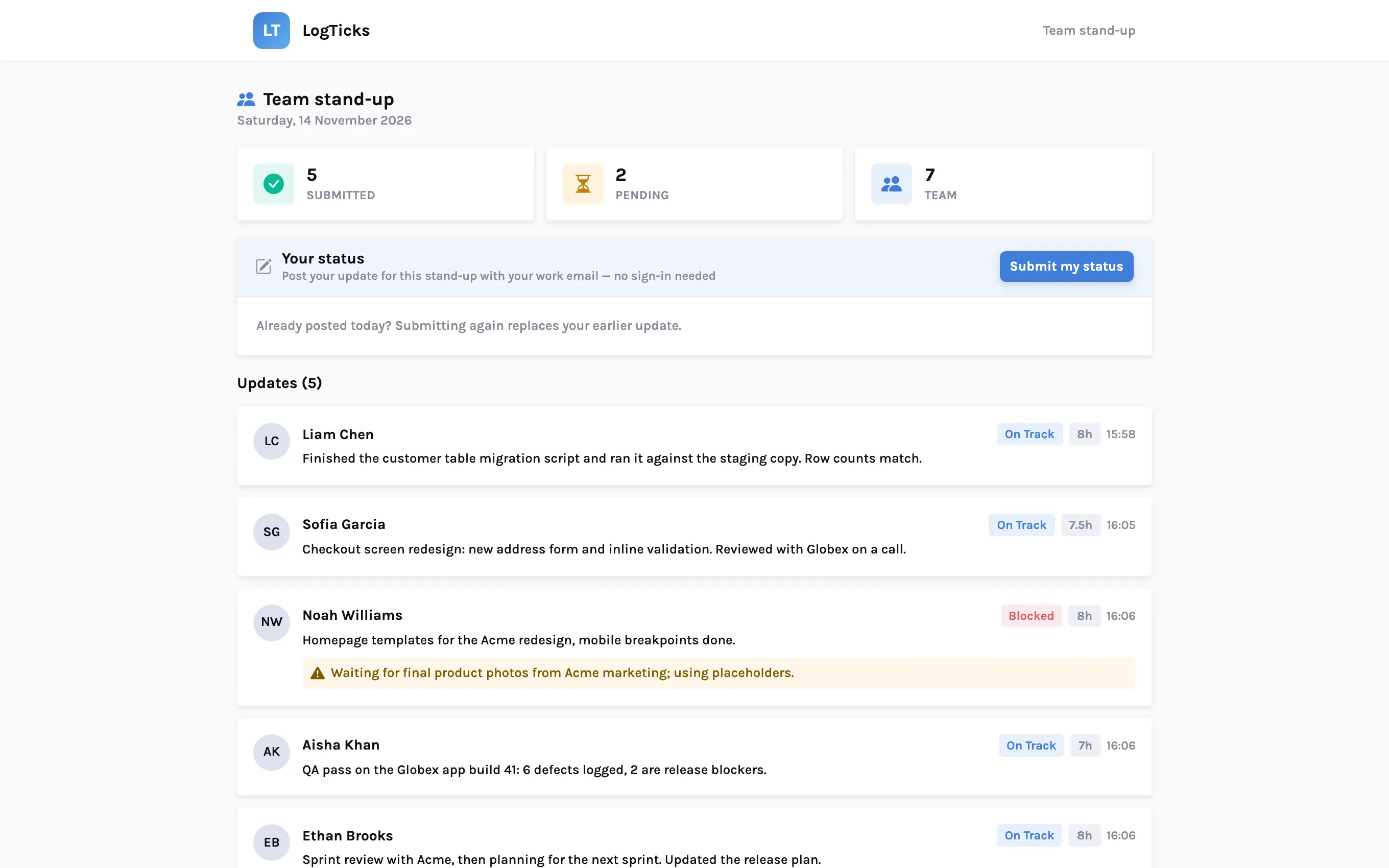
Stand-ups from people with no login open
Create a link for a day. Anyone with it sees that day's statuses without signing in, and a team member can post their own by giving their work email.
- Expires after 4 hours to 1 week; you choose
- Can be read-only
- Covers one project or the whole company
- Only email addresses of people already in your company (and on the project) can post
Post and log time from a chat space
Add the LogTicks app to a Google Chat space. Mention it with your update, or use a slash command.
/statusposts today's update;/hours 8h Projectlogs time/summaryshows your week;/pdfexports your timesheet/uploadwith an image or PDF of a timesheet has AI read it into time entries- People are matched by their Google email address. Google Chat only: there is no Slack or Microsoft Teams app
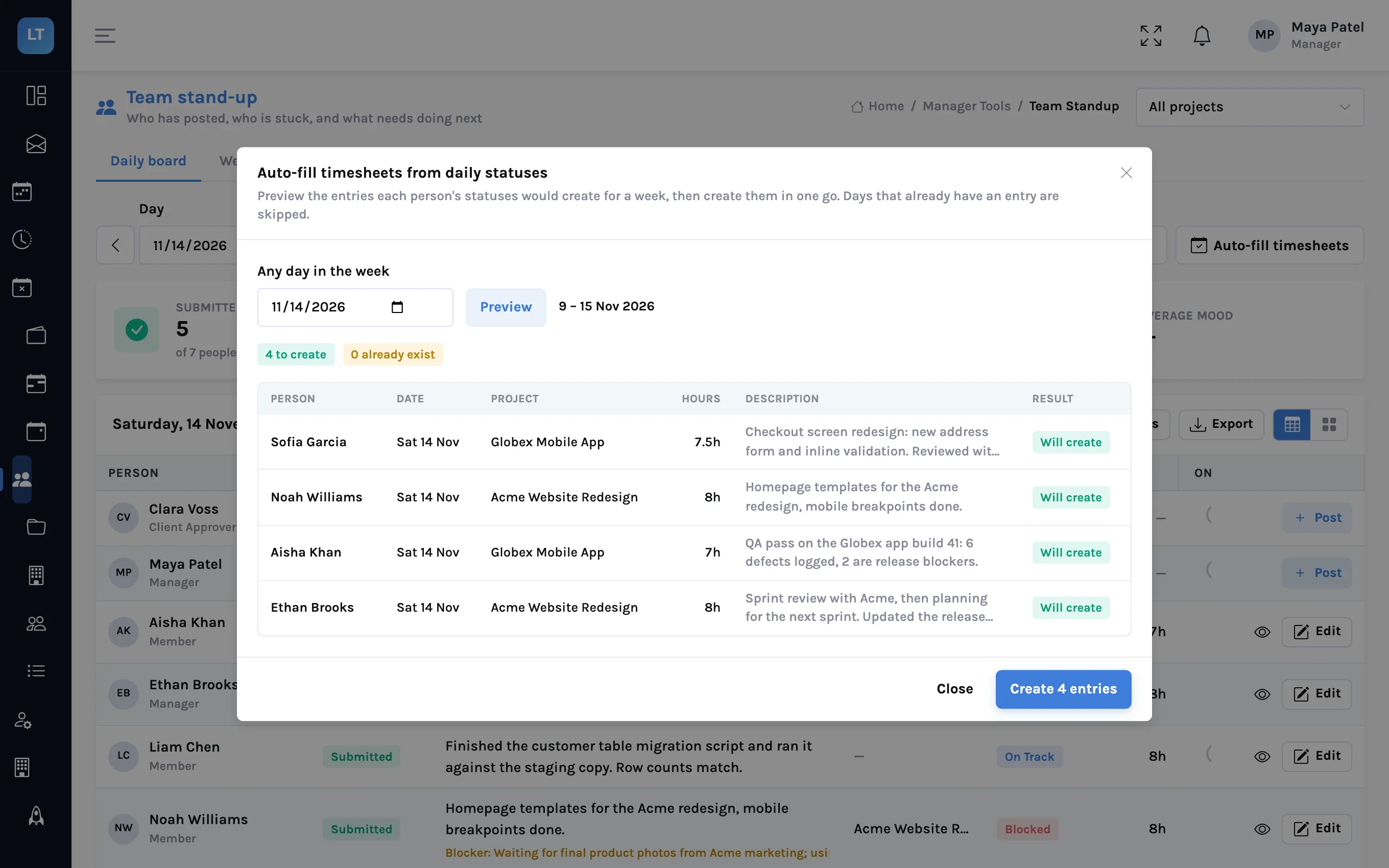
/hours 6h Globex Mobile AppTurn a week of statuses into timesheet entries
From the daily board, a manager previews the entries that each person's statuses would create for a week, then creates them in one go.
- Uses each status's project, hours and work summary
- One ordinary time entry per person, project and day, which shows in their weekly grid, in reports and on invoices
- A day that already has an entry for the project is skipped, and so is anyone whose week is submitted or approved
- A manager fills only the projects they manage
Attendance
A record of the working day, separate from project time.
Start and end the working day
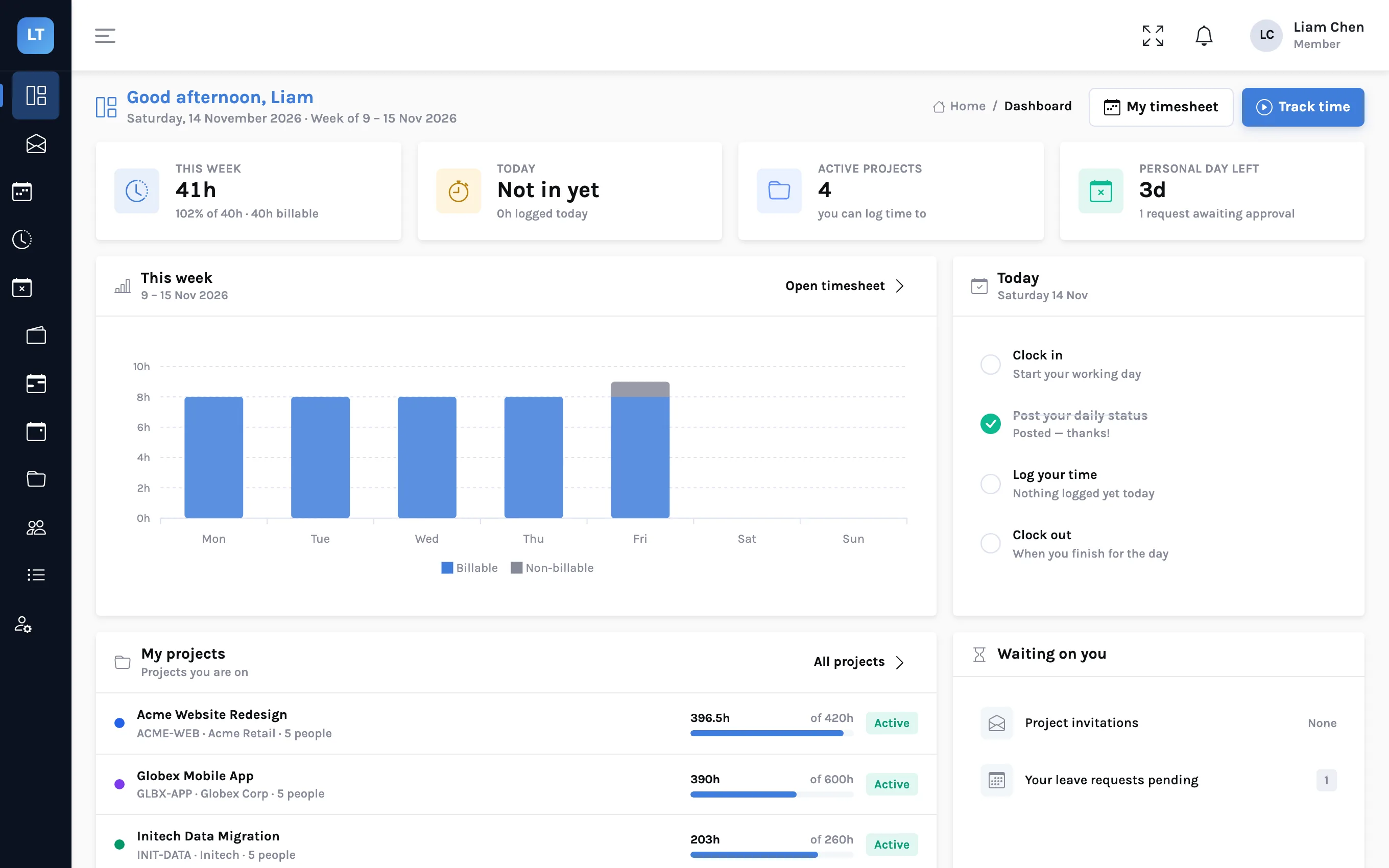
People clock in as working from the office or remotely and clock out with an optional note. Their dashboard shows today's steps: clock in, post a status, log time, clock out.
- My attendance: days worked, total hours, average day and late arrivals
- Team attendance for managers: present, late, on leave and absent for a day
- Clock-in is refused on weekends and holidays
- It is a button in the web app; there is no kiosk, GPS or hardware clock
Leave and holidays
Your policy as leave types, applied when someone asks for a day.
The rules of each kind of leave, enforced
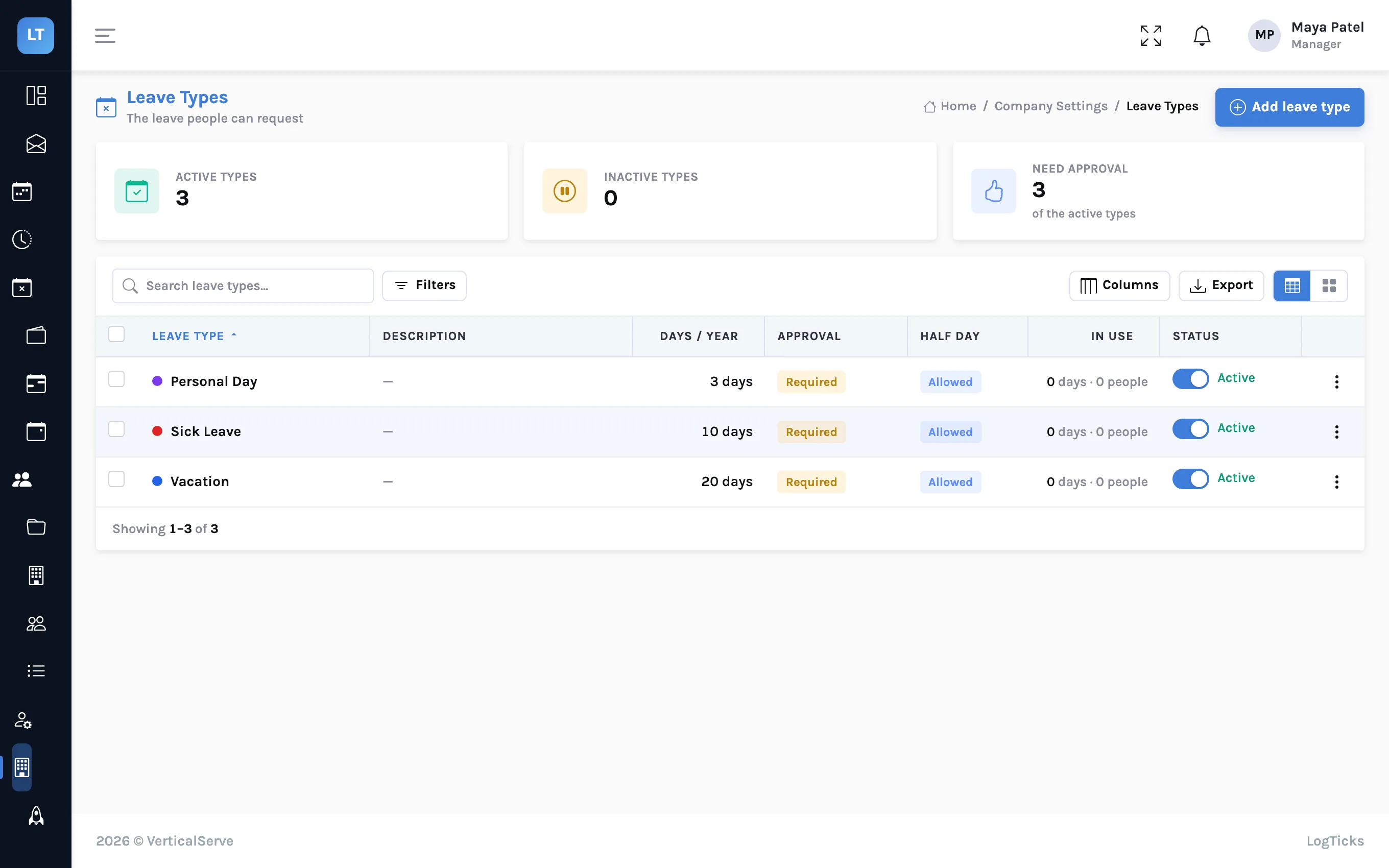
Create leave types with an allowance and booking rules. When someone requests leave, the rules of that type are applied to the request.
- Notice period, how far ahead, longest stretch, half days, reason required, negative balance allowed or not
- Weekends and company or national holidays can be left out of the count, per leave type
- Overlapping requests are refused; a type that needs no approval is approved on submit
- "Documents expected" is a reminder to the person; it does not hold the request
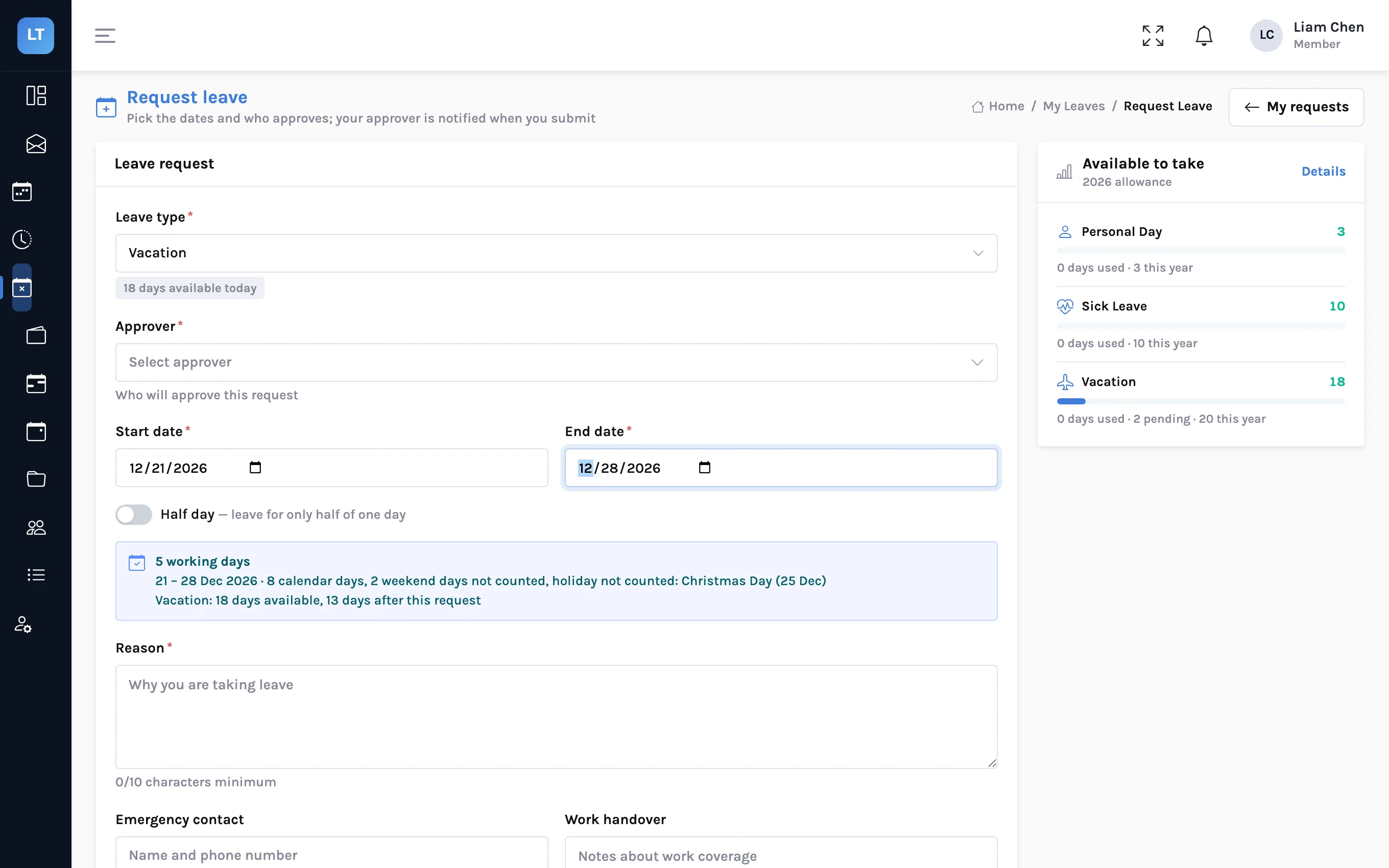
The form counts the working days
People pick a leave type, an approver and dates. Before they submit, the form shows how many working days the request uses and what is left afterwards.
- Half-day requests count as 0.5
- Edit or withdraw a request while it is pending
- Managers approve or reject from one queue, singly or all at once
- Team calendar by month, with export
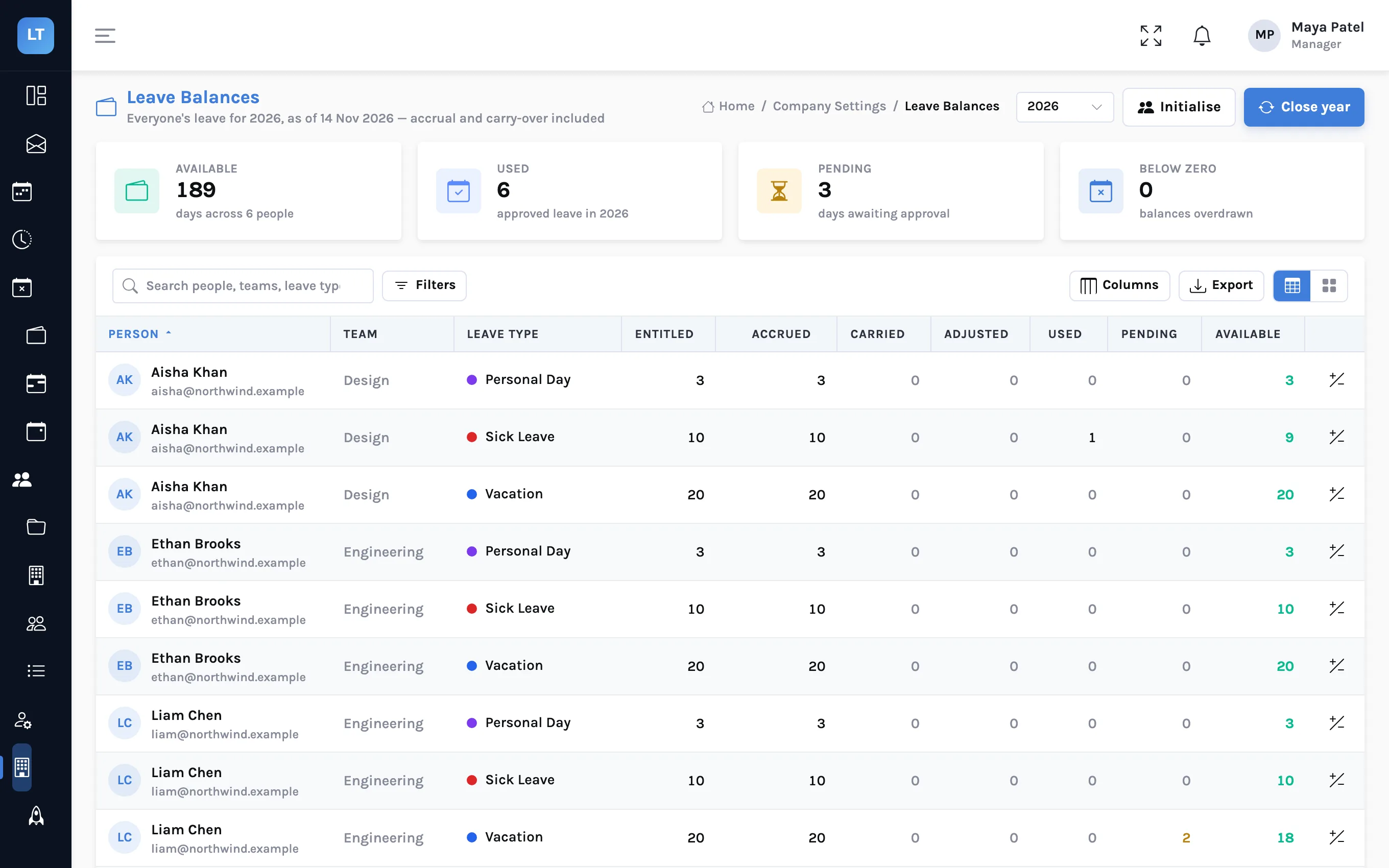
Accrual, carry-over and a year-end close
A leave type either grants the year's days on 1 January or accrues a rate for each completed month, up to the yearly maximum. Managers see every person's balance in one table.
- Entitled, accrued to date, carried over, adjustments, used, pending and available, per person and leave type
- Adjust a balance with a required reason, kept in a history
- "Close year" previews what carries over and what is forfeited by each type's limit, and is safe to run again
- No pro-rating by hire date; days only, not hours; weekends are Saturday and Sunday
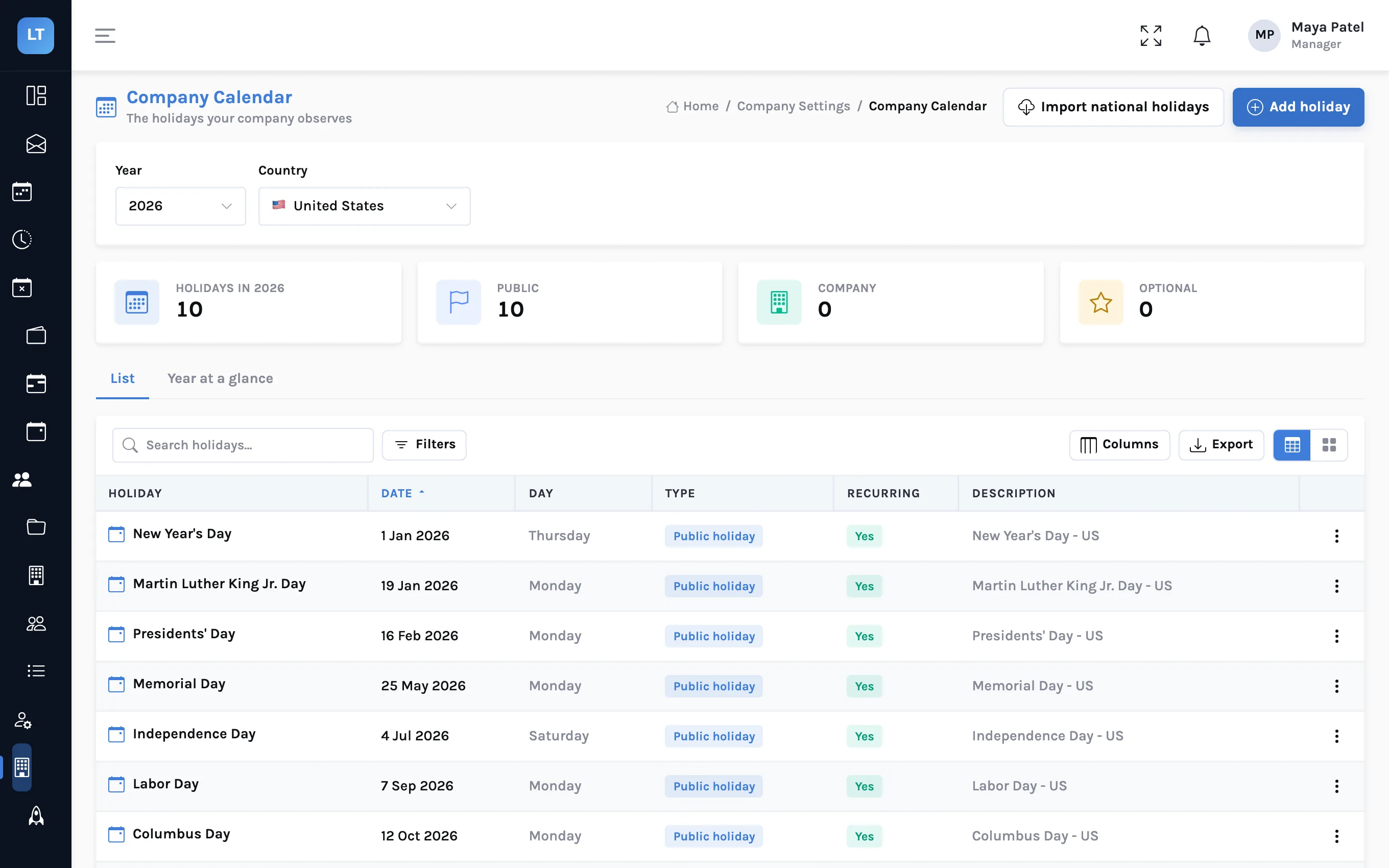
Public holidays by country, plus your own
Import public holidays for a country and year, then add company days. Each person's country decides which public holidays apply to them.
- Import for the United States, Canada, the United Kingdom, Germany, France, India, Japan and Australia
- Public, company and optional holiday types; recurring or one-off
- Holidays appear on each person's calendar and are left out of leave counts
- The imported lists are a starting point: review them each year, especially holidays whose date moves
Expenses
What people spent for work, from the receipt to the client's invoice.
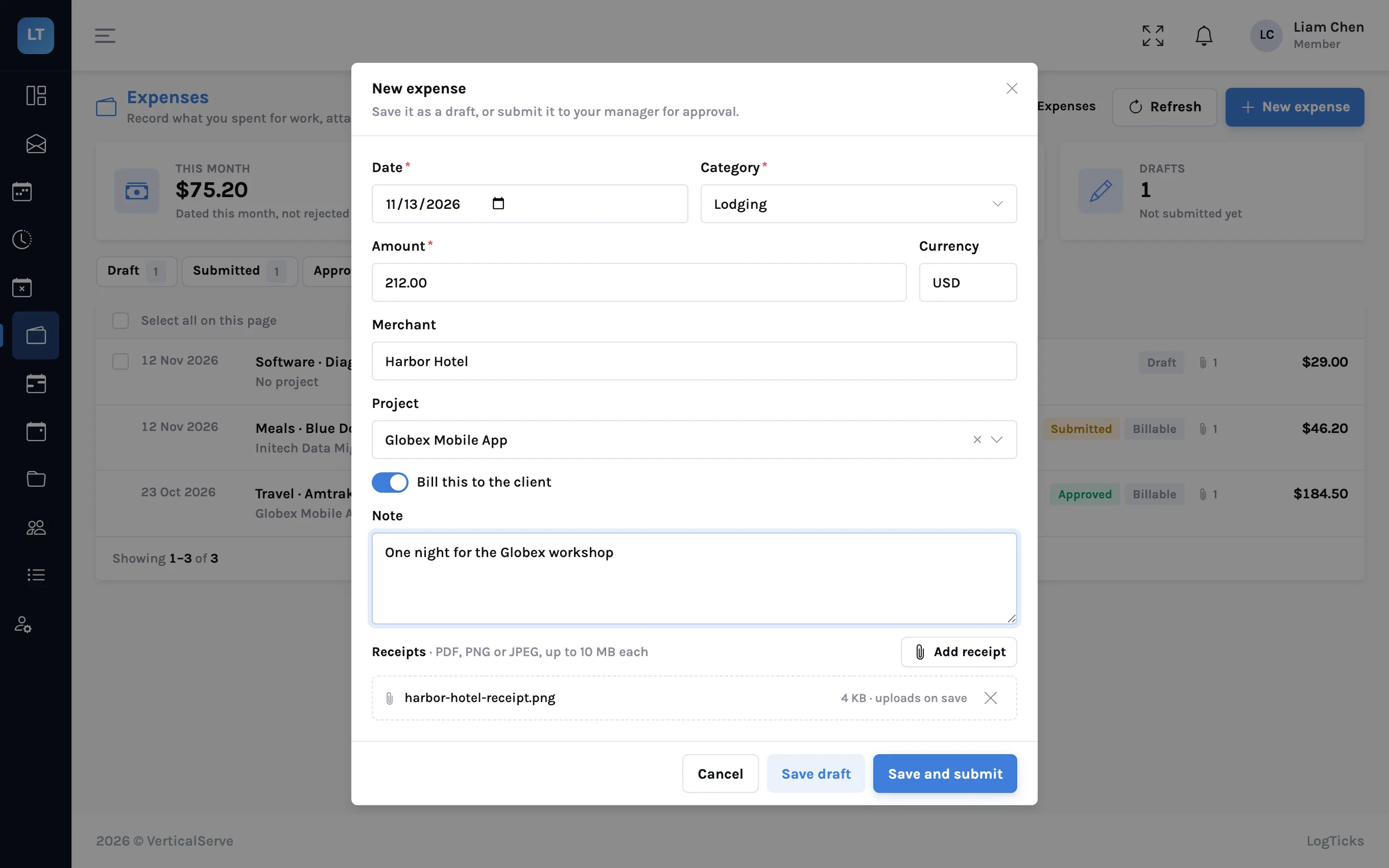
An expense with its receipt
Staff record the date, amount, category, merchant and project, mark it billable if the client pays, attach the receipt as an image or PDF, and submit it.
- Save as a draft or submit for approval
- Per-unit categories, such as mileage at a rate per mile
- Receipts are PDF, PNG or JPEG, up to 10 MB each
- No receipt scanning: you type the amount. No currency conversion
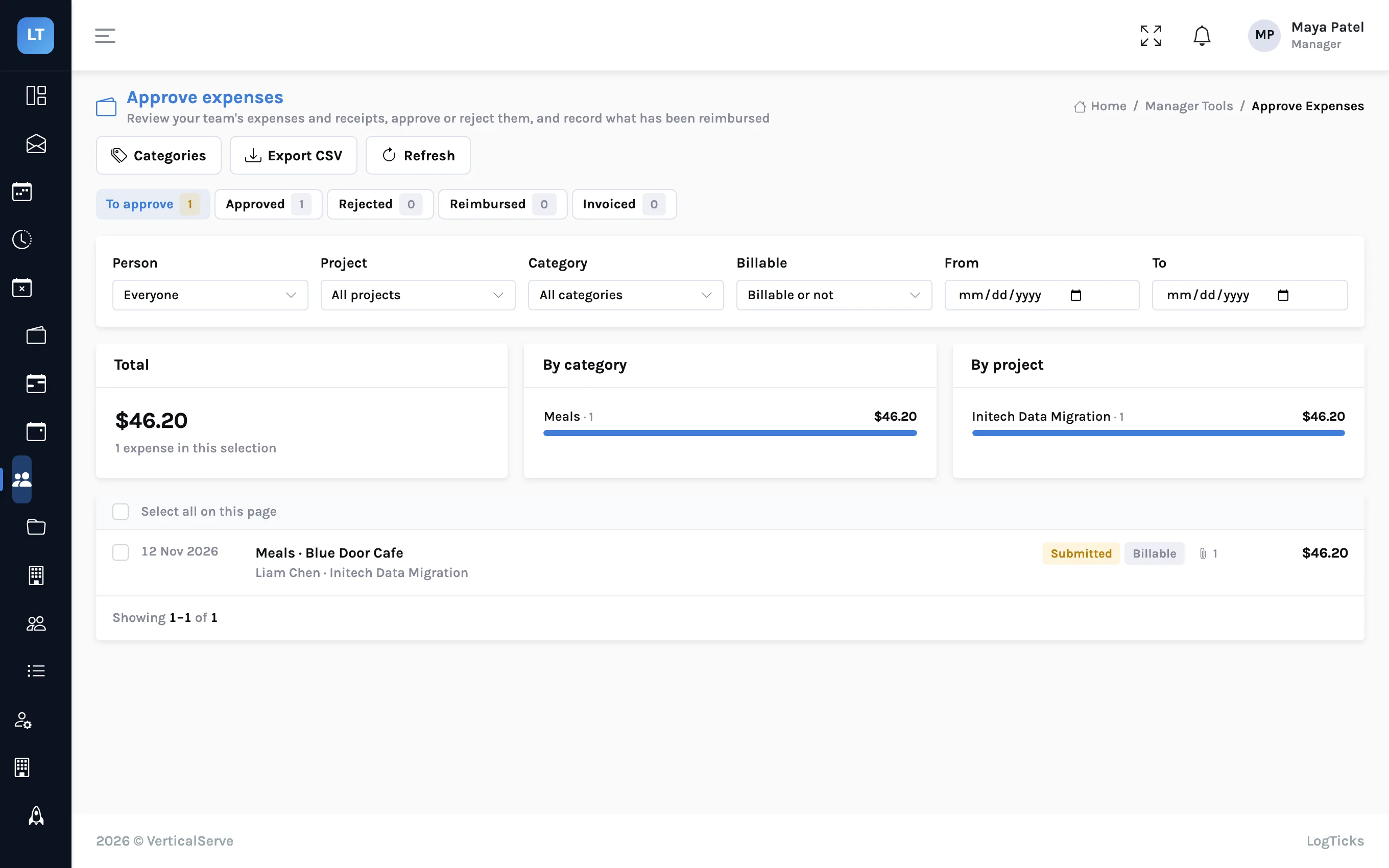
Approve, reject, mark reimbursed
Managers review expenses and receipts, approve or reject with a reason, one at a time or in bulk, and record what has been paid back.
- Filter by person, project, category, billable and date
- Totals by category and by project for the selection; export to CSV
- Approved billable expenses on a client's projects appear on that client's invoice as their own group, and are never billed twice
- LogTicks does not pay reimbursements, read card feeds, add a markup or send e-mail about expenses
Projects, invoicing and reporting
Where the hours go, what they are worth, and how they are billed.
Clients, rates, budgets and people
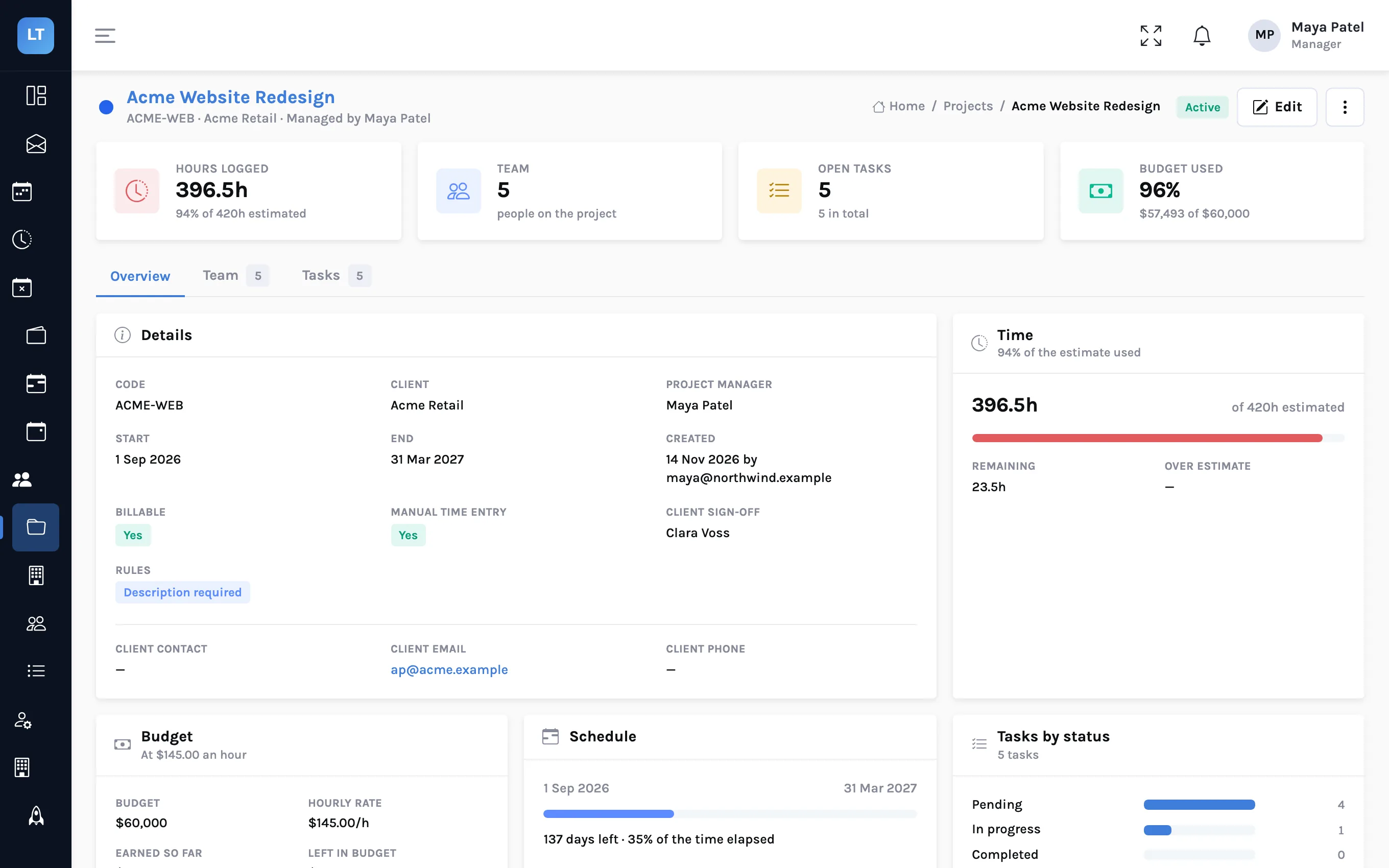
A project has a client, a manager, dates, an hourly rate, a budget and an estimate in hours. Add people, and give a person their own rate if it differs.
- Hours against the estimate and budget used on every project
- Billable or internal; an optional client approver for sign-off
- A project can require a task on every entry
- Teams group people across projects
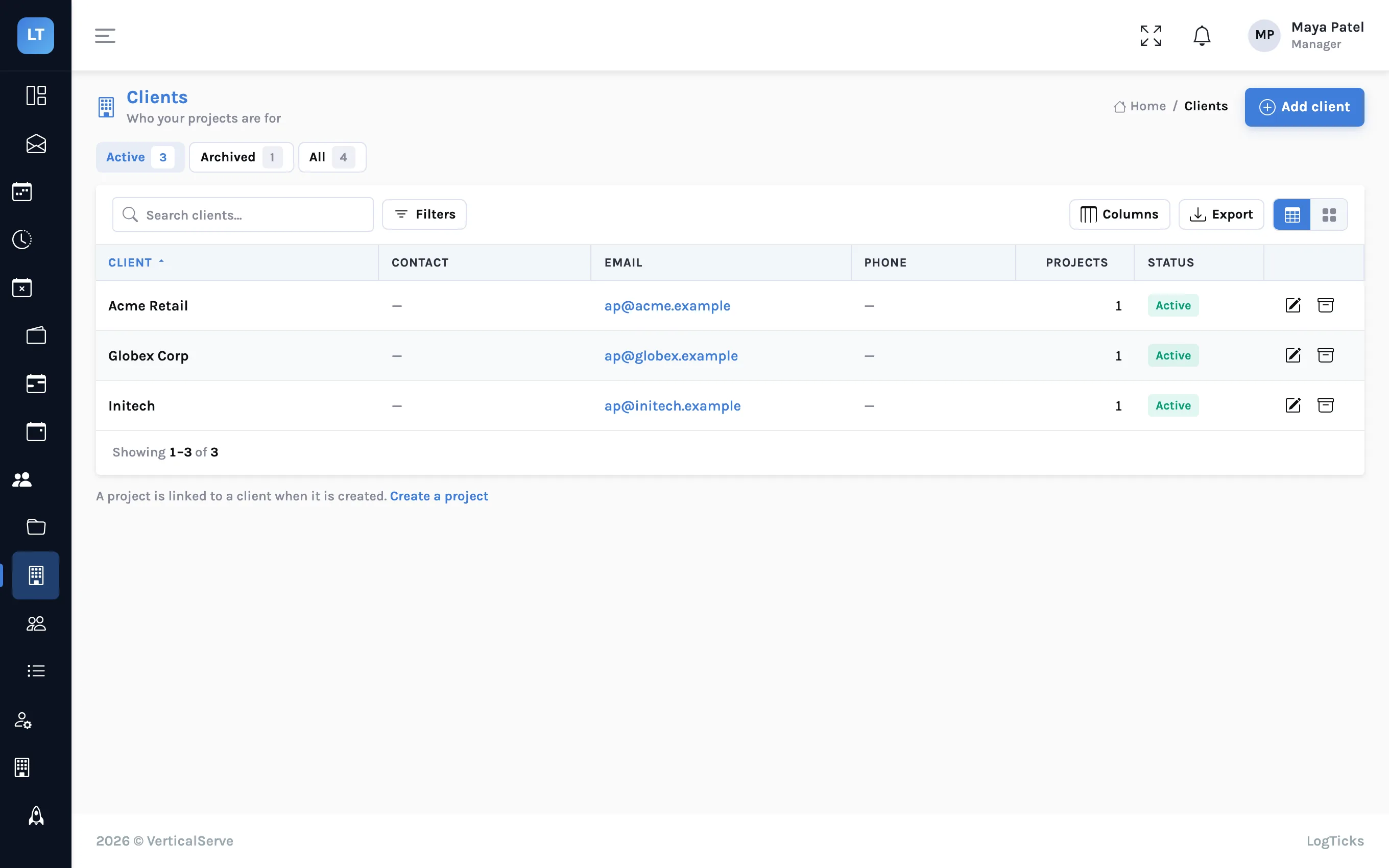
One list of who the work is for
The Clients page lists each client with a contact, email, phone and how many projects they have. A project is linked to its client when it is created, and invoices are raised per client.
- Add and edit clients
- Archive a client you no longer work for, and restore it later
- Search, filter and export the list
Tasks you can log time against
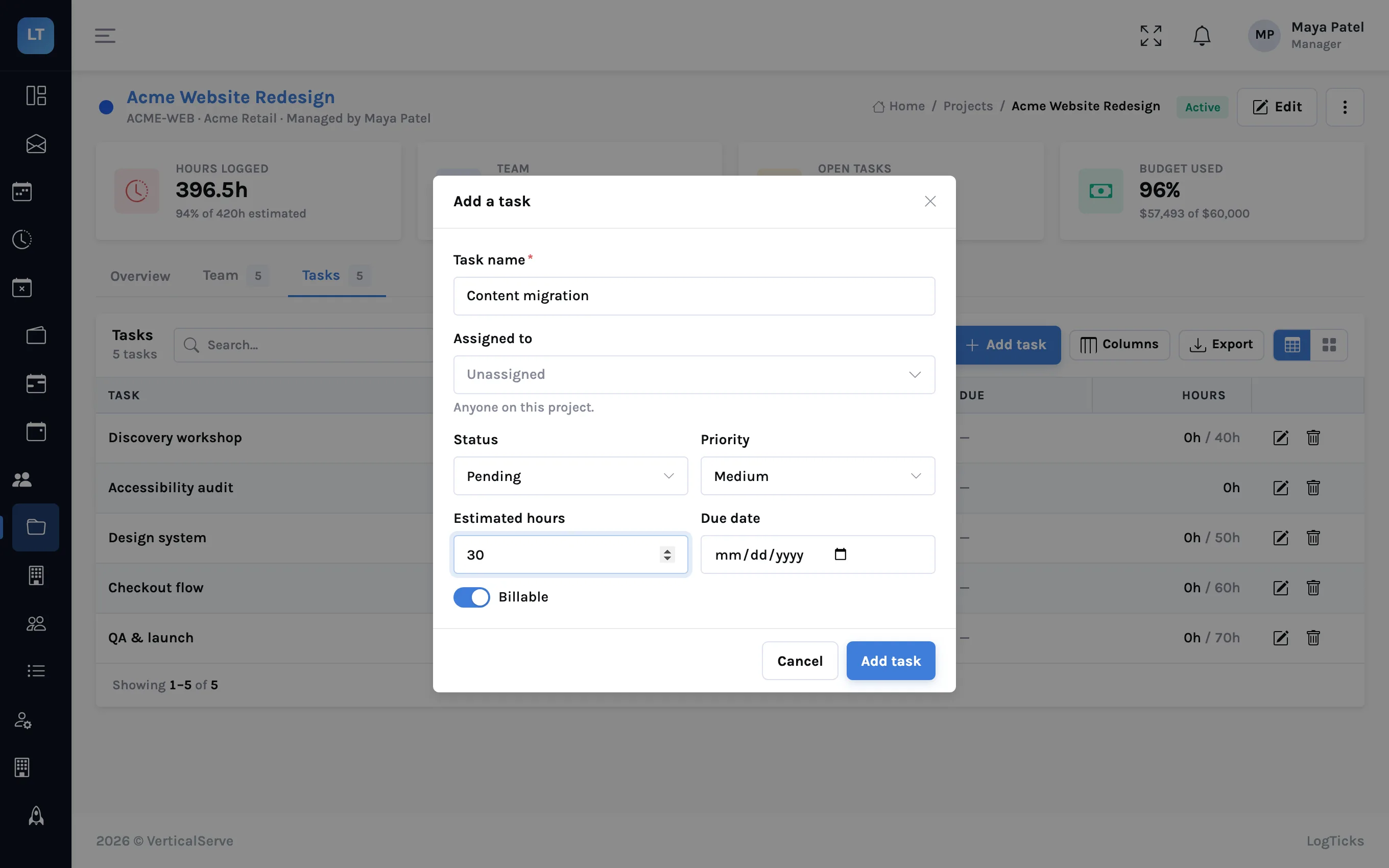
On a project's Tasks tab, add tasks with a name, an assignee from the project team, a status, a priority, an estimate in hours and a due date. Then pick the task in the timer, in Quick entry or in the week grid's day editor.
- Hours logged per task, against its estimate
- A task can carry its own billing rate, or be non-billable
- Filter, sort and export the list
Guide: timing work across devices, and logging it against tasks
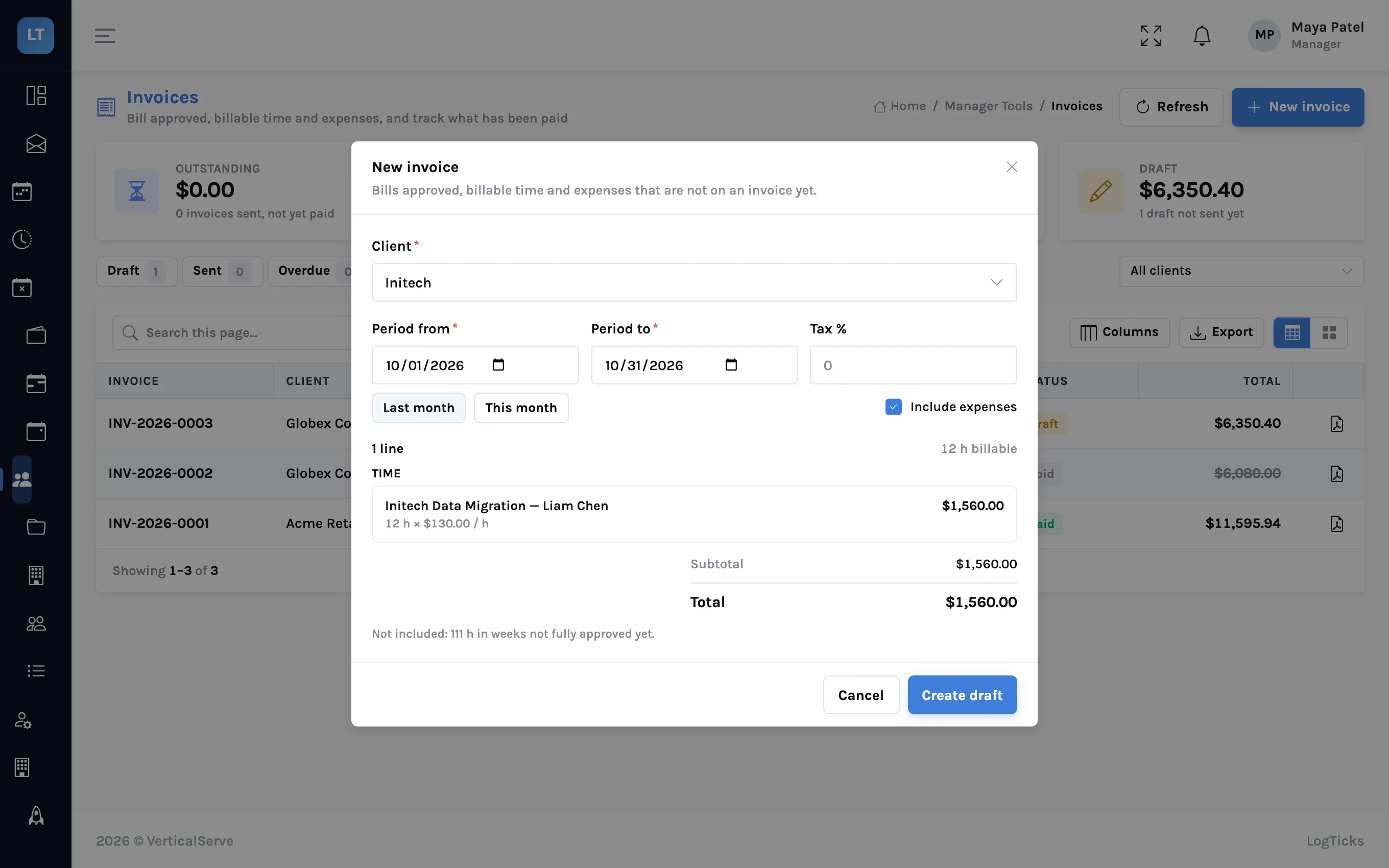
From approved hours to an invoice
Choose a client and a period. The preview lists what can be billed: time that is billable, on that client's projects, in weeks whose timesheets are fully approved, and not already on an invoice.
- One line per project and person, at the person's rate on the project or else the project rate; time with no rate is flagged "needs a rate" and left off
- Approved billable expenses in the period are listed as their own group, at cost
- Edit a draft: dates, notes, one tax percentage, and manual lines, negative for a discount
- Numbered per company (INV-2026-0001), with PDF and CSV download
- Mark sent, then mark paid; voiding an invoice releases its time to be invoiced again
- Not included: emailing the invoice, online payment, accounting sync, partial payments or credit notes. Managers only
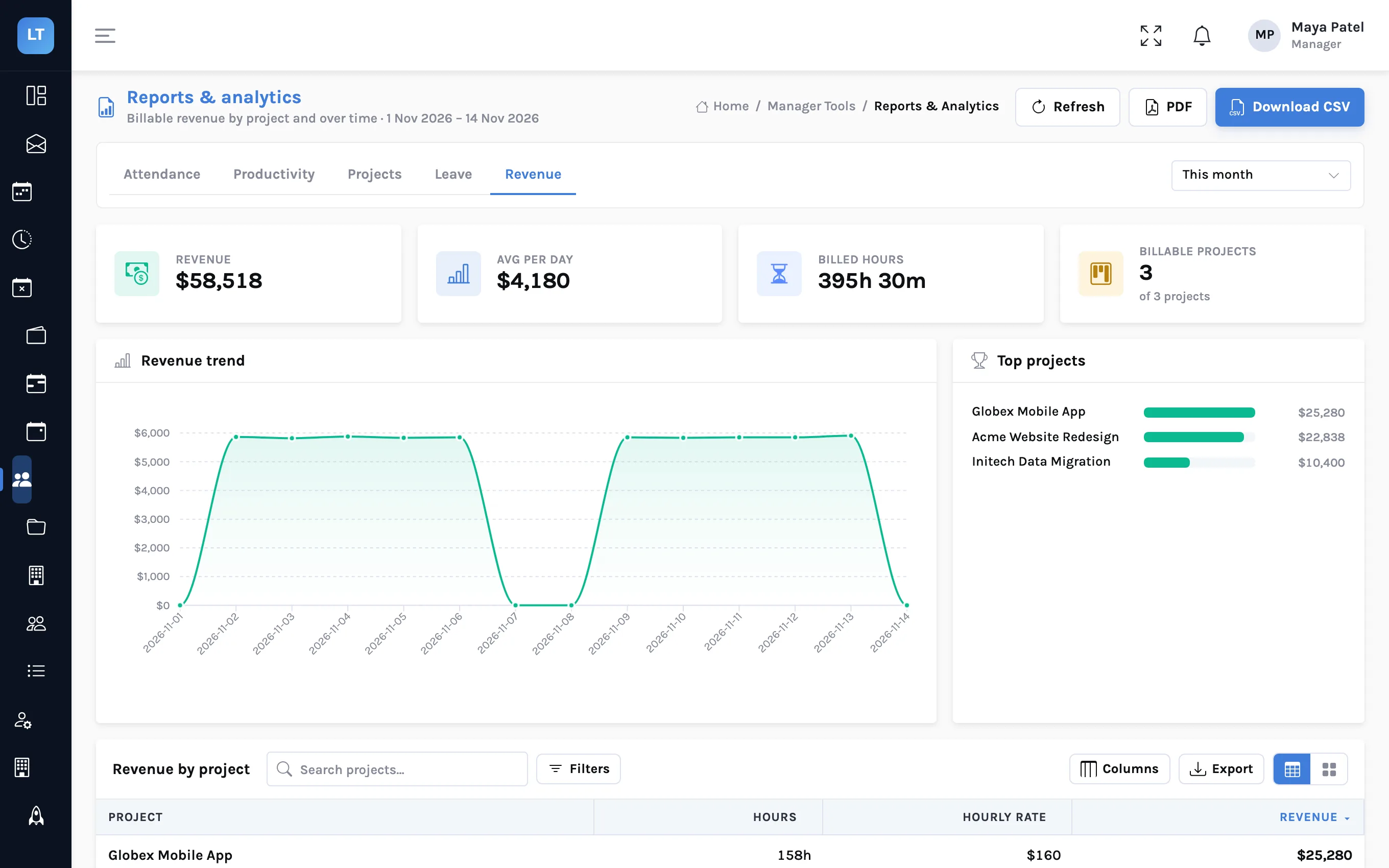
Attendance, productivity, projects, leave, revenue
Five report tabs over a period you choose: last 7 or 30 days, this or last month, this quarter, or a custom range. Each exports to CSV and PDF.
- Revenue by project: billable hours worked in the period, at the rate they are billed at, in US dollars
- Reports group and filter by team
- Revenue counts all billable time in the period, approved or not; an invoice counts only approved weeks
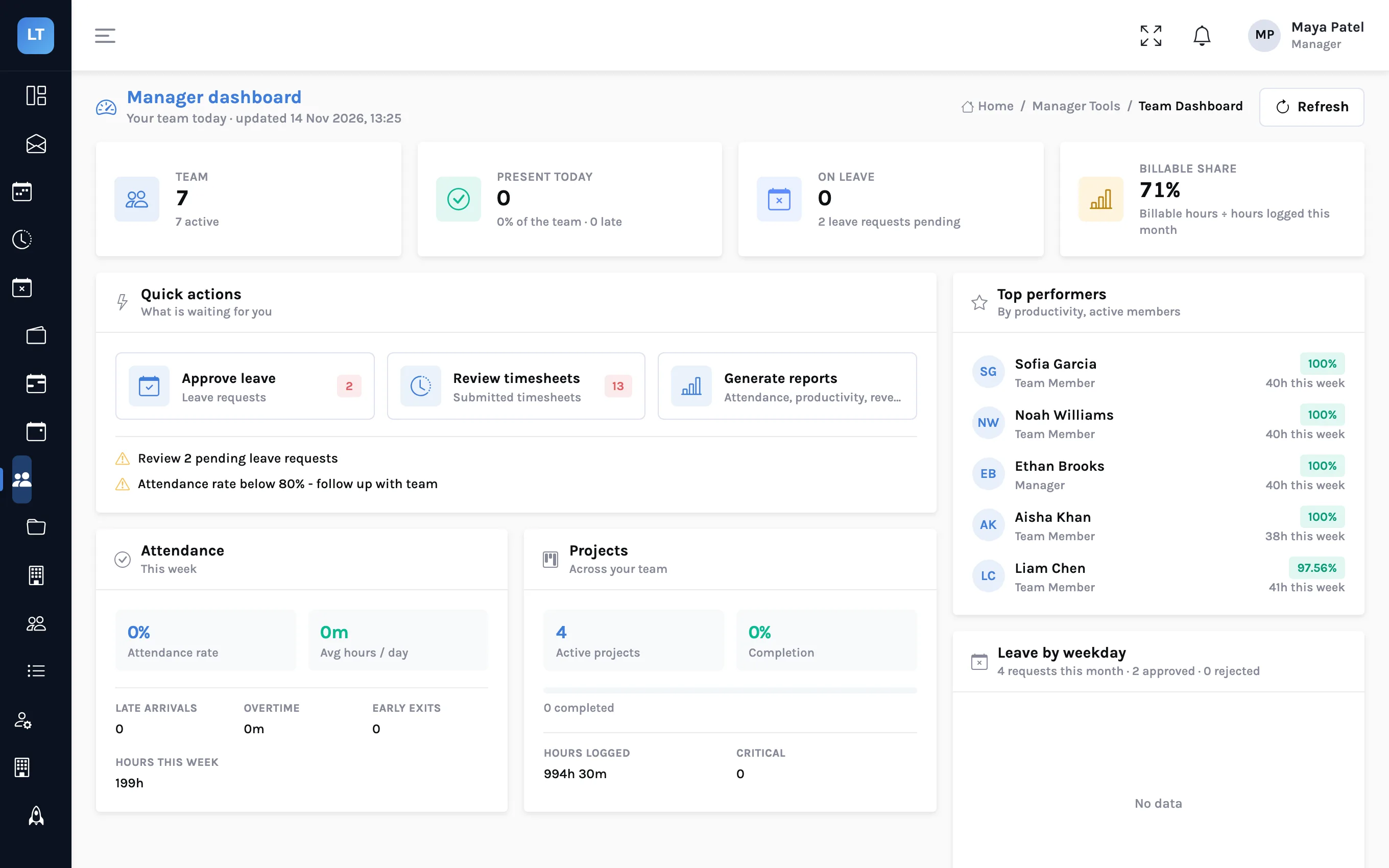
The team's week on one page
Team size, who is present and on leave, what is waiting for you, attendance and project figures for the week, and leave by weekday.
- Quick links to approve leave and review timesheets, with counts
- Alerts for pending requests, and from project rules that alert the manager
- A team overview table
API, webhooks and reminders
For the script, the spreadsheet and the other system you already run.
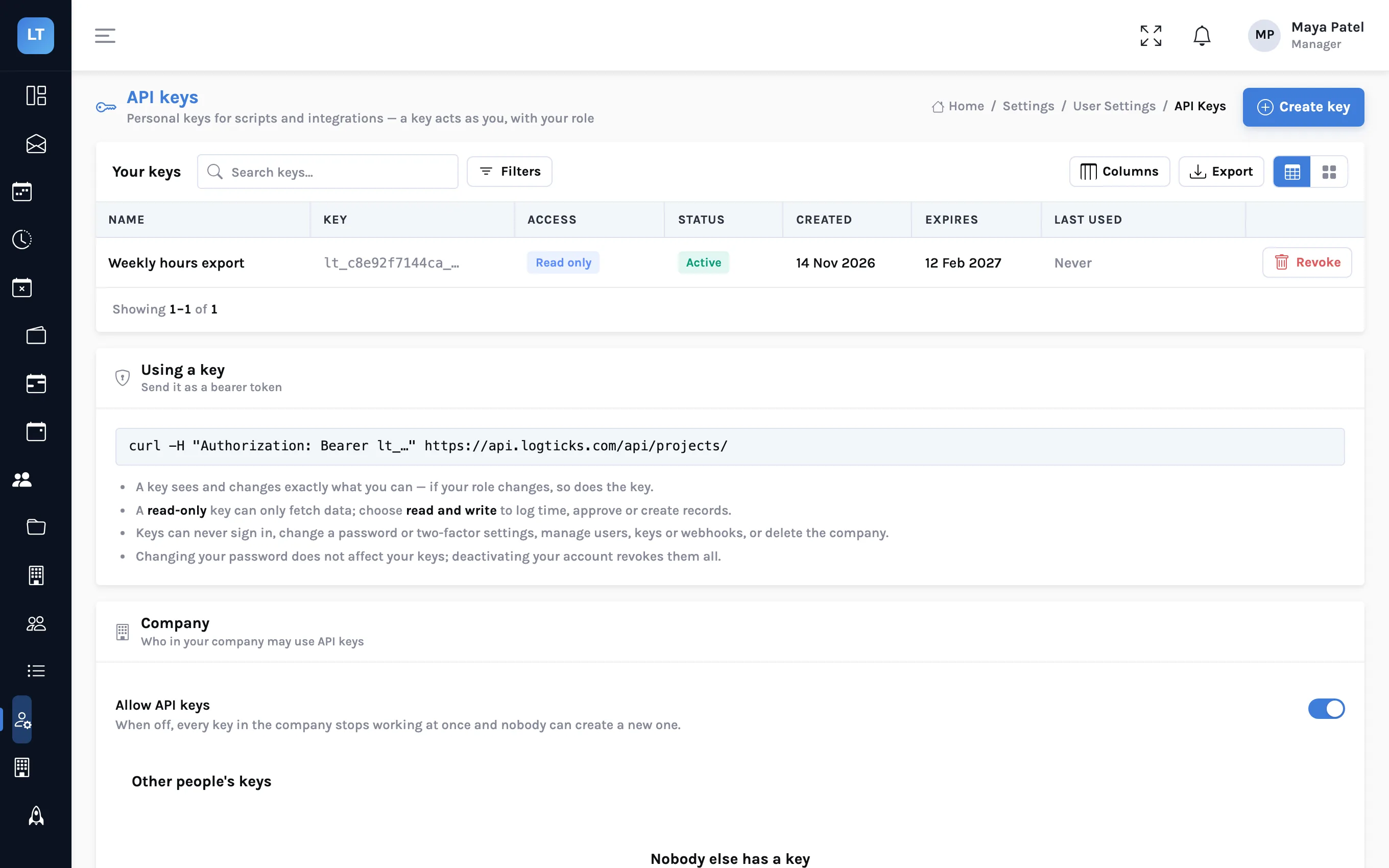
A personal key for scripts
Create a key under Settings, API Keys, and send it as a bearer token. A key acts as its owner: it sees and changes exactly what that person can.
- Read only, or read and write; an optional expiry
- Shown once when created; revocable at any time
- Account-security and administration endpoints are closed to keys
- A company can switch API keys off for everyone
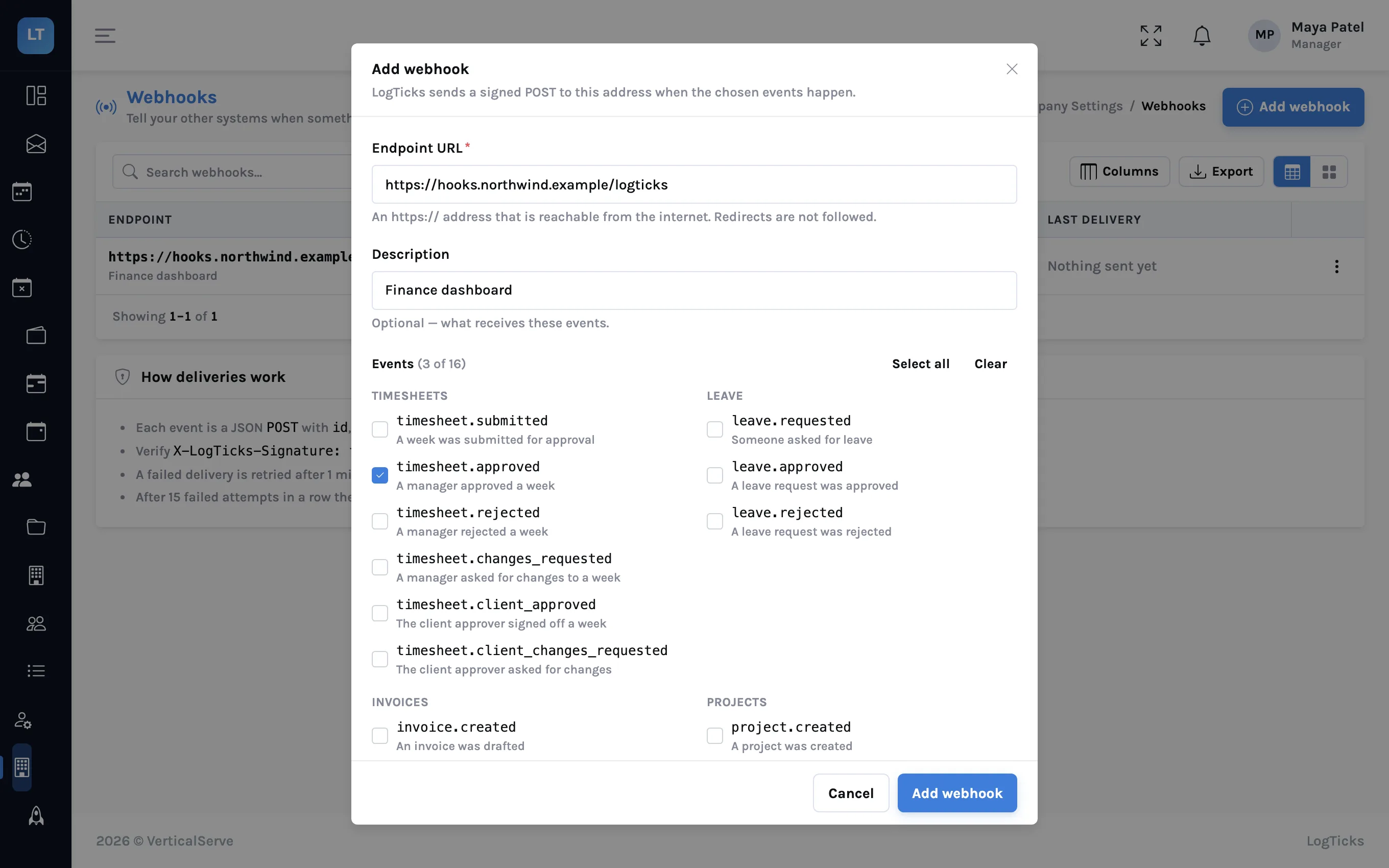
Be told when something changes
A manager registers an HTTPS endpoint and chooses events. LogTicks sends a signed POST when a timesheet, a leave request, an invoice, a project, a user or a daily status changes.
- 16 events across timesheets, leave, invoices, projects, people and daily status
- Signed with HMAC-SHA256 in the
X-LogTicks-Signatureheader - Retried after 1 minute, 5 minutes, 30 minutes and 2 hours
- A delivery log with redeliver and a test event; an endpoint that keeps failing is switched off
- No ready-made Slack, Microsoft Teams or Zapier connectors
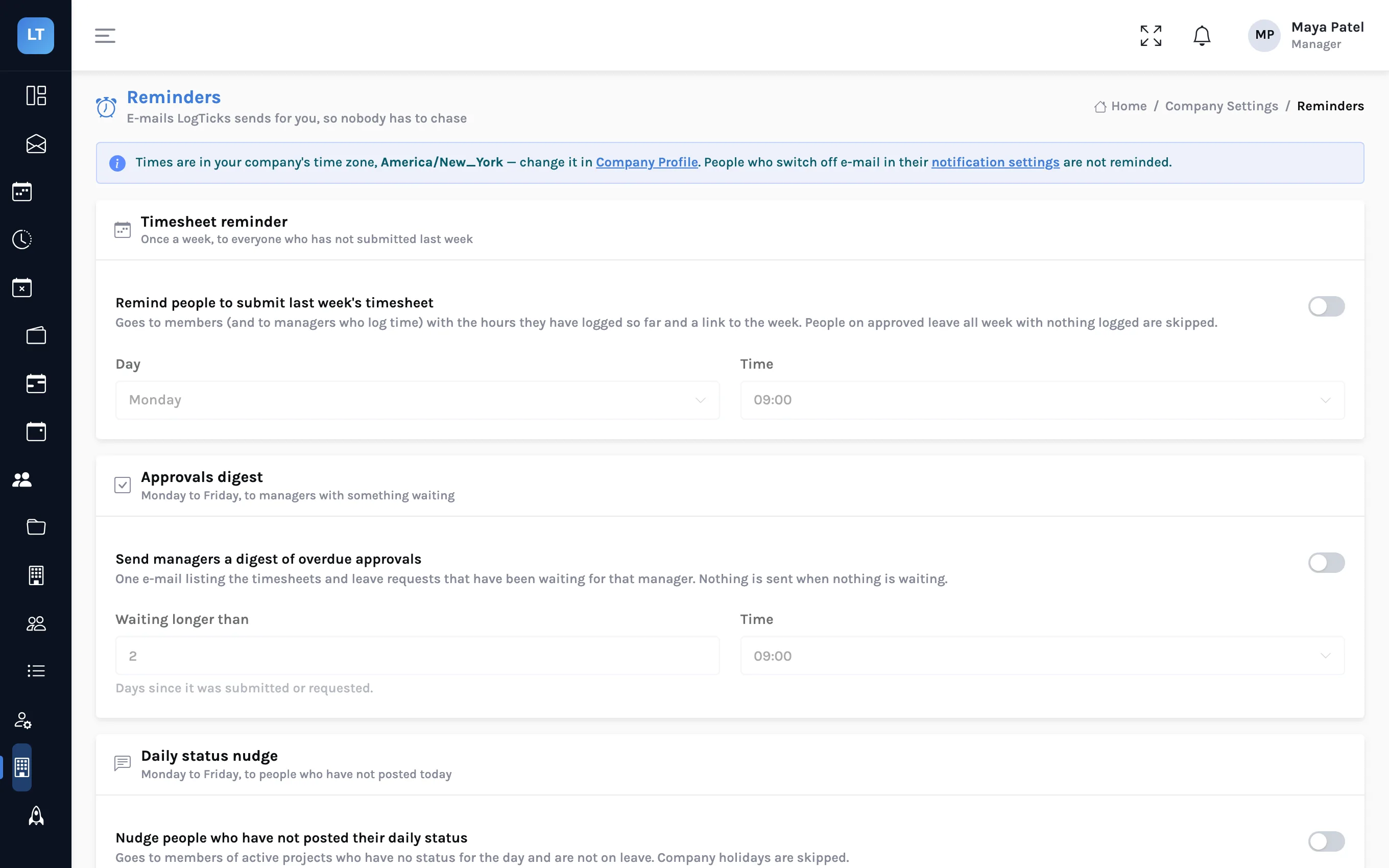
E-mails LogTicks can send, so nobody has to chase
Three reminders, each off until a manager switches it on under Company Settings, Reminders.
- A weekly e-mail to everyone who has not submitted last week's timesheet
- A digest to managers of approvals that have waited more than a number of days
- An optional nudge to people who have not posted their daily status
- People who switch off e-mail in their notification settings are not reminded
Installable app
The console installs from the browser to a phone home screen or a desktop.
One tap from the browser
LogTicks is a progressive web app. Install it from your browser's menu and it opens in its own window, with its own icon, on a phone or a desktop.
- The timesheet, status, leave and approval screens have a phone layout
- Offline it opens to its shell with a clear "you're offline" banner
- Quick entry queues time entered offline and syncs it when you reconnect; a conflict is held for you to resolve
- It is not an app-store app. Offline you cannot read data, run a timer, submit or approve; only Quick entry queues
Admin and security
Who can see what, and how people get in.
Roles
Manager or owner, member and client approver, each with its own menu. A member sees their own time, leave and teams. A client approver sees only their approvals.
Companies kept apart
Every record belongs to a company, and the API checks the caller's company before it answers.
Sign-in
Email and password, or "Continue with Google". Password reset is by an emailed link that expires.
Two-factor sign-in
Codes from an authenticator app, with 10 single-use recovery codes. A company can require it for managers and admins, or for everyone.
Audit log
Sign-ins, security changes, role changes, approvals, invoice status, share links, exports and API keys, with filters and CSV export.
Limits
No SMS codes or passkeys, and no sign-in through a company identity provider.
The full list, including what LogTicks does not have, is on the security page. Guide: two-factor sign-in and an audit log for a small team.
Run next week's timesheets in LogTicks
The Free plan covers up to 5 users. Create a company, add a project, and log the first week.