Month end at an agency is a reconciliation exercise. Somebody exports hours, somebody else checks which of them the client has agreed to, a third person looks up the rates, and the invoice is typed into a template. Each hand-off is a place for last month's hours to be billed twice or this month's to be missed.
LogTicks removes the hand-offs by drafting the invoice from the same records the approvals were made on. The rule it applies is strict, and it is the reason to use it: only time that is billable, on that client's projects, in a week whose timesheet is fully approved, and not already on an invoice. This article closes a month for one client, step by step.
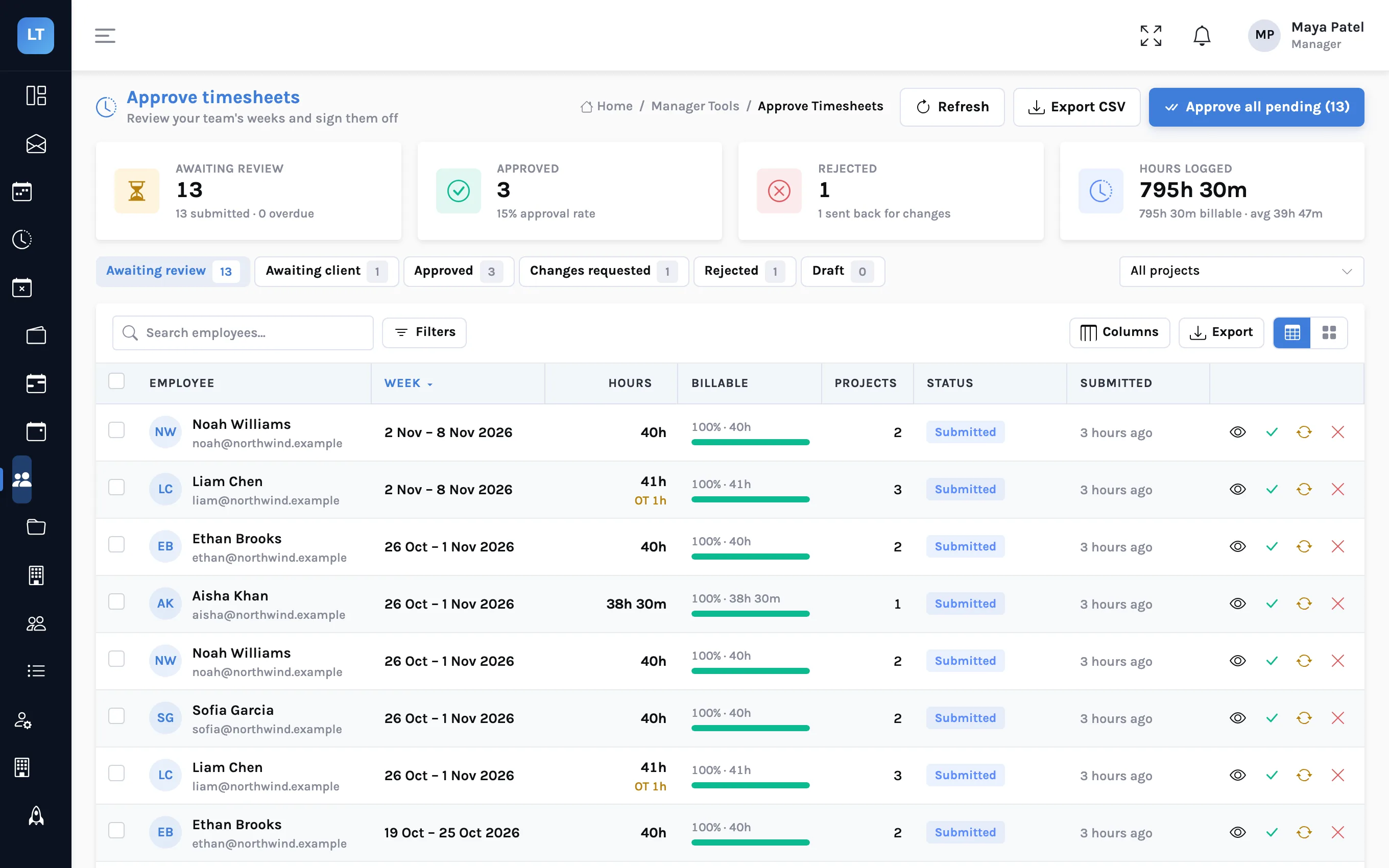
Step 1: get the weeks approved
An invoice can only contain approved weeks, so start in Approve Timesheets. Clear the Awaiting review filter for the people on the client's projects, and look at Awaiting client if the project has a client approver: a week that the client has not signed off is not fully approved.
Step 2: start the invoice
- Open Manager Tools, Invoices, and press New invoice.
- Choose the Client.
- Set Period from and Period to, or press Last month or This month.
- Enter a Tax % if you charge one. It applies to the whole invoice.
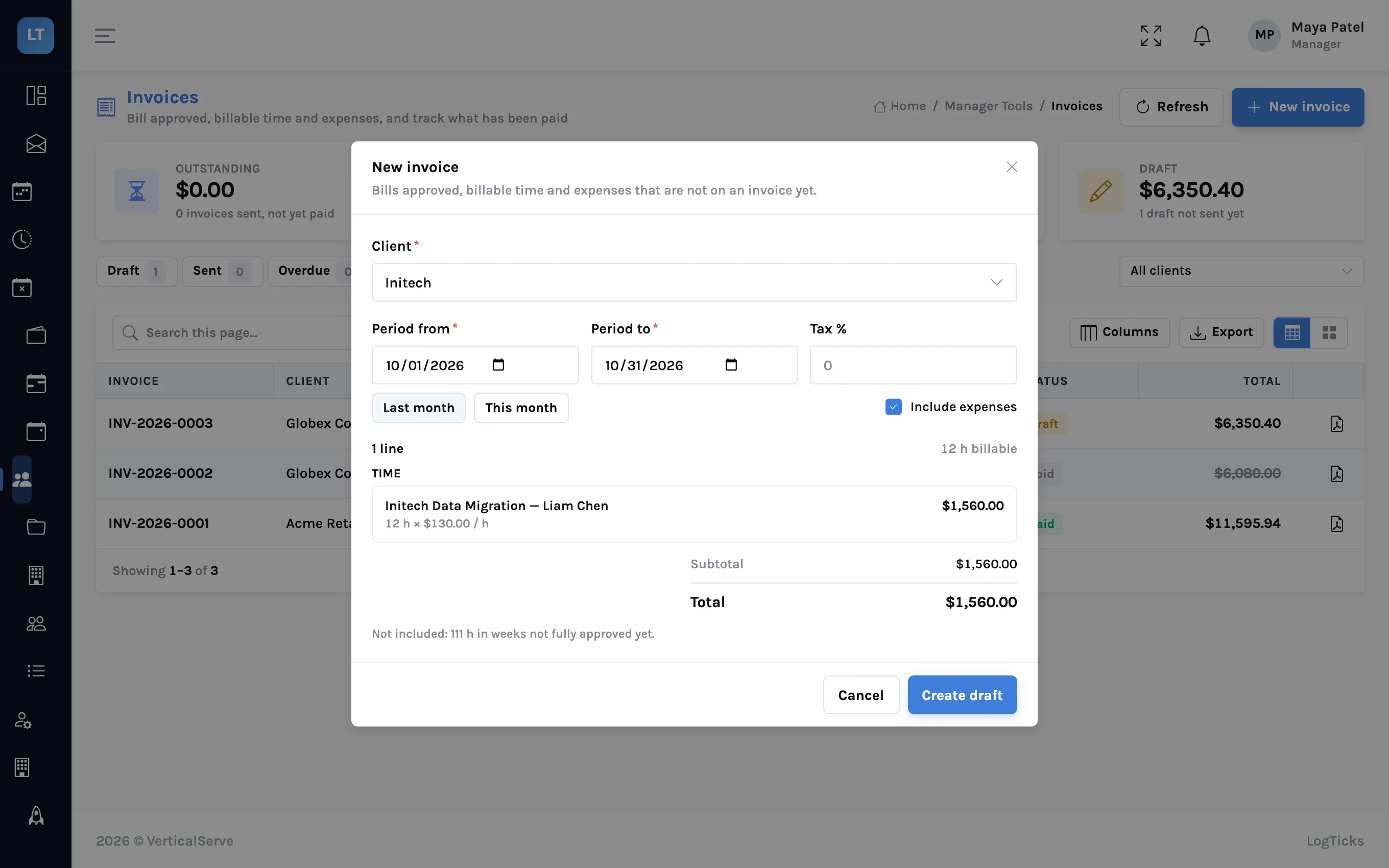
The preview appears as soon as a client and period are chosen, and changes as you change them. Nothing exists yet.
Step 3: read the preview
The preview has three parts, and each one answers a question you would otherwise have to check by hand.
| In the preview | What it means | What to do |
|---|---|---|
| Lines | One per project and person: hours, rate and amount | Check the people and hours are who and what you expect |
| "needs a rate" | Time with no rate on the person or the project. It is flagged and left off | Set the project's hourly rate, or the person's rate on the project's Team tab, then preview again |
| Not included: hours in weeks not fully approved | Billable time in the period that cannot be billed yet | Approve those weeks, or accept that they go on next month's invoice |
| Already on an invoice | Time in the period that a live invoice already covers | Nothing. It will never be offered twice |
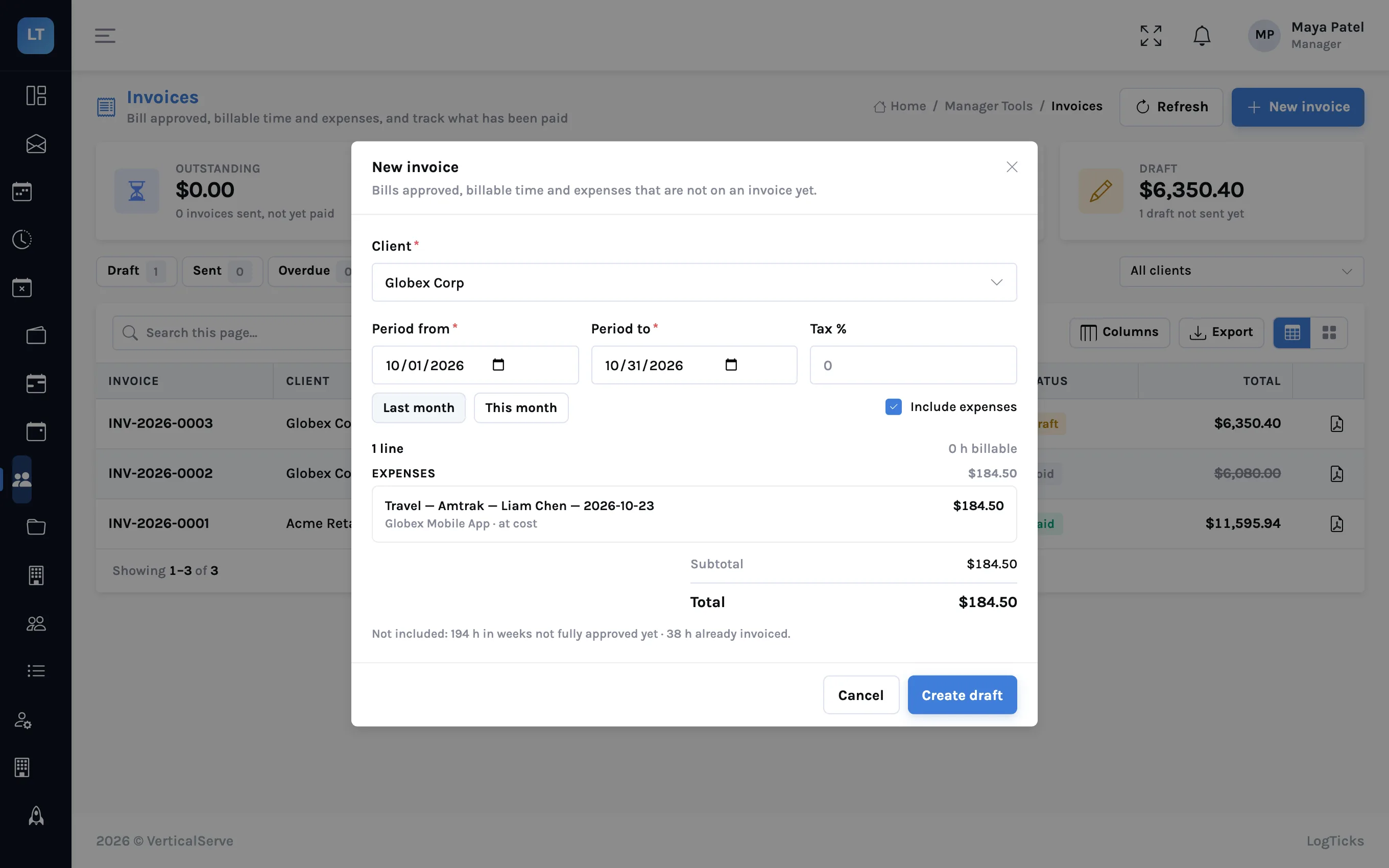
| Expenses | Approved, billable expenses on the client's projects in the period | Untick Include expenses to bill time only |
Expenses on the same invoice
If people have recorded expenses that the client pays, they come along. With Include expenses ticked, the preview adds an Expenses group under the time lines: each approved, billable expense on that client's projects, dated in the period, with its category, merchant, person and date. Expenses are billed at cost, and one that is on an invoice is never offered again. An expense still waiting for approval is listed under "not included", like unapproved time.
Which rate is used
For each person, the rate is their own rate on the project if they have one, and the project's hourly rate otherwise. So a senior added to the project at a higher rate is billed at it without anyone remembering to.
"Nothing to invoice"
If the preview says there is no approved, billable, un-invoiced time for the client in the period, read the sentence under it. It says how many hours are waiting in unapproved weeks and how many are already invoiced, which tells you whether the answer is "approve more" or "this is already billed".
Step 4: create the draft and adjust it
Press Create draft. The invoice gets the next number for your company, in the form INV-2026-0003, and opens as a draft.
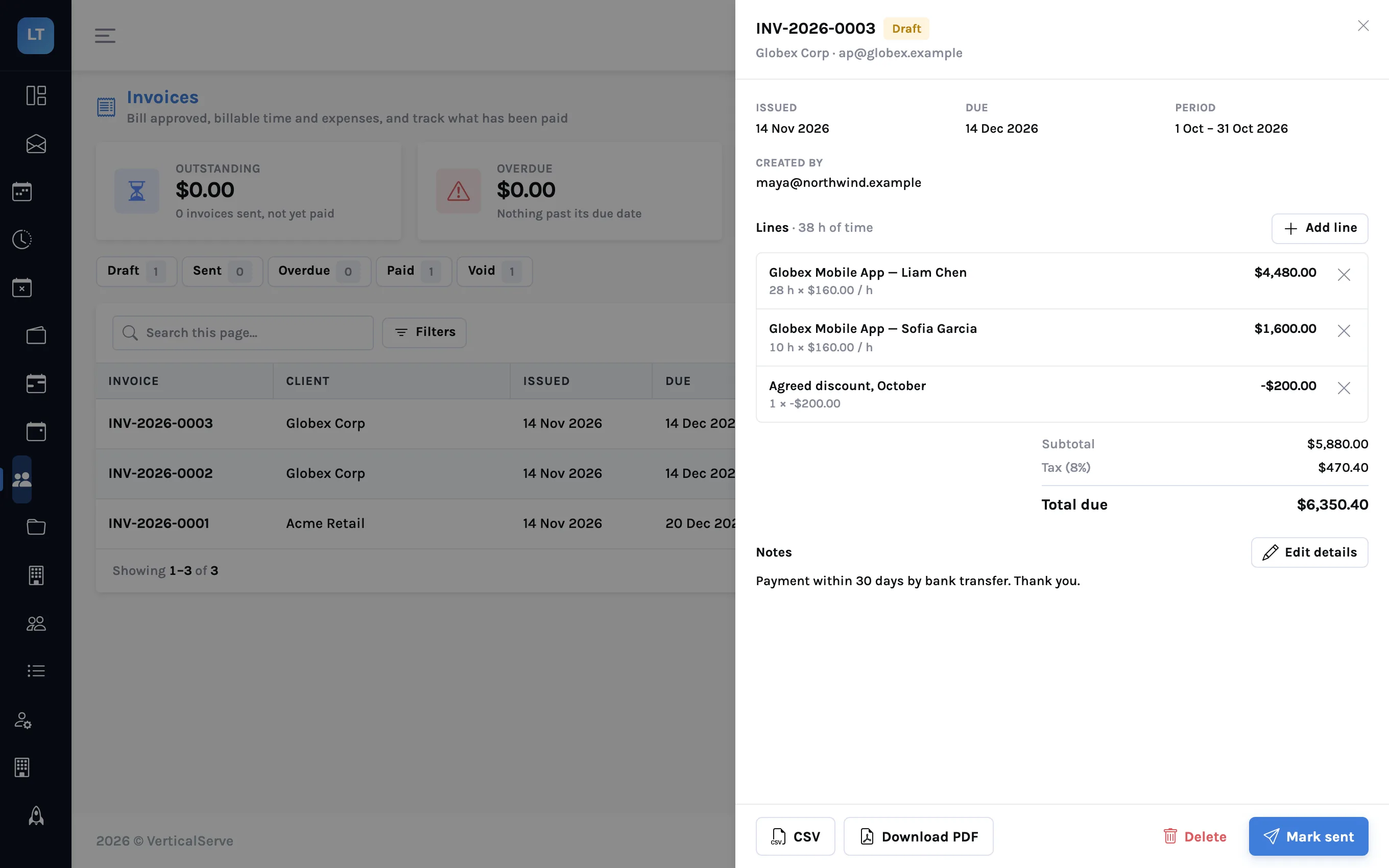
While it is a draft you can change it:
- Edit details: the issue date, the due date, the tax percentage, and notes. Notes are printed on the PDF, so this is where payment terms and bank details go.
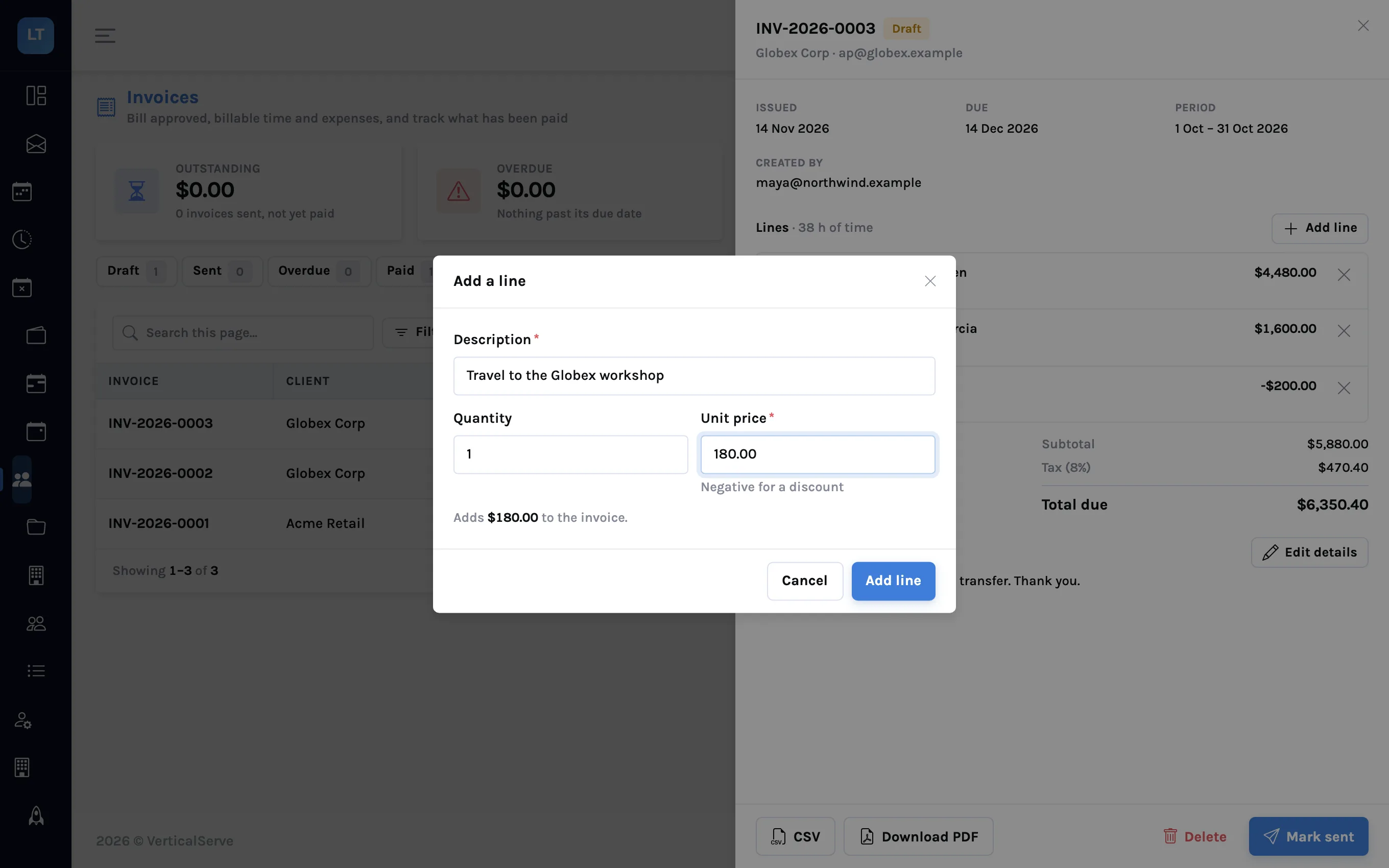
- Add line: a description, a quantity and a unit price, for anything that is not time, such as travel, licences or a fixed fee.
- A discount is a line with a negative unit price.
- Remove a line with the cross beside it. Removed time goes back to being un-invoiced.
- Delete the draft entirely if you started it by mistake.
Step 5: send it and track it
- Press Download PDF (or CSV for a spreadsheet or an import into your accounting tool).
- Email the PDF to the client yourself.
- Press Mark sent. The invoice moves from Draft to Sent and counts as outstanding.
- When the money arrives, open the invoice and press Mark paid.
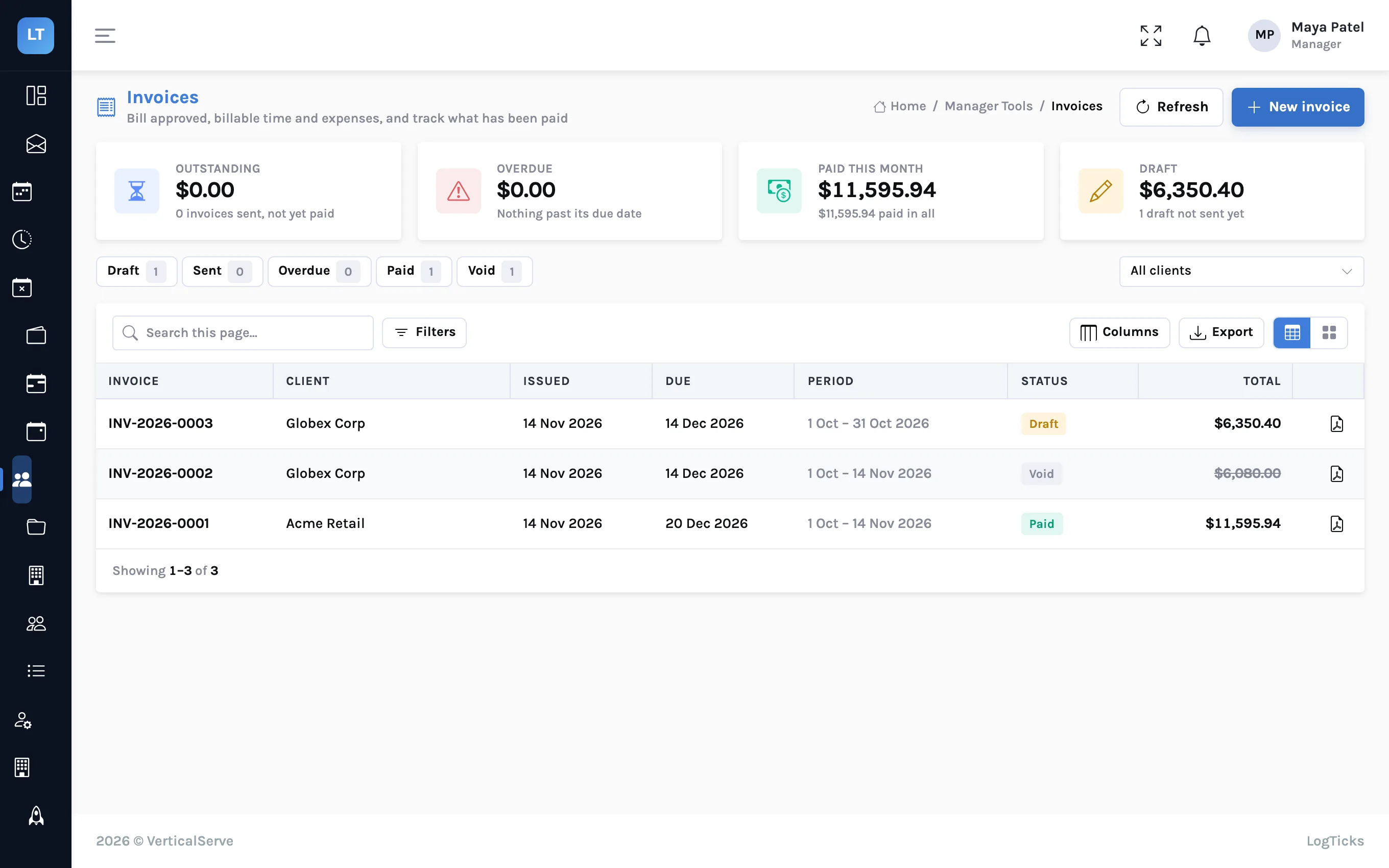
A sent invoice that passes its due date shows under Overdue. The list filters by status and by client, and exports.
If the invoice is wrong: void and re-issue
A sent invoice is not edited. If it is wrong, Void it. Voiding keeps the invoice and its number on the list, marked Void, and releases its time, so those hours can be invoiced again. Then fix the cause, usually a timesheet or a rate, and create a new invoice for the same client and period. It gets a new number.
A month-end checklist
- Every week in the period is approved, including by the client where the project needs it
- No "needs a rate" in the preview
- The "not included" hours and expenses are ones you mean to leave for next month
- Tax, discount and notes are on the draft before it is marked sent
- The PDF has actually been emailed before you press Mark sent
What it doesn't do (yet)
- It does not email the invoice. "Mark sent" only changes the status. You send the PDF yourself.
- No online payment. A client cannot pay from the invoice. "Mark paid" is a manual mark, and it is for the invoice in full.
- No partial payments and no credit notes. A wrong invoice is voided and re-issued.
- No accounting sync. Nothing is pushed to QuickBooks, Xero or any other ledger. Use the CSV.
- One currency label. Amounts are shown in US dollars. There is no conversion and no per-client currency.
- One tax percentage per invoice, applied to the whole of it.
- One line per project and person. There is no breakdown by task or by day on the invoice.
- Expenses at cost. There is no markup on a billed expense, and no currency conversion.
- Managers only. Members and client approvers do not see invoices.
Bill what was approved, once. Everything else on the invoice is a line you chose to add.
Draft your first invoice
Approve a week on a client project, open Invoices, and preview the client for this month.
Start free