A timer is the most accurate way to record time and the easiest to lose. You start it at your desk, walk to a meeting room, and the laptop sleeps. Or you close the tab. Or you finish the work on the train, on your phone, where the timer you started this morning does not exist.
The timer in LogTicks is kept on the server, which removes most of those ways to lose it. This article covers the timer, logging time against tasks, and the installable app with its offline Quick entry: three things that together decide whether time gets recorded when and where the work happens.
A timer that is not tied to a tab
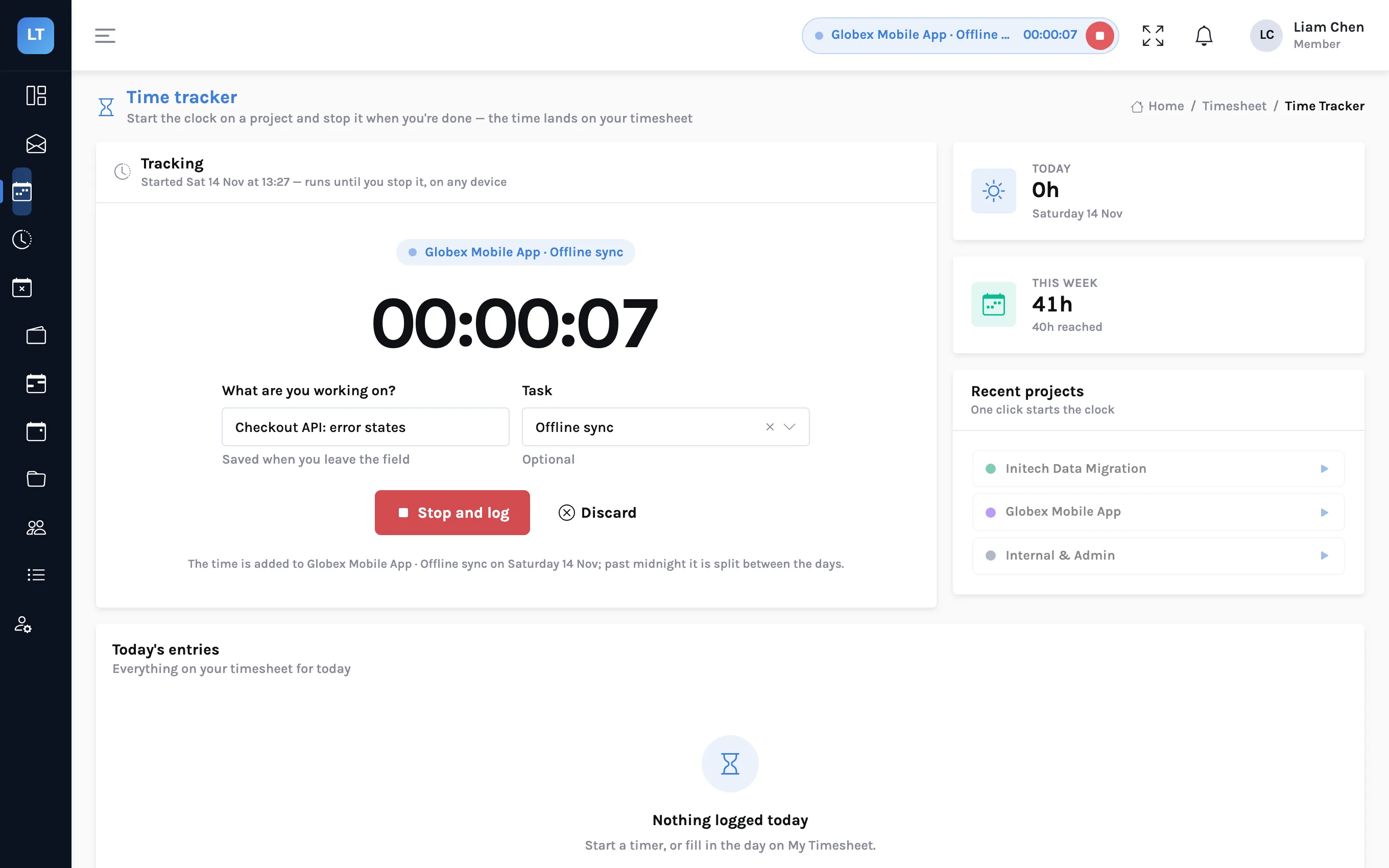
- Open Timesheet, Time Tracker.
- Choose the Project and, optionally, a Task.
- Type what you are working on, and press Start timer.
- Work. Close the tab if you like.
- When you are done, press Stop and log, or Discard if it should not count.
| What you do | What happens |
|---|---|
| Reload the page or close the tab | The timer keeps running |
| Open LogTicks on another device | The same timer is there, with the same elapsed time |
| Go to any other page | The timer shows as a pill in the top bar, with a stop button |
| Change the note while it runs | Saved when you leave the field |
| Stop and log | The time is added to that day, on that project and task |
| Let it run past midnight | The time is split between the two days |
| Forget it entirely | A single timer logs at most 24 hours |
| Discard | Nothing is logged |
The page also lists your recent projects; one click starts the clock on any of them. And stopping a timer is an ordinary save, so the usual checks apply: a project rule that limits hours in a day applies to timed hours as it does to typed ones, and a week that is already submitted takes no new time.
Time against tasks
A project says who the work is for. A task says what the work was. If your client asks "how long did the checkout flow take?", project-level time cannot answer.
Set up the tasks
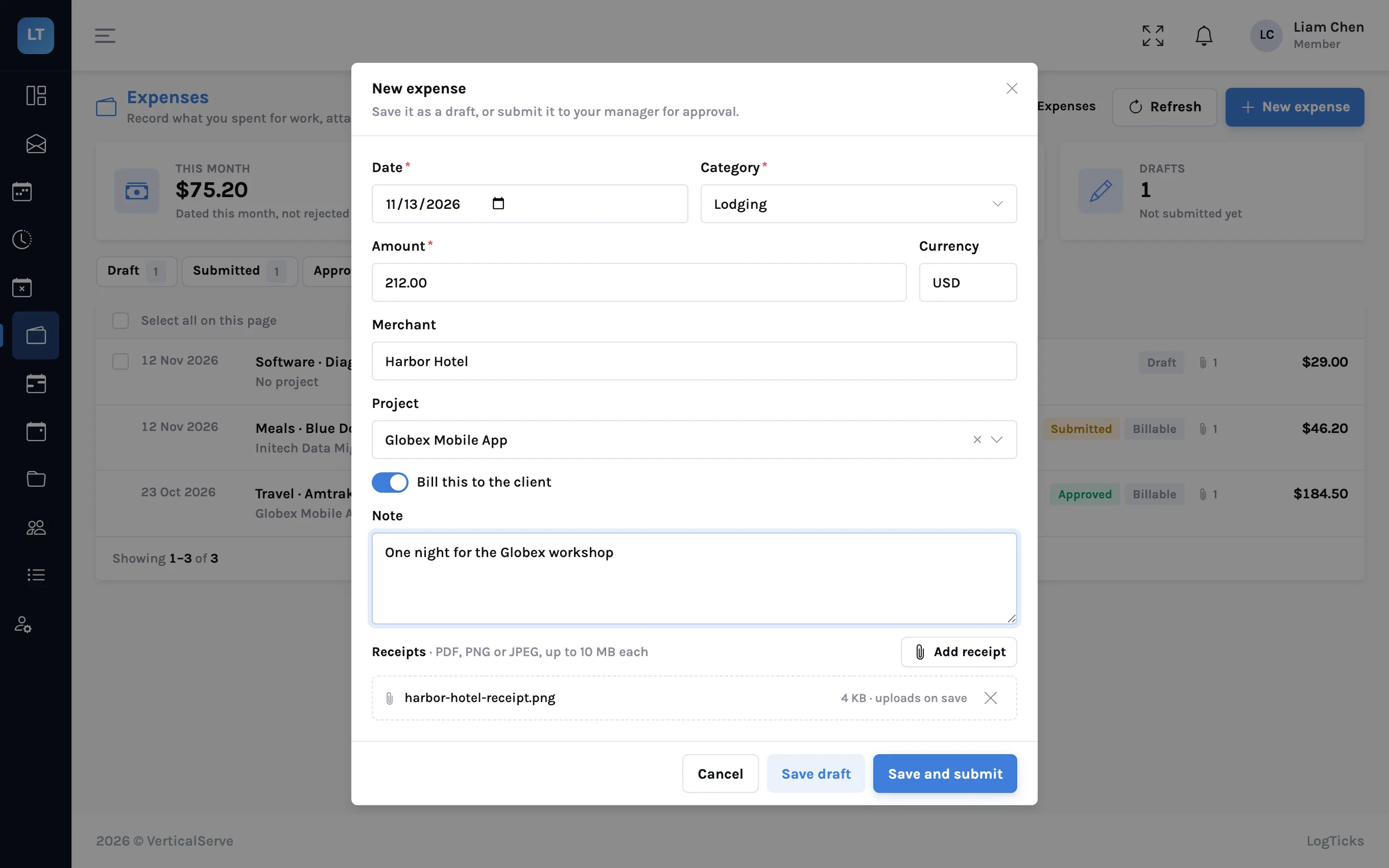
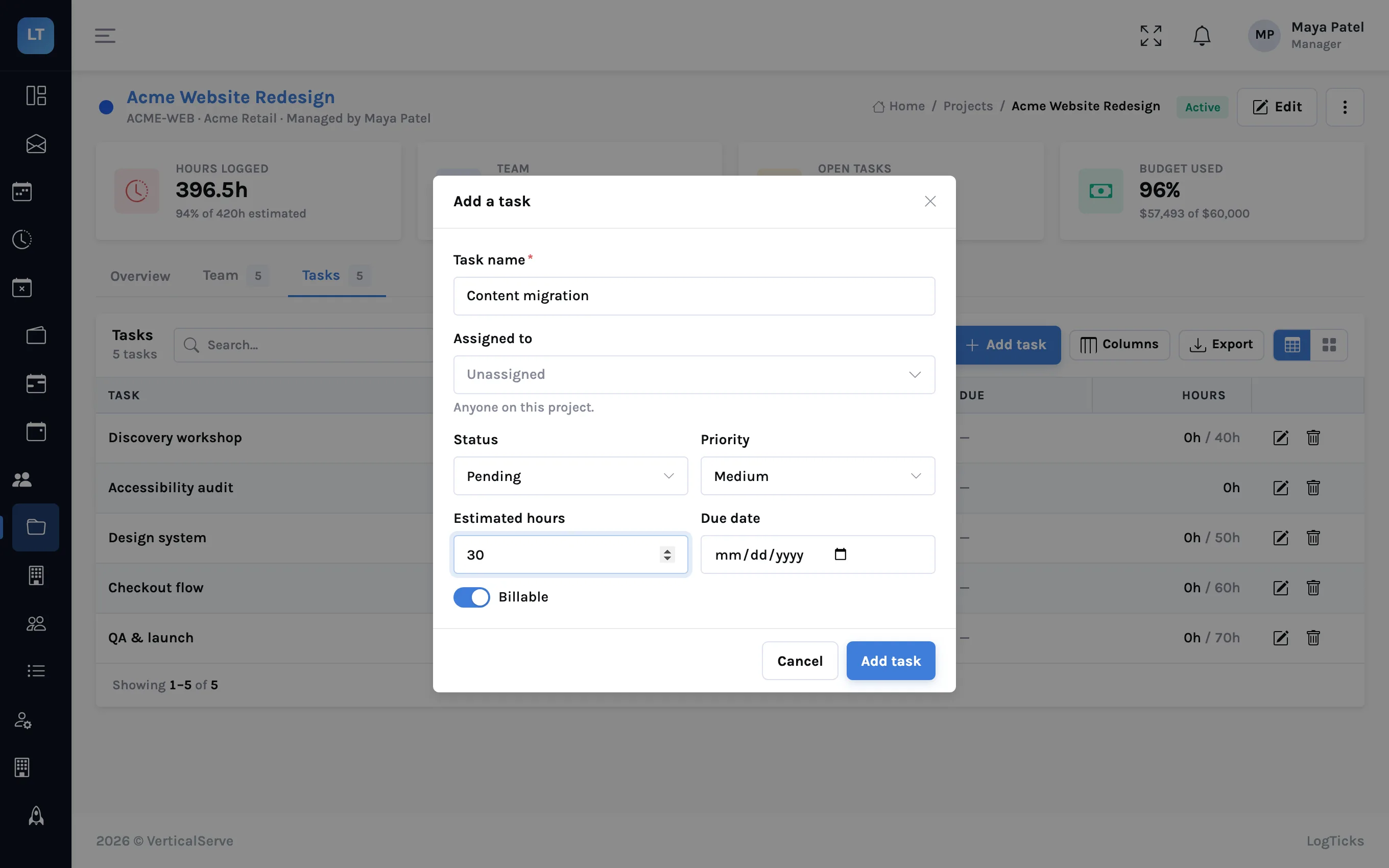
On a project's Tasks tab, press Add task: a name, who it is assigned to from the project team, a status, a priority, estimated hours, a due date, and whether it is billable.
Pick the task when you log
| Where | How |
|---|---|
| Time tracker | The Task field beside the project, before you start |
| Quick entry | The task field on the form |
| Weekly grid | Open a day's editor on the project's row and choose the task |
- A task is optional unless the project requires one. A manager can set a project so that every entry must name a task.
- Hours per task show on the project's Tasks tab, against the estimate.
- A task can have its own billing rate, or be marked non-billable, for the part of a project that is charged differently or not at all.
Start with fewer tasks than you think
A task list is only useful if people can pick the right one in two seconds. Five or six tasks per project, named the way the team already talks, will be used. Thirty will be ignored and everything will land on the first one.
Install it
LogTicks can be installed from the browser to a phone's home screen or a desktop. It then opens in its own window with its own icon, without the browser's address bar.
| Browser | Where to find it |
|---|---|
| Chrome or Edge on a desktop | An install icon at the end of the address bar, or "Install LogTicks" in the browser menu |
| Chrome on Android | "Install app" or "Add to Home screen" in the browser menu |
| Safari on an iPhone or iPad | The Share button, then "Add to Home Screen" |
The wording belongs to each browser and changes between versions, which is why there is a drawing here and not a screenshot. The timesheet, daily status, leave and approval screens have a layout for a phone-sized screen.
Without a connection
Installed or not, LogTicks is a web app and needs the network for almost everything. What it does without one is limited and stated on the screen:
| Offline | |
|---|---|
| The app opens | To its shell, with a clear "you're offline" banner |
| Quick entry | Time you enter is queued and sent when you reconnect |
| A queued entry that conflicts with something changed meanwhile | Held for you to resolve; it is not forced through |
| Reading your timesheet, projects or anything else | Needs a connection |
| Starting or stopping a timer | Needs a connection |
| Submitting or approving | Needs a connection |
So the offline story is narrow on purpose: on a train or a client site with no signal, open Quick entry, record the hours while you remember them, and they arrive when you are back online. Quick entry and its "Describe it" box are covered in their own guide.
- Start the timer when the work starts, not afterwards
- Stop it from the top bar, wherever you are in the app
- Keep each project's task list short
- Install LogTicks on the phone you carry
- Offline, use Quick entry; do not wait until you are back at a desk
What it doesn't do (yet)
- Not an app-store app. It is installed by the browser. There is nothing to download from the App Store or Google Play, and no desktop program or browser extension.
- Offline is Quick entry only. You cannot read data, run a timer, submit or approve without a connection.
- One timer at a time, for at most 24 hours.
- No automatic tracking. The timer measures what you tell it to. LogTicks does not watch applications, windows or idle time.
- Task time is not broken out on invoices. An invoice line is per project and person; tasks are for your own reporting.
A timer you cannot lose, a task you can find in two seconds, and a form that works with no signal.