A twelve-person consultancy does not have a security team. It has an office manager who set everyone up, a founder who is an admin on everything, and a reused password somewhere. What it also has, in its timesheet system, is a list of its clients, what each one is billed per hour, and who approved what. That is worth protecting in proportion, which for a small team means two things that cost nothing to run: a second step at sign-in, and a record of what happened.
LogTicks has both. This article sets them up and shows what the record contains.
Part 1: two-factor sign-in
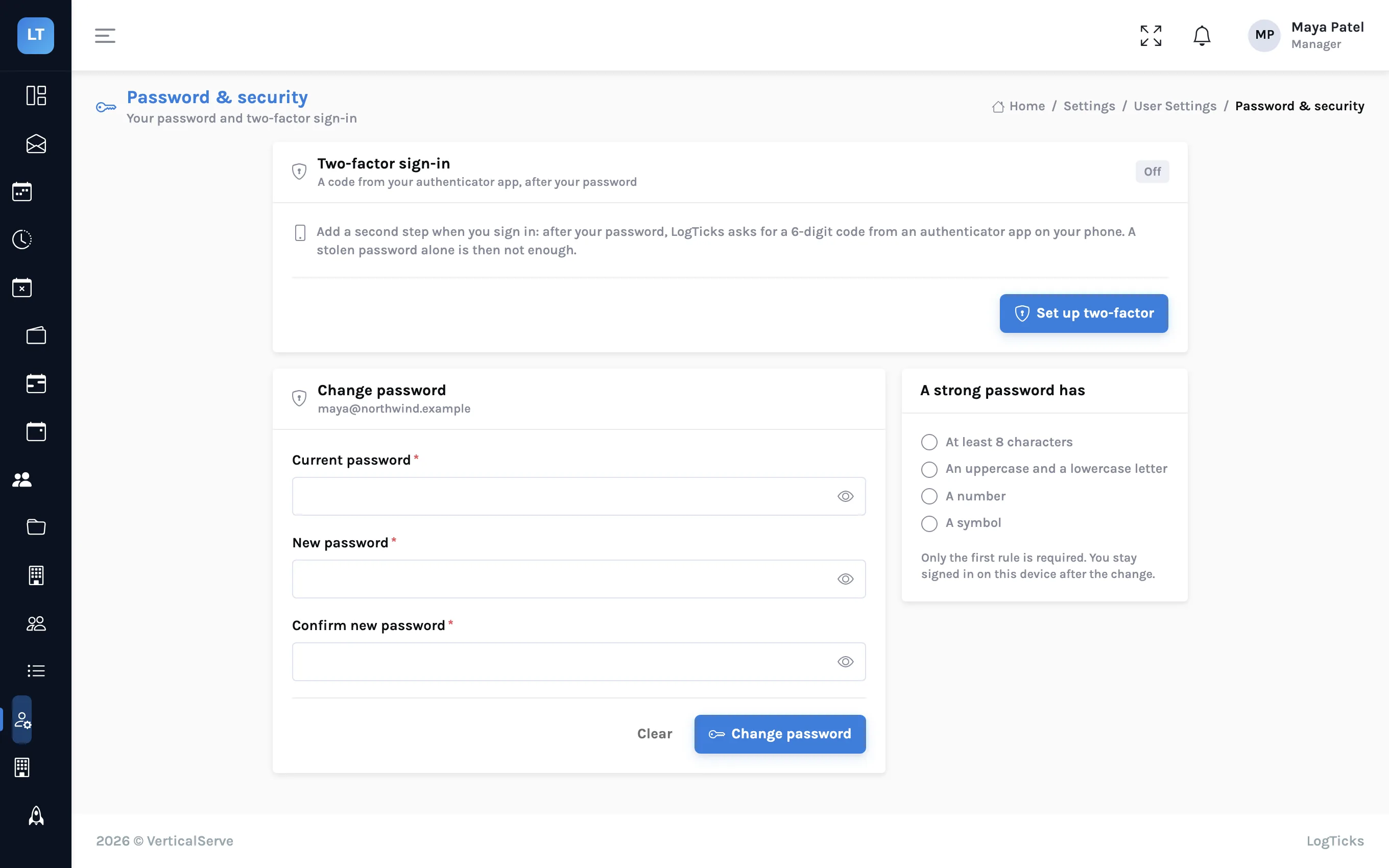
With two-factor on, signing in takes the password and then a 6-digit code from an authenticator app on your phone. A stolen or guessed password alone is no longer enough.
Turning it on for yourself
- Open User Settings, Password & security.
- In the Two-factor sign-in panel, press Set up two-factor.
- Confirm your password.
- Scan the code with an authenticator app: Google Authenticator, Microsoft Authenticator, 1Password, Authy or similar.
- Enter the 6-digit code the app shows, to prove it works.
- Save the 10 recovery codes somewhere that is not your phone. Each works once.
Recovery codes are the spare key
If you lose the phone, a recovery code signs you in instead of the app's code. Print them or put them in a password manager. If you lose those too, a company admin can reset your two-factor so you can enrol again.
Requiring it for the company
One person turning it on protects one account. A manager can make it a rule under Company Settings, Company Profile, in Sign-in security:
| Setting | Who must use two-factor |
|---|---|
| Optional for everyone | Nobody has to. Each person may switch it on |
| Required for managers and admins | The accounts that can approve, invoice and change settings |
| Required for everyone | All accounts that sign in with a password |
People who are required to use it and have not set it up are asked to do so right after they next sign in. The panel also shows how many people have it on, so you can see where you stand before tightening the rule.
For most small teams, Required for managers and admins is the sensible first step. Those are the accounts whose misuse would cost you money.
How it fits with the rest of sign-in
- Google sign-in is not double-prompted. Accounts that sign in with Google rely on Google's own verification; LogTicks does not add its code on top.
- Changing or resetting a password signs out every other session.
- Repeated wrong passwords lock that account and address for a minute, doubling up to fifteen.
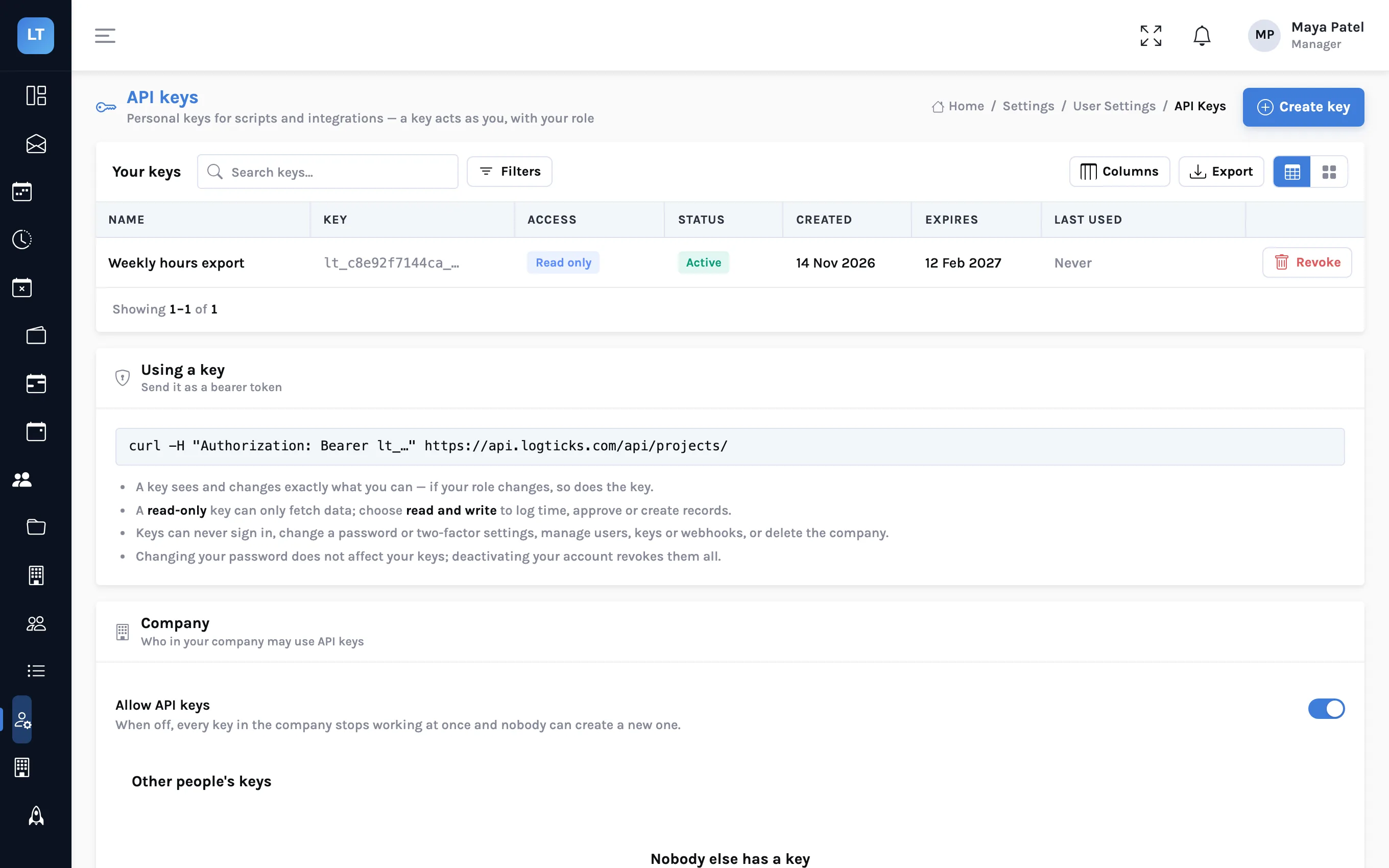
- API keys follow the rule too. If the company requires two-factor and a person has not set it up, their API keys stop working until they do.
Part 2: the audit log
The audit log answers the question that comes after something has gone wrong, or might have: who did it, when, and from where. It is under Company Settings, Audit Log.
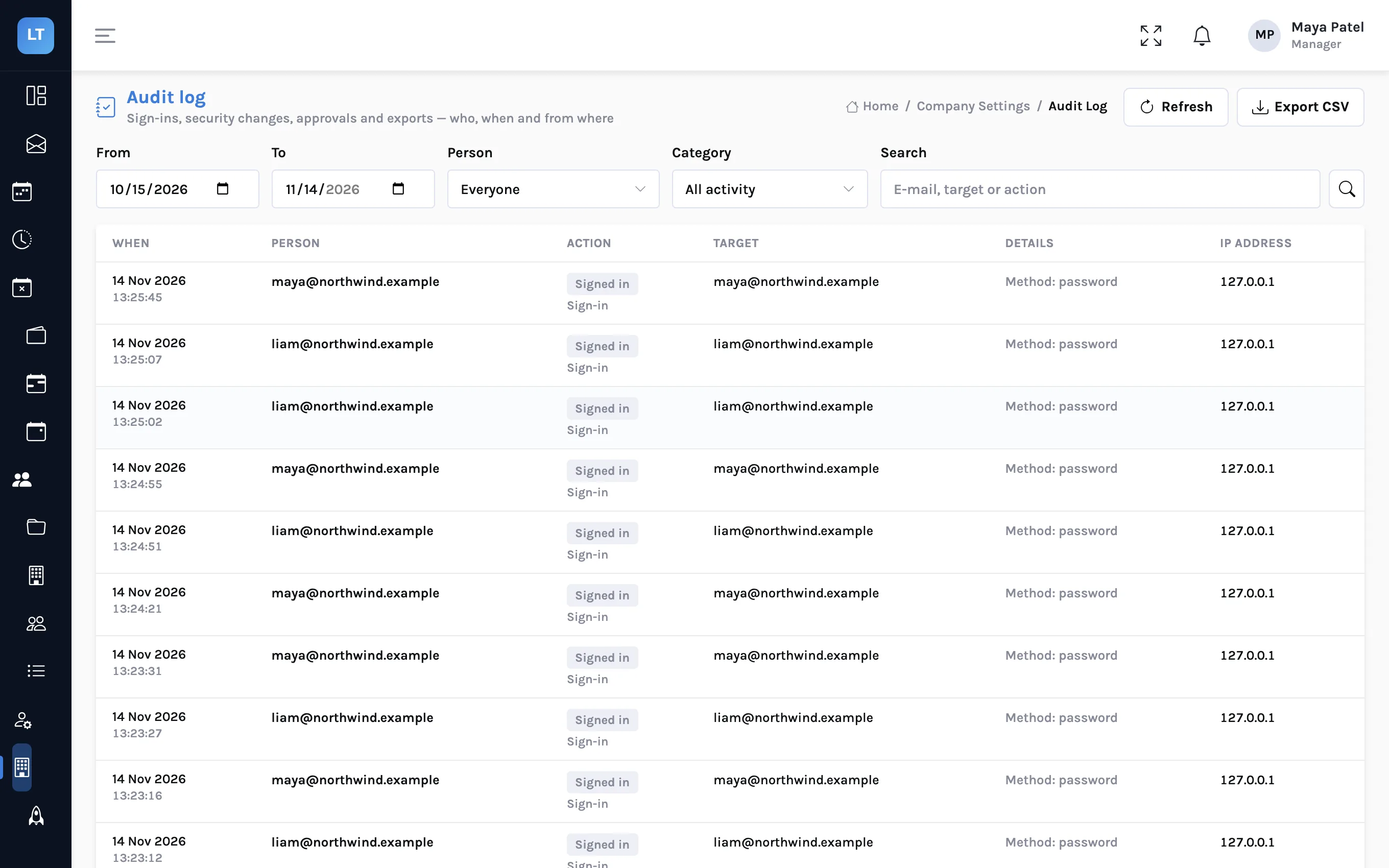
| Category | What is recorded |
|---|---|
| Sign-in | Sign-ins and failed sign-ins, with the method |
| Two-factor | Enrolment, disabling, resets by an admin |
| Passwords | Changes and resets |
| Users | People added, deactivated, and role changes |
| Company settings | Changes to the company's settings |
| Timesheet approvals | Approvals, rejections and client decisions |
| Leave approvals | Leave approved and rejected |
| Invoices | Status changes: sent, paid, void |
| Share links | Shared stand-up links created |
| Exports | Report exports |
| API keys | Keys created and revoked |
Reading it
- Filter by date range, person and category, or search for an e-mail, a target or an action.
- Export CSV downloads what you have filtered, for a client who asks or for your own records.
- The log is append-only. Entries are added; nobody, including an admin, edits or removes them from the app.
Three questions it answers quickly:
| Question | Filter |
|---|---|
| Did anyone sign in from somewhere unexpected? | Category Sign-in, then read the IP address column |
| Who made this person a manager? | Category Users, search their e-mail |
| Who marked that invoice paid? | Category Invoices, search the invoice number |
- Every manager and admin has two-factor on
- Recovery codes are stored somewhere other than the phone
- The company rule is at least Required for managers and admins
- Someone looks at failed sign-ins in the audit log once a month
- People who leave are deactivated the day they leave, which also revokes their API keys
What it doesn't do (yet)
- Authenticator apps only. No codes by SMS, and no passkeys or security keys.
- No sign-in through a company identity provider. Sign-in is by email and password, or by Google account.
- Not added on top of Google sign-in. Protect Google-signed-in accounts with Google's own two-step verification.
- The audit log covers the events listed above. It is not a record of every page someone viewed or every time entry they changed.
- No alerts from the log. It is there to be read and exported; it does not e-mail you about a suspicious sign-in.
- No certification. These are controls, not an audit report. See the security page for the full list and what is missing.
A second step for the accounts that can cost you money, and a record you can read: that is most of security for a small team.
Turn on two-factor
Open Password & security, set it up for your own account, then look at the audit log.
Start free