A stand-up meeting has one real job: everyone learns what the others did, what is blocking them and what comes next. The meeting itself is the expensive way to do it. Across time zones it is also the unfair way, because somebody always gets the 7 a.m. slot.
An async stand-up keeps the three questions and drops the call. People answer when their day starts, in writing. The practical problem is where they write it. A separate tool means one more tab, and the update gets skipped. So LogTicks takes the update where the team already is: a Google Chat space.
This article lists what the LogTicks app for Google Chat does, command by command.
The commands
@LogTicks <your update>- Mention the app with your update in plain words. It is saved as today's daily status.
/status <your update>- The same as the mention, as a slash command.
/hours 8h Project- Log time against a project for today.
/summary- This week's timesheet summary: your hours for Monday to Friday.
/pdf- Export your timesheet as a PDF, with a download button.
/upload- Attach an image or PDF of a timesheet and AI reads it into time entries.
/balance- Your leave balances.
/team- The teams you are on.
Posting a status
Write the update the way you would say it. The app reads the text, picks out what you did, what is blocking you and what you plan next, and saves it as today's status. It tries simple pattern matching first and falls back to an AI model for free-form text.
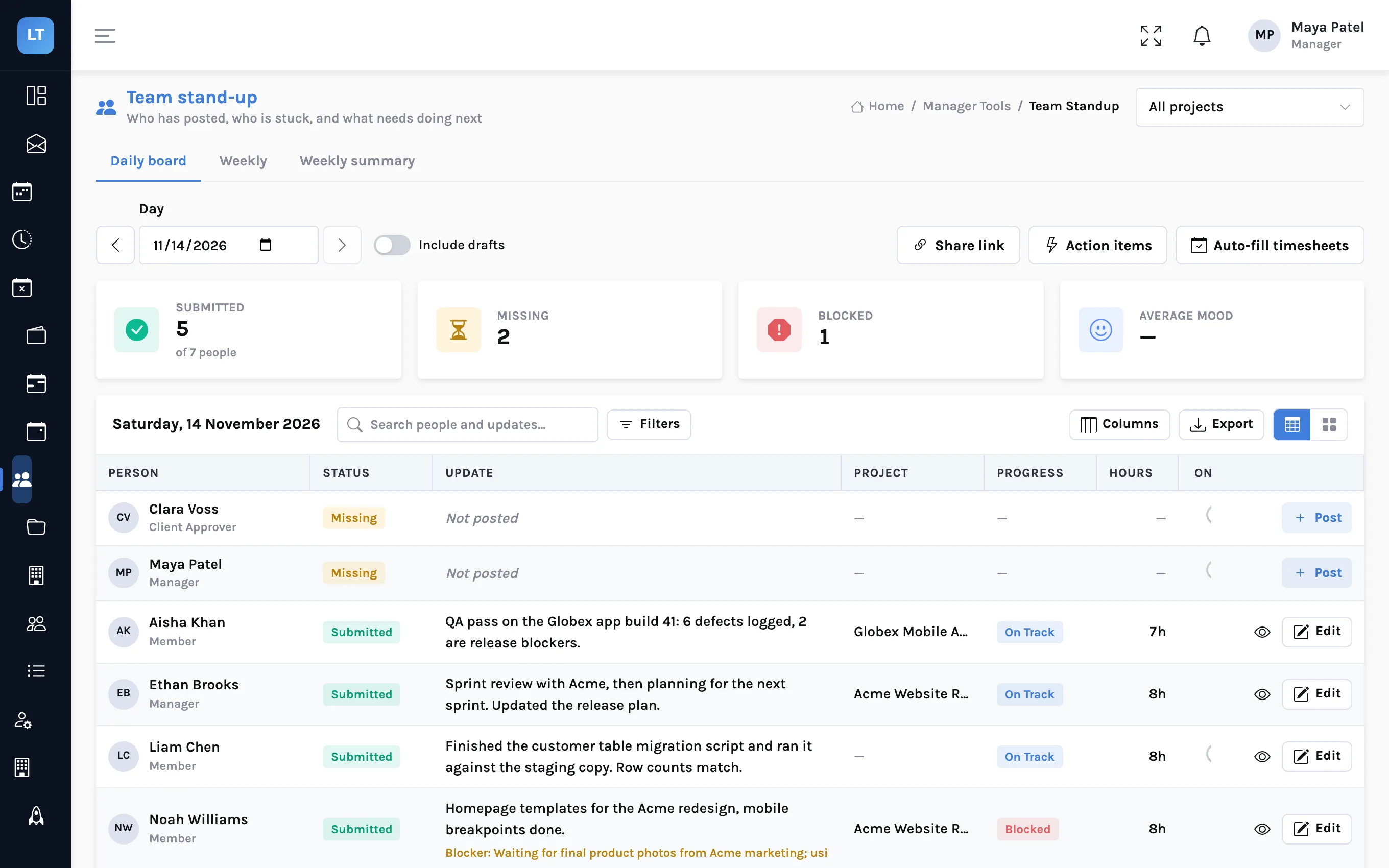
/status Homepage templates done for mobile. Blocked: still waiting on final product photos from Acme. Next: category pages.The status lands in the same place as one posted in the web app. The manager sees it on the daily board with everyone else's, and a blocker shows up in the blocked count.
Weekdays only
The app does not accept a daily status on a Saturday or Sunday. It replies that statuses cannot be submitted that day.
Logging hours
The /hours command takes an amount, a project and an optional description:
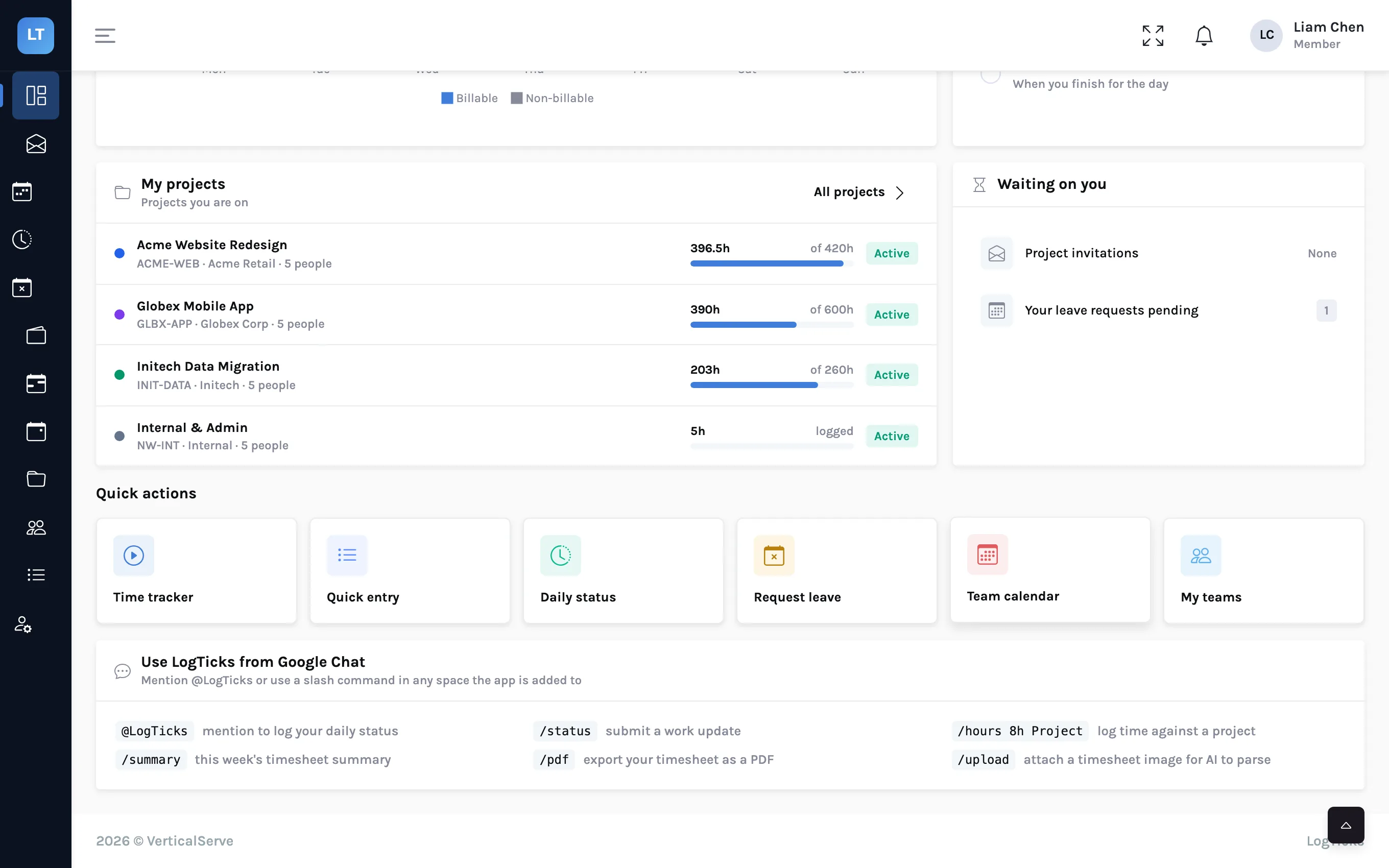
/hours 6h Globex Mobile App — checkout API integration- The project is matched by name. If the name you typed is not an exact match, the app tries to work out which of your projects you meant.
- If it cannot tell, it uses the first of your projects. Read the reply: it names the project the hours went to.
- One command logs at most 24 hours.
- The time is added to your weekly timesheet, where you can still change it before you submit.
Summary, PDF and upload
| Command | What comes back | Notes |
|---|---|---|
/summary | A Weekly Summary card with your hours for each day, Monday to Friday | Your own week |
/pdf | A Timesheet PDF Ready card with a Download PDF button | Add a colleague's email to export theirs, if you manage them |
/upload + attachment | Time entries created from an image or PDF of a timesheet | Up to 10 MB; counts against your daily AI allowance |
The upload command is for hours that already exist somewhere else: a photo of a paper sheet, or a PDF exported from a client's system. Attach the file to the message with /upload. An AI model reads the rows and creates the entries. Open your week in LogTicks afterwards and check them before you submit, because a model reading a photo can misread a digit.
Setting it up
- The LogTicks app is added to a Google Chat space. The space is linked to the company of the person who adds it.
- Each person is recognised by their Google account's email address, which must be the email they use in LogTicks.
- Someone whose email is not in LogTicks gets a reply that no account was found.
There is no set-up screen for this inside LogTicks. To have the Chat app made available to your Google Workspace, contact us.
Habits that make it work
- One update per person per day, posted when their day starts
- The word "blocked" for anything that needs someone else
- Replies to a blocker go in the chat thread, where the person will see them
- The manager reads the board daily, so posting is visibly worth doing
- Timesheets are still submitted in the web app at the end of the week
What it doesn't do (yet)
- Google Chat only. There is no LogTicks app for Slack or Microsoft Teams.
- No prompt in the chat space. The chat app answers when you write to it; it does not post a "time for stand-up" message. A manager can switch on an e-mail nudge for people who have not posted (Company Settings, Reminders), or you can set a reminder in Chat.
- Submitting and approving stay in the web app. You cannot submit a week or approve one from chat.
- The button on the status card does not log time. The "Fill Timesheet" button on a saved-status card replies with how to use
/hours; it does not create an entry. - AI use is capped per user per day. Reading a free-form update or an uploaded file uses your daily AI allowance. When it runs out, those commands are refused until the next day;
/hourswith an exact project name and/summarydo not need it.
Ask the three questions where people already are, and read the answers every day.
Start with the stand-up in the web app
Post daily statuses and read the manager's board today; add the Google Chat app when your space is ready.
Start free