If you bill a client by the hour, your invoice is only as good as the client's agreement that the hours were worked. In most firms that agreement is collected by email. Someone exports a timesheet, attaches it, writes "please confirm", and waits. The reply arrives four days later in a thread that now has six people on it, and the approved version is whichever attachment was last.
LogTicks replaces the thread with a second approval step. Your manager approves the week first. Then the client's own contact, signed in with a restricted account, sees that week in a queue and approves it or sends it back with a note. This article walks through the setup and one full cycle.
How the two stages fit together
Two details decide where a week goes:
- The manager is the project manager of the project with the most hours in that week.
- The client approver is the one named on that same project. The routing is decided when the week is submitted, and a week is routed as a whole, to one approver.
Step 1: add the client contact as a client approver
A client approver is a user in your company with the Client approver role. Invite the client's contact with that role, as you would invite anyone else to the company. When they sign in they get a menu with two items, Pending approvals and Approval history, and their own profile settings. They cannot see projects, other people's time, leave, reports or anything else.
One account per person
Give each client contact their own account. The approval history records who decided, and that is only useful if an account belongs to one person.
Step 2: name the approver on the project
- Open the project and choose Edit.
- Under Who is it for? choose A client and pick the client.
- In Client approver, pick the contact you added. The field lists users with the Client approver role.
- Save.
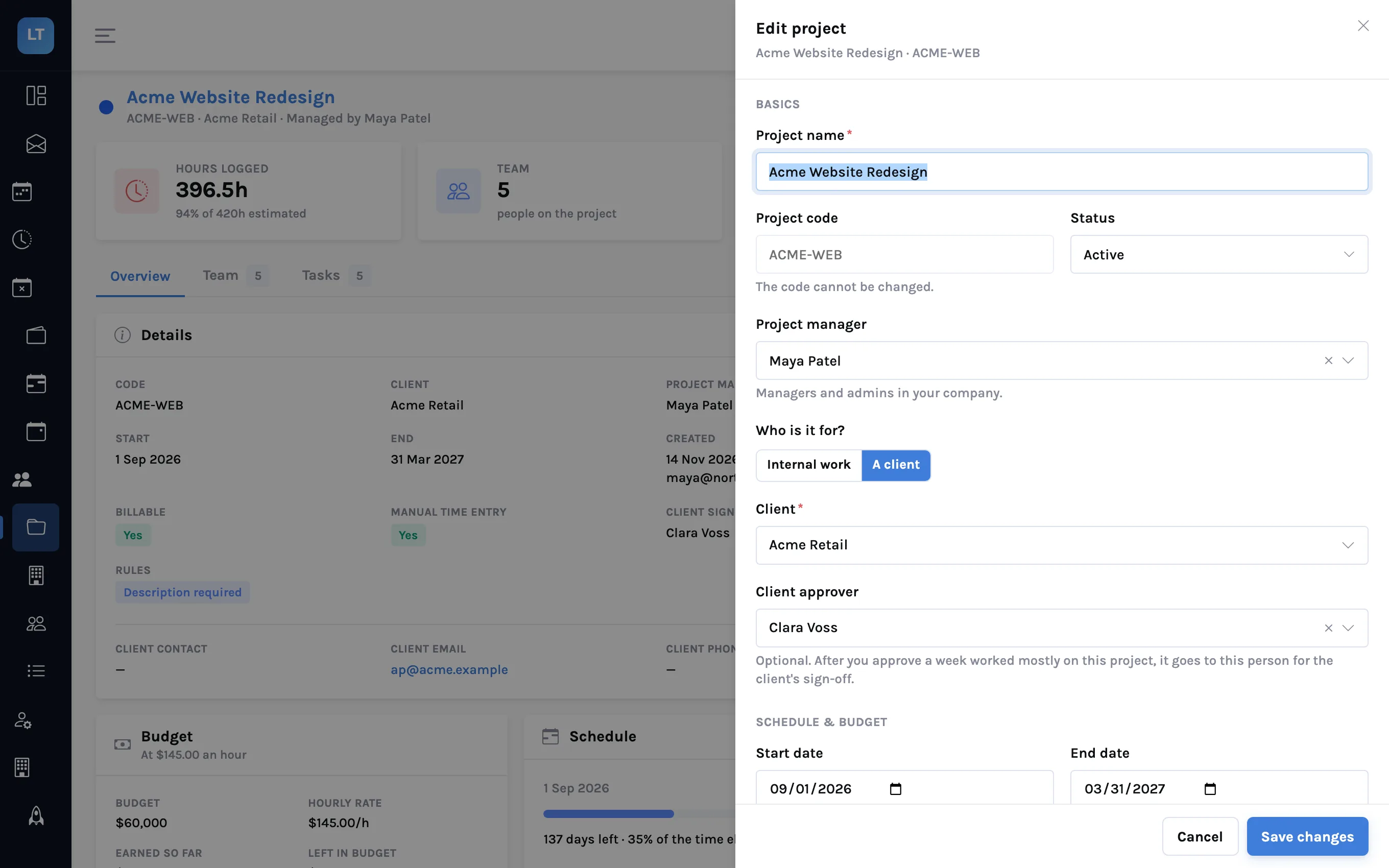
If you leave the field empty, it reads "No client sign-off — your approval is final", and the project behaves as a one-stage approval.
Step 3: the member submits, the manager approves
Nothing changes for the person doing the work. They fill in the week and press Submit week. The week turns read-only and shows as Submitted. If they spot a mistake while it is still waiting, Revoke submission takes it back.
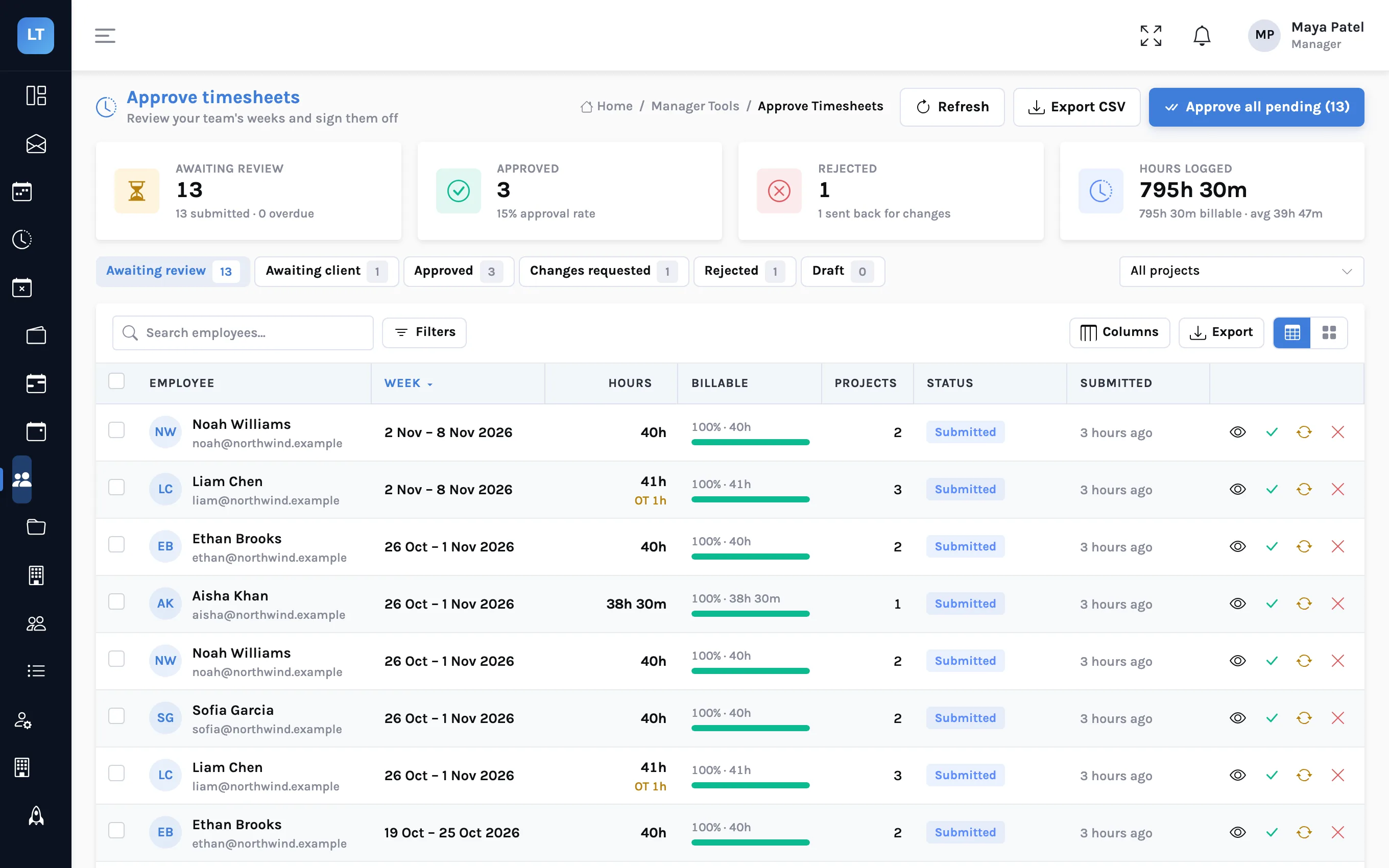
The manager finds it under Manager Tools, Approve Timesheets, in the Awaiting review filter.
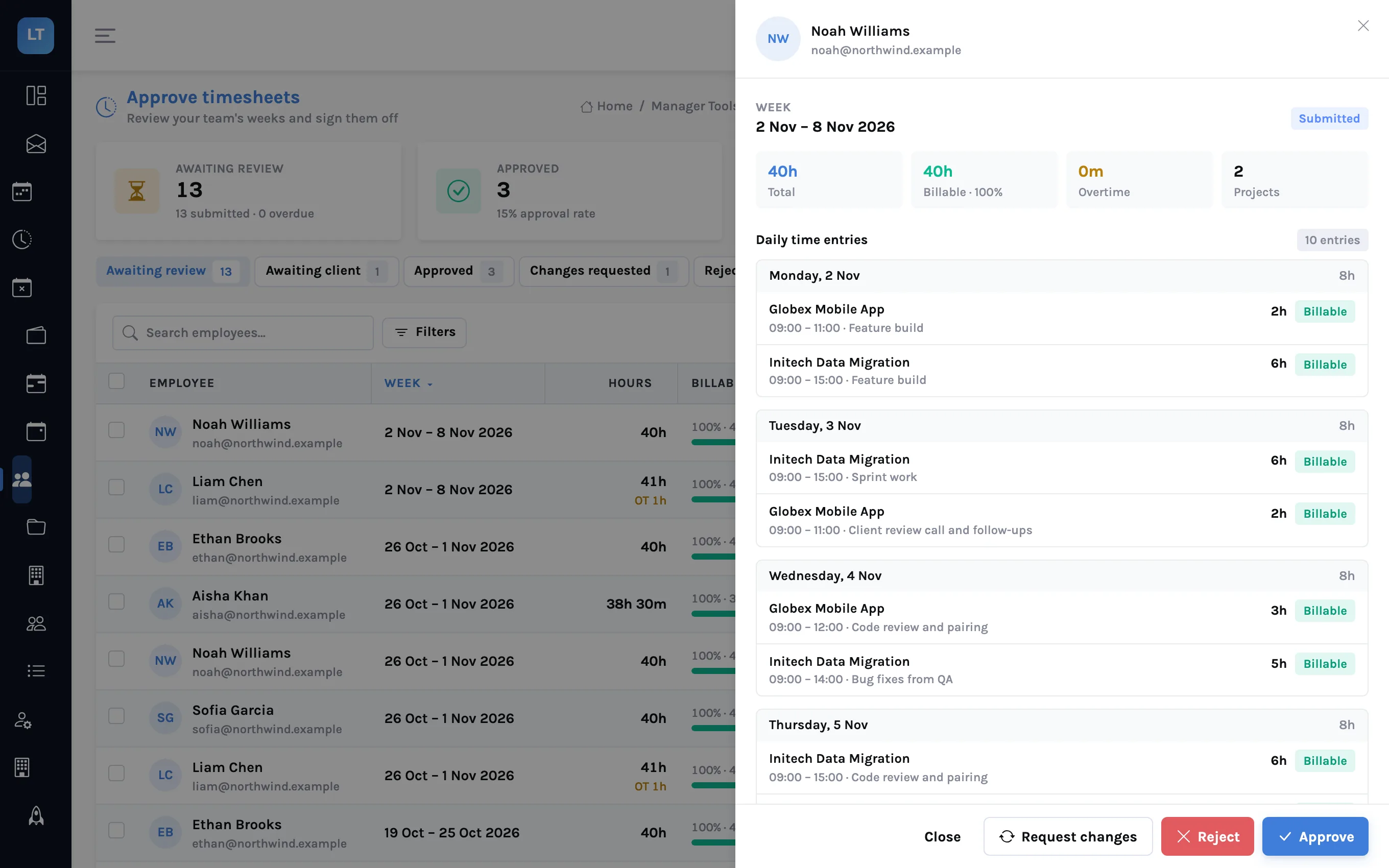
Opening a row shows the review sheet: each day's entries by project, the billable share, overtime, the notes the employee wrote, and any documents attached to the week. The manager chooses Approve, Request changes or Reject. The last two need a reason, which the employee sees.
When the manager approves a week whose main project has a client approver, the status becomes Manager approved and the week moves to the Awaiting client filter.
Step 4: the client approves or sends it back
The client approver signs in and lands on Pending approvals. Three tiles summarise the queue: how many timesheets are waiting, the hours across them, and how many of those hours are billable. Each waiting week is a card.
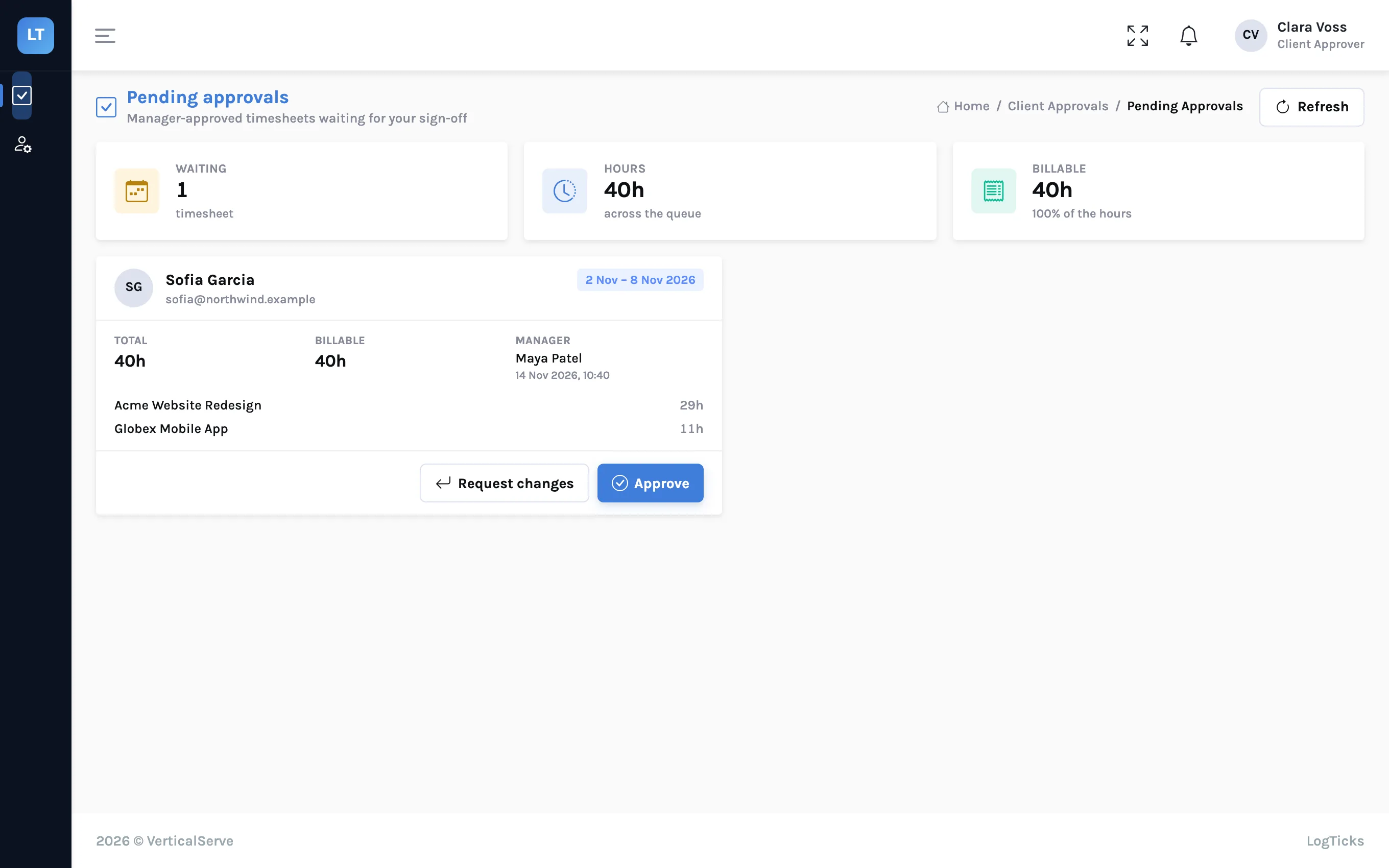
| On the card | What it tells the client |
|---|---|
| Employee and week | Whose time this is and which seven days |
| Total and Billable | Hours in the week, and how many are billable |
| Manager | Who approved it at your firm, and when |
| Per-project hours | Hours on each project this person approves; anything else is one "Other work" line |
| Manager's note | Anything your manager wrote when approving |
- Approve takes an optional note. The week becomes Client approved.
- Request changes asks "What needs to change?", which is required, and then Send back. The week becomes Client requested changes and returns to the employee to correct and resubmit.
Every decision is listed under Approval history with the employee, week, manager, hours, decision, date and notes.
What it doesn't do (yet)
- One approver per week. A week goes to the client approver of the project with the most hours. If a person splits a week between two clients, only one of them is asked. For people who work for two clients, agree which project is primary, or have the second client confirm outside LogTicks.
- A mixed week shows that there was other work. The week is signed off as a whole. The approver sees hours by project only for the projects they approve; everything else in the week appears as a single "Other work" line with its hours, without project or client names. They still see the week's total.
- The whole week, not a line. The client approves or returns the week. They cannot approve one project's hours and query another's.
- No reminder to the client. LogTicks does not email the client approver when a week arrives or nudge them if it sits. Tell your client contact when to look, for example every Monday.
- No signature image. The approval is a recorded decision by a signed-in account. If the client needs a signed document from their own system, attach it to the week.
Before you switch a client over
- The client contact has their own account with the Client approver role
- The project names that contact as its client approver
- The contact knows where to sign in and which day of the week to check
- Your managers know that their approval is now the first of two
- You have decided what happens for people who work across two clients
The client should see the hours once, after your manager has, and say yes or no in one place.
Set up a client approver
Create a project, name a client approver and run one week through both stages.
Start free