Staffing firms and consultancies often keep two records of the same week. One is your own timesheet, which drives payroll and invoicing. The other is the client's: a form from their vendor system, a PDF their manager signed, sometimes a photo of a paper sheet. The client's record is the proof. Yours is the one you can compute with.
The trouble starts when they live in different places. The signed PDF sits in an inbox or a shared drive, named however the contractor named it. When finance raises an invoice, or a client disputes one three months later, someone has to find it.
In LogTicks, the signed sheet is attached to the week it belongs to. This article shows how a contractor adds it, what the manager sees, and what happens if a document changes after approval.
Where documents live
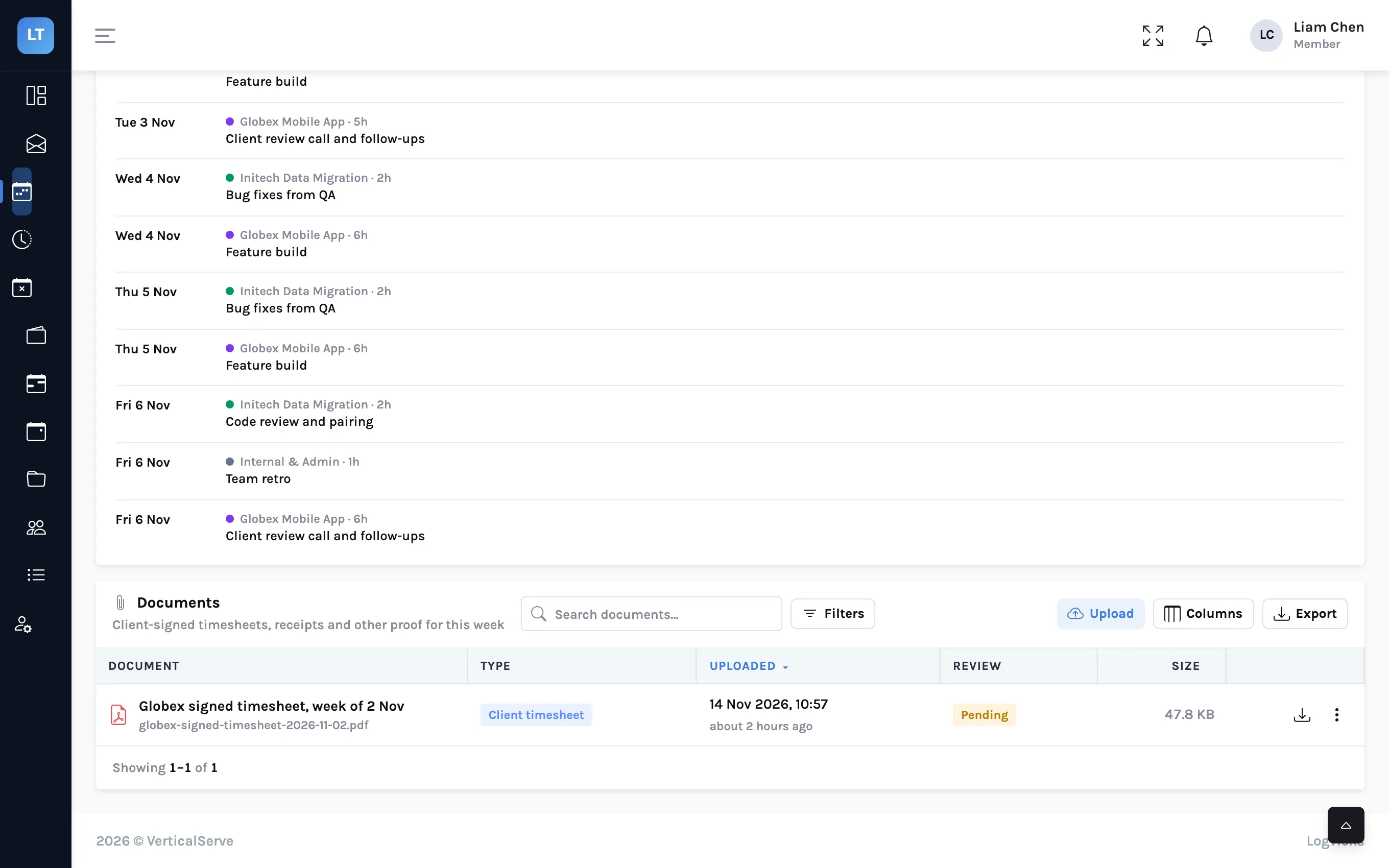
Every weekly timesheet has a Documents panel at the bottom of the My Timesheet page. Its subtitle says what it is for: client-signed timesheets, receipts and other proof for the week.
Submit first
The panel accepts files once the week has been submitted. Before that it says "Submit the week to attach documents". So the order is: fill in the hours, submit, then attach.
Step by step: attach a signed sheet
- Open My Timesheet and go to the week. Submit it if you have not already.
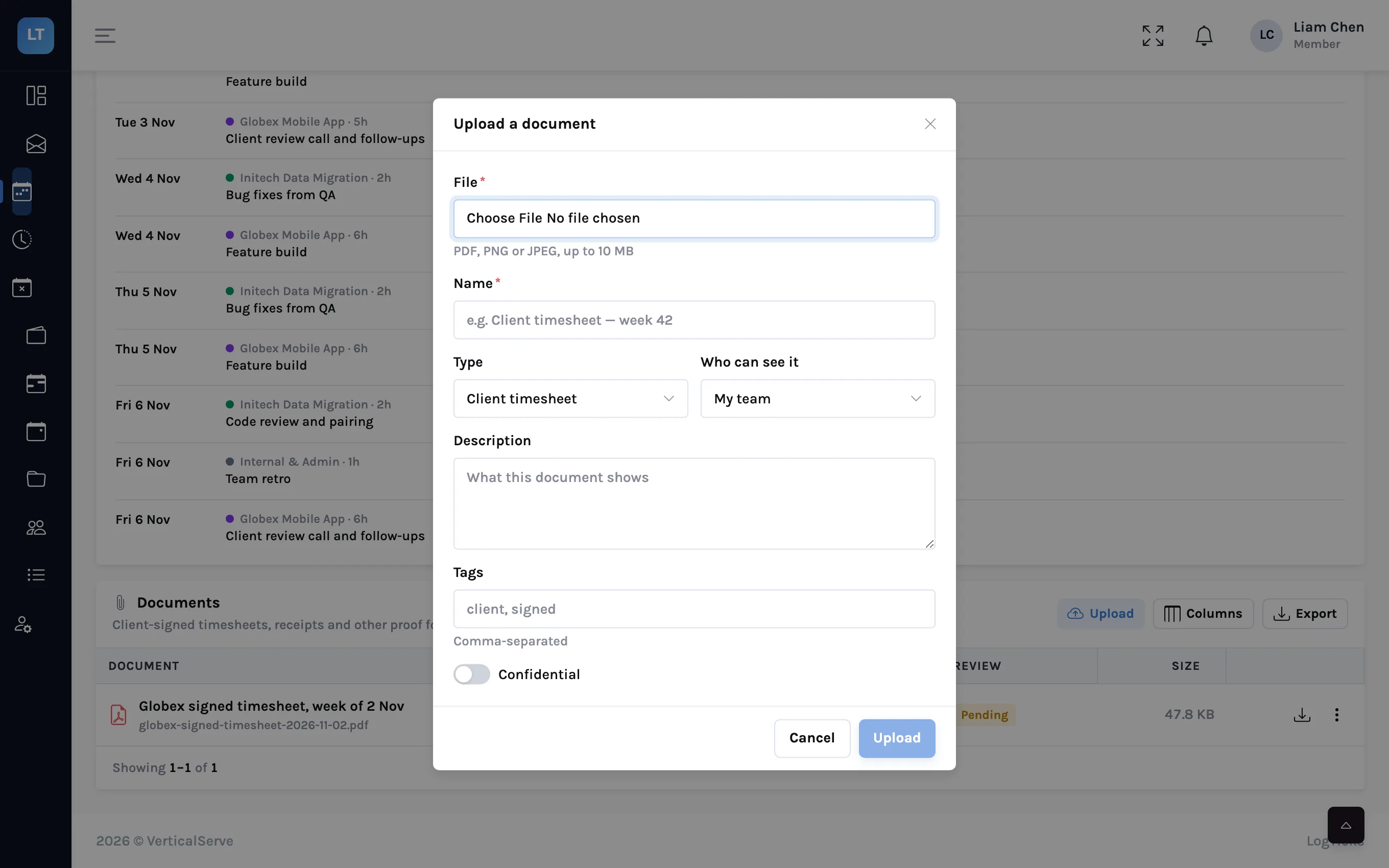
- Scroll to Documents and press Upload.
- Choose the File: a PDF, PNG or JPEG of up to 10 MB.
- Give it a Name a stranger would understand, such as "Globex signed timesheet, week of 2 Nov".
- Leave Type as Client timesheet, which is the default.
- Choose Who can see it, add a description or tags if they help, and press Upload.
| Field | Choices | Use it for |
|---|---|---|
| Type | Client timesheet, Supporting document, Receipt, Invoice, Contract, Other | Saying what the file is, so it can be found later |
| Who can see it | Only me; Me and my manager; My team; Everyone in the company | Limiting a file with rates or personal details on it |
| Confidential | On or off | Marking a file that should be handled with care |
| Tags | Comma-separated words | A client name or purchase-order number to search by |
What the manager sees
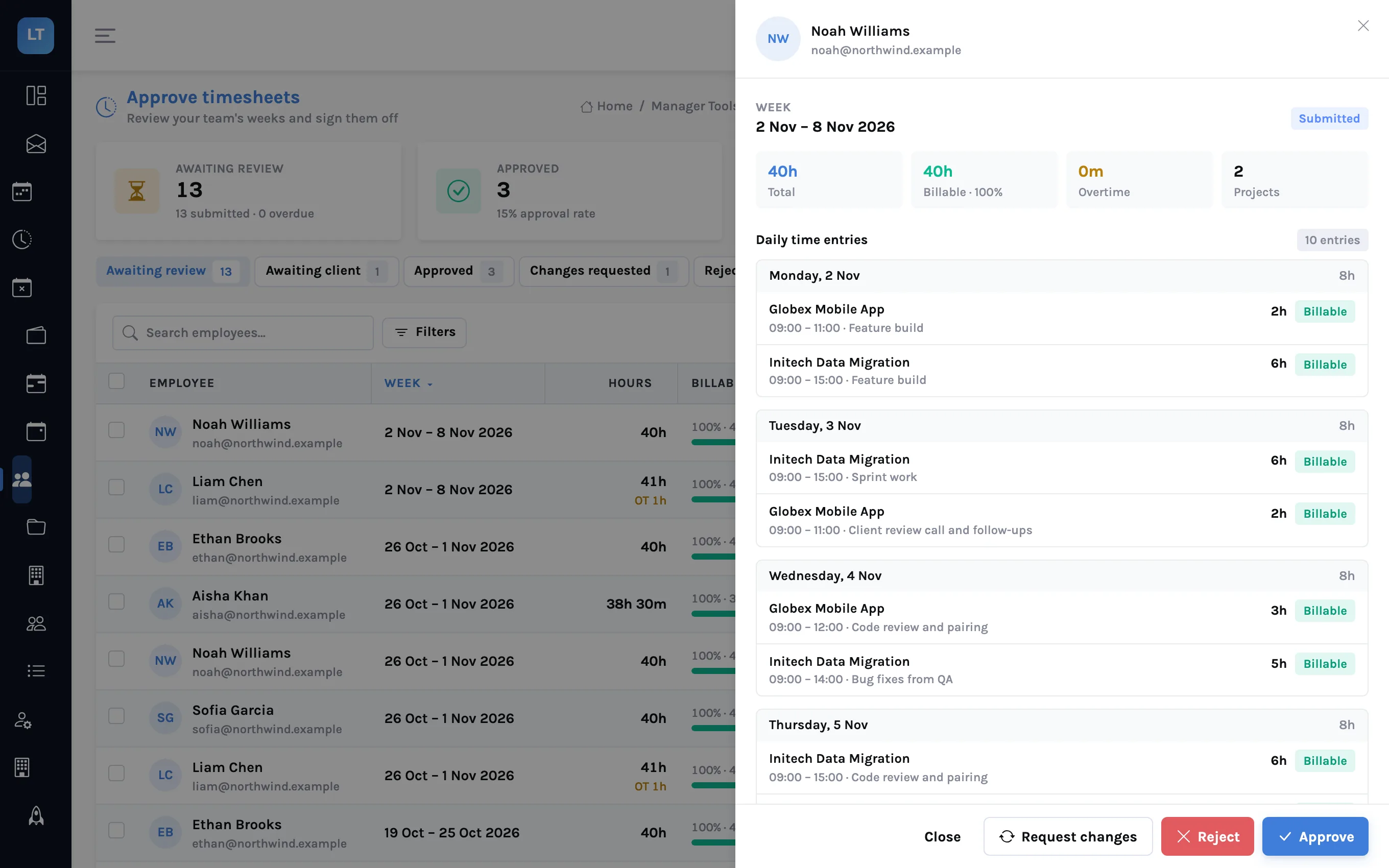
When a manager opens the week from Approve Timesheets, the review sheet has an Attached documents section under the daily entries, with a count. They can open or download each file and compare it with the hours beside it.
Two behaviours protect the manager from approving against a document that has since changed:
- If a document is added or removed while the manager has the sheet open, the sheet warns that documents have changed since it was opened.
- If a document is added or removed after the week was approved, the week goes back to Submitted, with a note in its history that a document changed. It has to be approved again.
That second rule matters. An approved week with a swapped attachment is no longer the thing that was approved, so LogTicks does not let it stay approved quietly.
Signed sheet or client approver?
LogTicks has two ways to record a client's agreement, and they suit different clients.
| Attached signed sheet | Client approver | |
|---|---|---|
| Who acts | The contractor uploads what the client signed | The client's contact signs in and approves |
| Client effort | None beyond what they already do | A sign-in and a click per week |
| Best when | The client insists on their own form or system | The client is happy to use yours |
| Record | A file on the week | A decision, a name and a date on the week |
They can be used together: the client approves in LogTicks and the signed form is attached as well. The client sign-off guide covers the second route.
What it doesn't do (yet)
- No review button for the manager. Each document shows a review status, which starts as Pending. Today a manager can open and download the file but cannot mark it reviewed in the app; approving the week is the confirmation.
- The file is not read. LogTicks stores the document. It does not compare the hours on the PDF with the hours in the grid; a person does that.
- Three file types. PDF, PNG and JPEG, up to 10 MB each. A spreadsheet or a Word file has to be exported to PDF first.
- Not before submission. You cannot attach to a week that is still a draft.
A naming habit worth adopting
- Client name first, then "signed timesheet", then the week: "Globex signed timesheet, week of 2 Nov"
- One file per week, not a month of sheets in one PDF
- Type left as Client timesheet, so every signed sheet can be found the same way
- Uploaded the day it is received, not at month end
The proof of a week belongs on the week.
Attach a document to a week
Submit a week, upload a PDF to it, and open it from the manager's review sheet.
Start free