A billable expense has to be right four times. The person who paid has to be paid back. The manager has to agree it was a reasonable thing to buy. The client has to be charged for it. And it has to be charged once. Most small firms run this on a shared inbox and a spreadsheet, and the fourth requirement is the one that fails: a hotel night gets billed in October and again in November because nobody marked the row.
LogTicks keeps an expense as one record that moves through those steps. This article follows a single train fare from the receipt to the client's invoice.
Step 1: record it
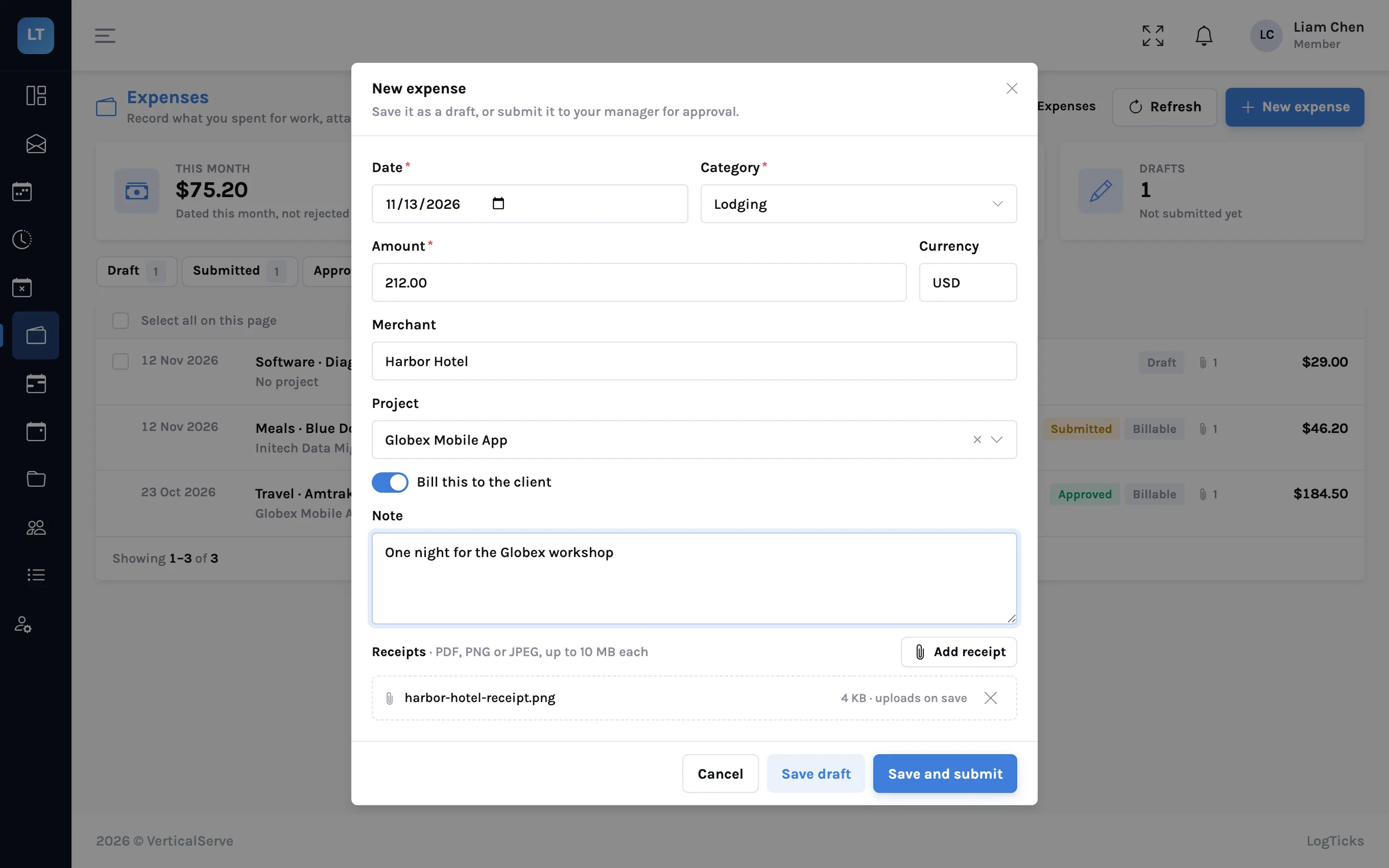
- Open Expenses in the menu and press New expense.
- Enter the Date, choose a Category and type the Amount.
- Add the Merchant, who was paid.
- Choose the Project it was for. Without a project an expense cannot be billed to a client.
- Switch on Bill this to the client if the client pays for it.
- Write a Note saying what it was for.
- Press Add receipt and attach the photo or PDF.
- Press Save and submit, or Save draft to finish it later.
| Field | Notes |
|---|---|
| Category | Travel, Meals, Lodging, Software, Equipment, Mileage and Other to start with. A manager can add, rename and remove categories |
| Per-unit categories | A category such as Mileage has a rate, for example 0.70 per mile. You enter the quantity |
| Receipts | PDF, PNG or JPEG, up to 10 MB each. More than one per expense |
| Currency | A label on the amount. Nothing is converted |
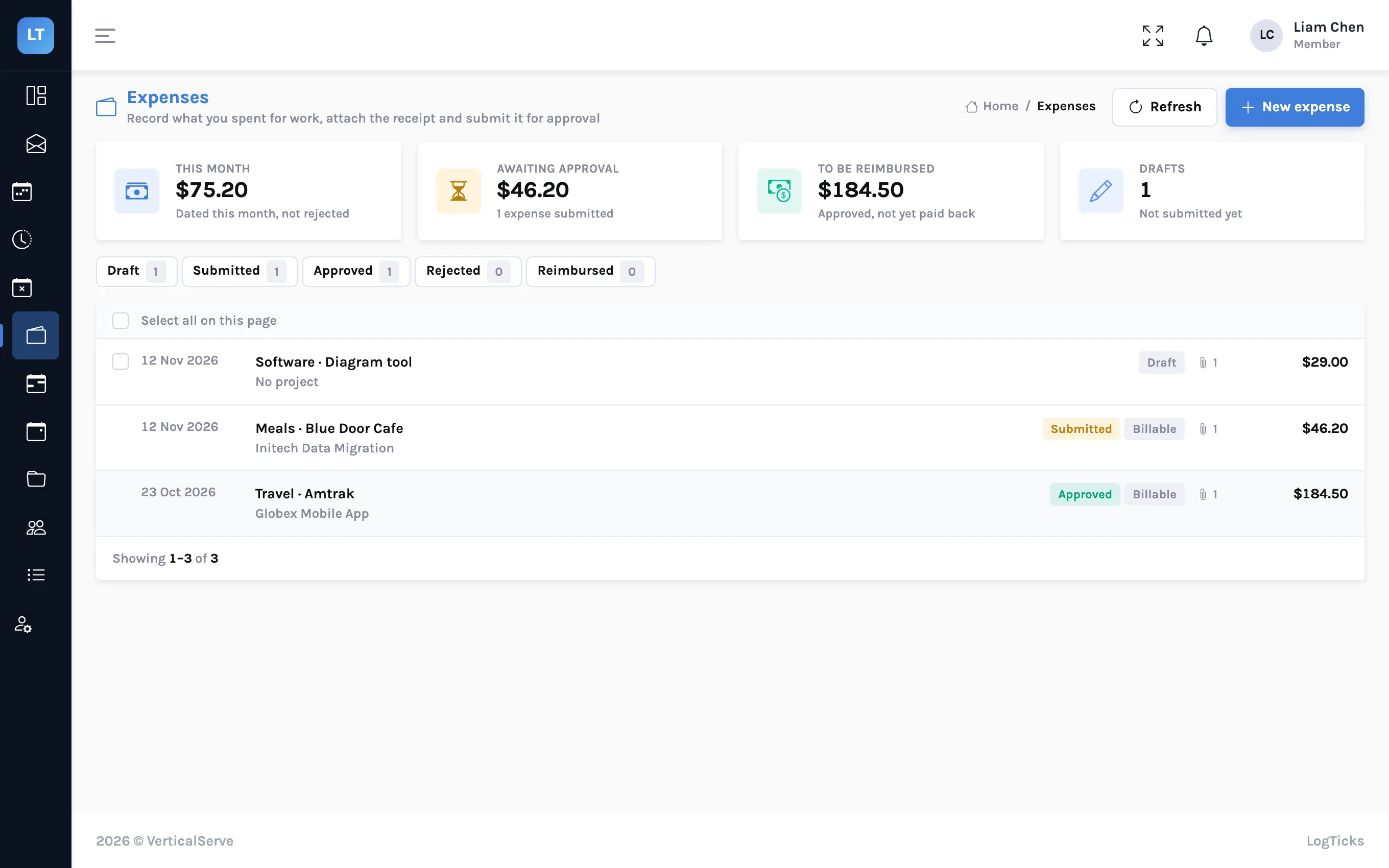
Your own Expenses page lists everything you have recorded, with tiles for this month, awaiting approval, to be reimbursed and drafts, and filters by status.
Step 2: the manager approves
Submitted expenses appear under Manager Tools, Approve Expenses.
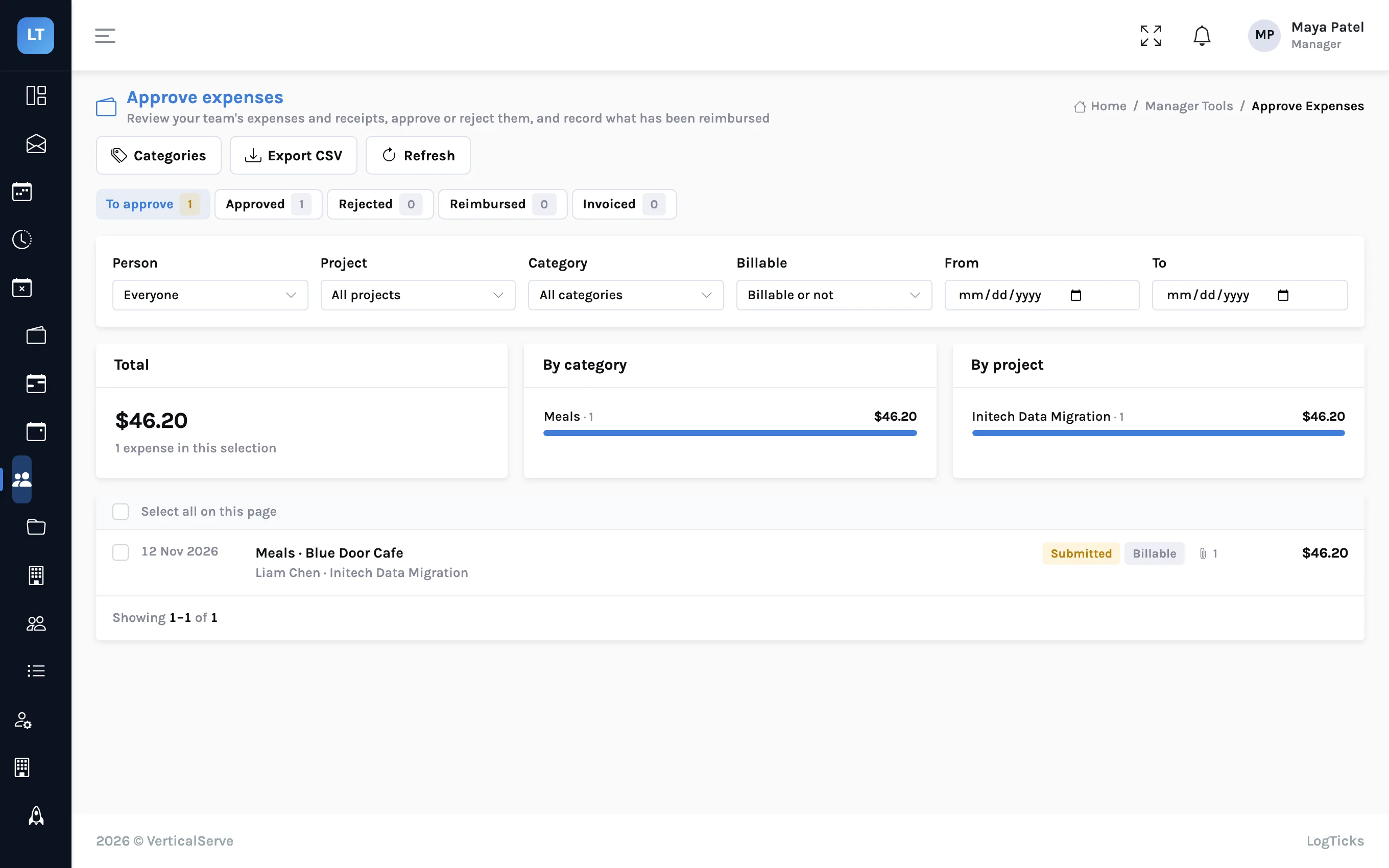
- Click an expense to open it. The sheet shows the details and lists the receipts, which you can open.
- Press Approve, and confirm. For a billable expense the confirmation says it can go on the client's next invoice.
- Or press Reject and give the reason, which the person sees.
- To clear several at once, tick them in the list and approve or reject in bulk.
- The filters at the top narrow the list by person, project, category, billable or not, and date.
- Export CSV downloads the selection for your accounts.
- Categories is where a manager edits the category list and sets a per-unit rate.
Step 3: reimburse
Approving an expense puts it under To be reimbursed for the person. When you have paid them back, through payroll or a bank transfer, mark it reimbursed in the approval page. LogTicks records that it was paid back and when. It does not move any money.
Step 4: it appears on the client's invoice
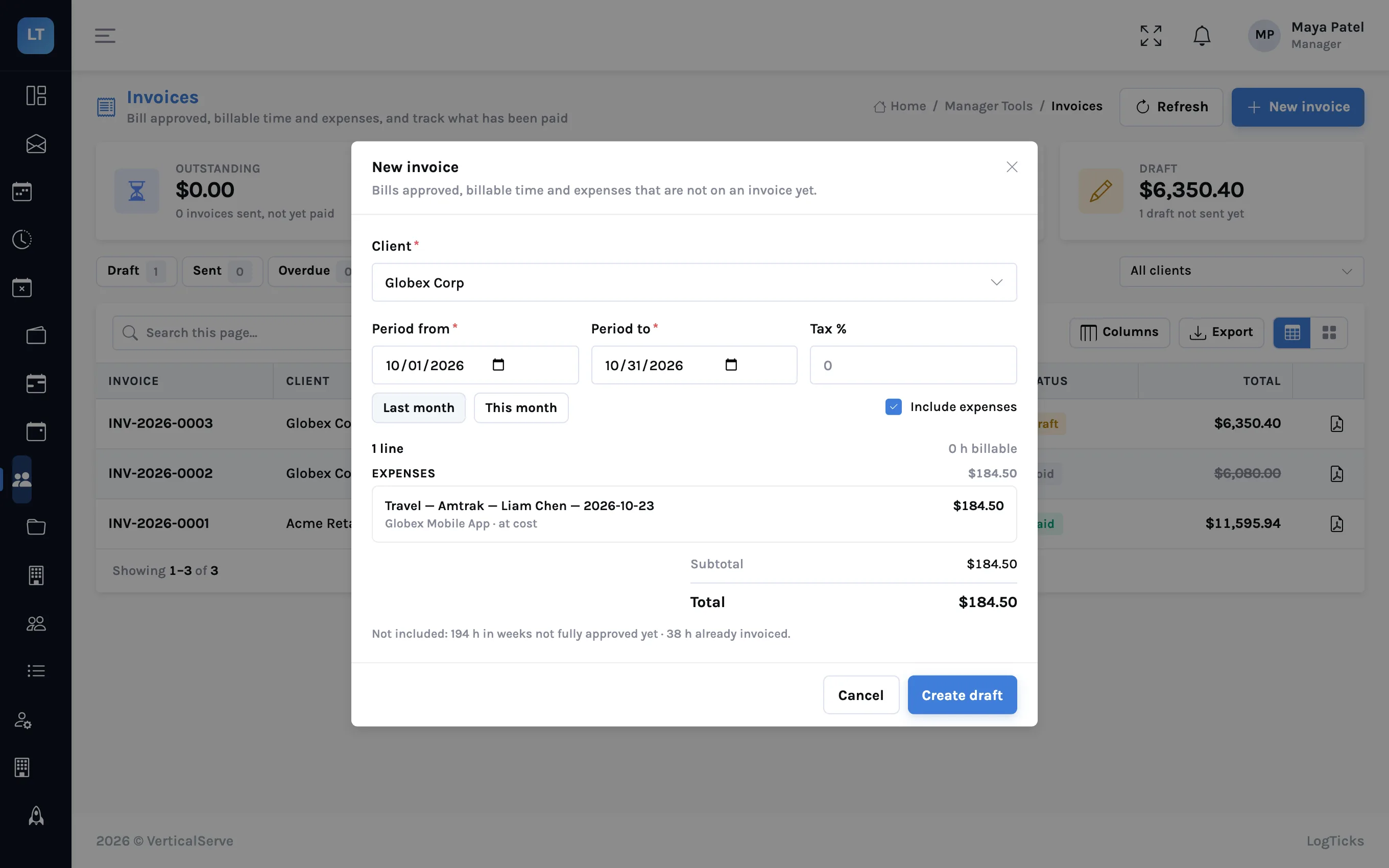
This is the step that saves the spreadsheet. When a manager creates an invoice for a client and a period, approved billable expenses on that client's projects, dated in the period, are added to the preview as an Expenses group under the time lines.
| An expense is offered on an invoice when | |
|---|---|
| It is approved | Required |
| It is marked billable | Required |
| It is on a project of that client | Required |
| Its date is in the invoice period | Required |
| It is not on another live invoice | Required. It is never billed twice |
| It has been reimbursed | Does not matter. Paying the person back and billing the client are separate |
Once the invoice exists, the expense shows under Invoiced on the approval page. Untick Include expenses on the invoice form to bill time only. The invoicing guide covers the rest of that screen.
- Every billable expense has a project
- The receipt is attached before submitting, not promised for later
- Managers approve weekly, so people are not waiting on money
- Mark reimbursed on the day the payment goes out
- Approve the month's expenses before creating the month's invoices
What it doesn't do (yet)
- No receipt scanning. LogTicks stores the receipt. It does not read the amount, date or merchant from it; you type them.
- No currency conversion. The currency is a label. A receipt in euros is recorded as you enter it.
- No reimbursement payments. "Reimbursed" is a mark you set after paying by your own means.
- No card feeds. Company card transactions are not imported.
- Billed at cost. There is no markup or handling fee on a billed expense.
- No e-mail notifications. Nobody is e-mailed when an expense is submitted, approved or rejected. The counts are on the pages.
One record, from the receipt to the invoice, is what stops an expense being billed twice or not at all.
Record an expense
Add one with a receipt, approve it as a manager, and look for it in the client's invoice preview.
Start free