Most timesheet mistakes are small and obvious. Someone types 80 instead of 8. Someone logs last month's forgotten hours into this month. Someone fills a week with numbers and no word about what the time was for. A manager catches some of these on Monday and sends the week back, the person fixes it on Tuesday, and it is approved on Wednesday. Three days for a typo.
The cheaper place to catch a mistake is the moment it is made. Project rules in LogTicks are checks that run when time is saved and when a week is submitted. A rule can refuse the save, let it through with a warning, or tell the manager. This article builds a small, sensible set and shows what people see when one fires.
What a rule is
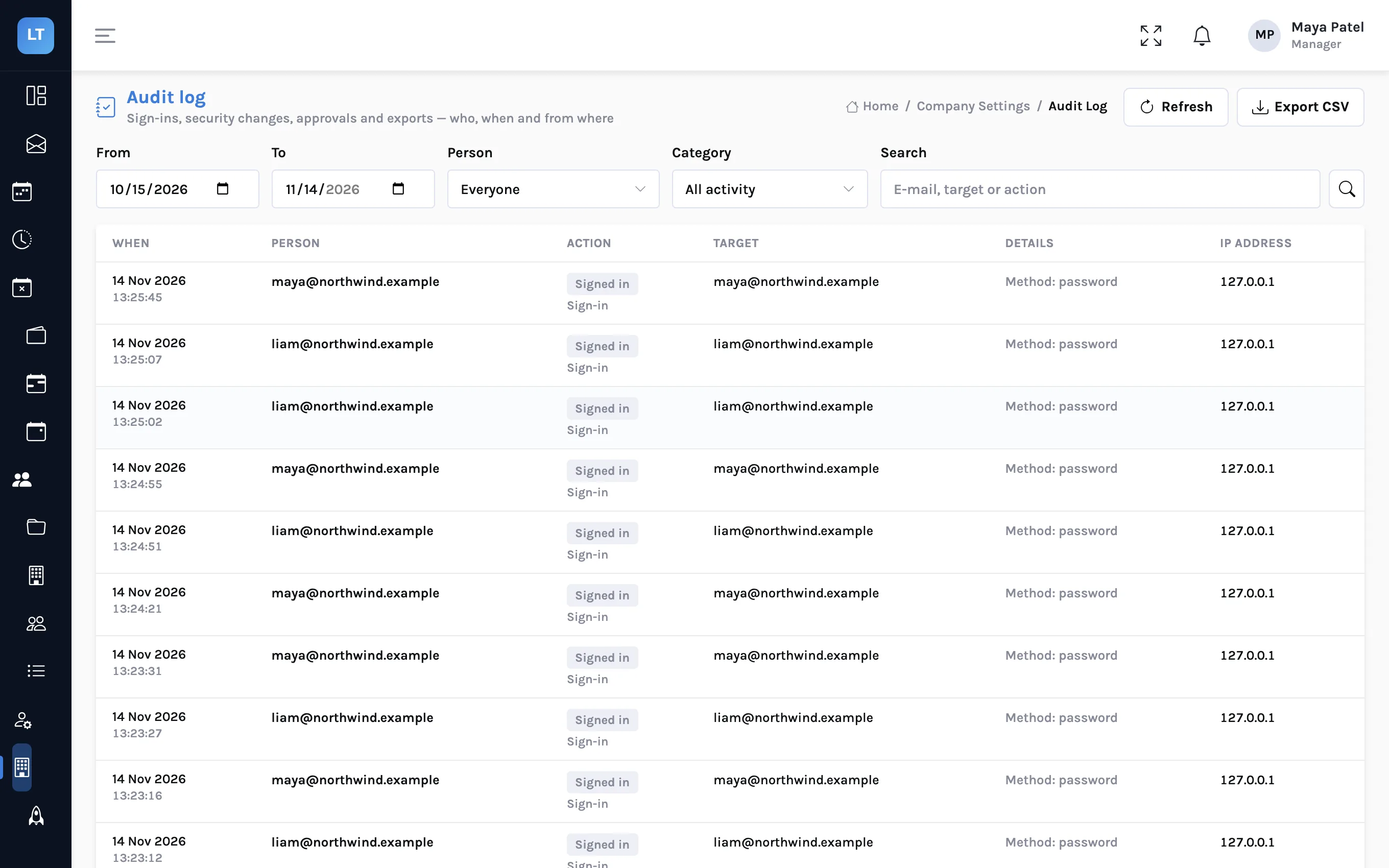
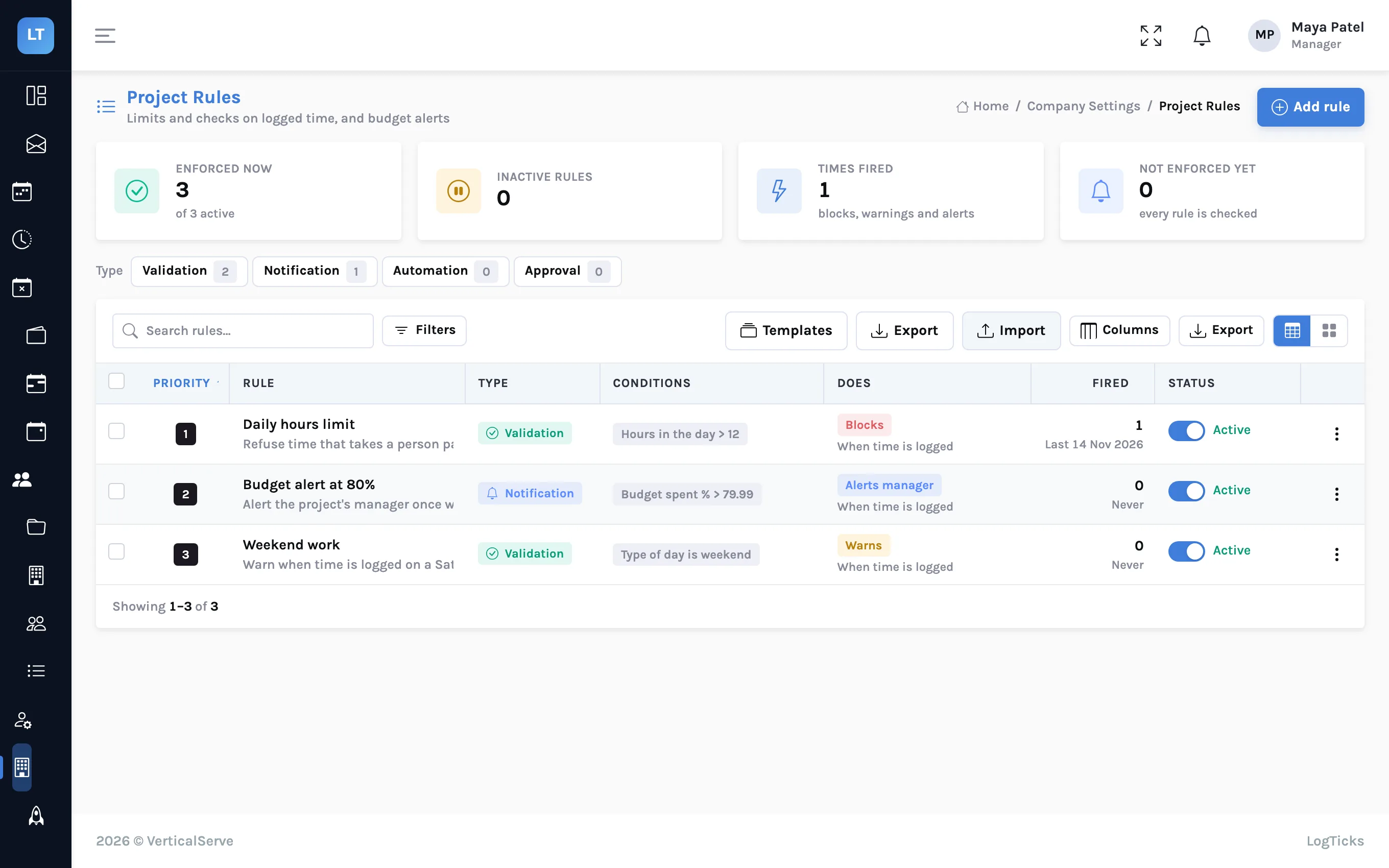
Rules live under Company Settings, Project Rules, and managers create them. The list shows each rule's condition, what it does, how many times it has fired and when it last did.
What a rule can check
| When | Condition | Typical use |
|---|---|---|
| Time is saved | Hours in the day | Refuse a day over 12 hours; warn over 8 |
| Time is saved | Hours in the week | Refuse a week over 60 hours |
| Time is saved | Hours in one entry | Catch 80 typed for 8 |
| Time is saved | Days in the past | No entries older than 14 days |
| Time is saved | Days in the future | No time logged for a day that has not come |
| Time is saved | Description missing | Every entry says what was done |
| Time is saved | Type of day | Warn on a weekend; refuse on a holiday |
| Time is saved | Percentage of budget or estimated hours spent | Alert the manager at 80% |
| A week is submitted | The week's total hours | Warn under 40; refuse over 60 |
| A week is submitted | Entries without a note | No week goes to a client blank |
What a rule can do
| Action | What happens | What the person sees |
|---|---|---|
| Block | The save is refused. Nothing changes | The rule's message, as an error |
| Warn | The time is saved | A warning saying why it was flagged |
| Alert the manager | The time is saved | Nothing. The project's manager sees an alert on their dashboard |
Step by step: start from a template
- Open Company Settings, Project Rules.
- Press Templates. There are 13, each with its condition and action shown.
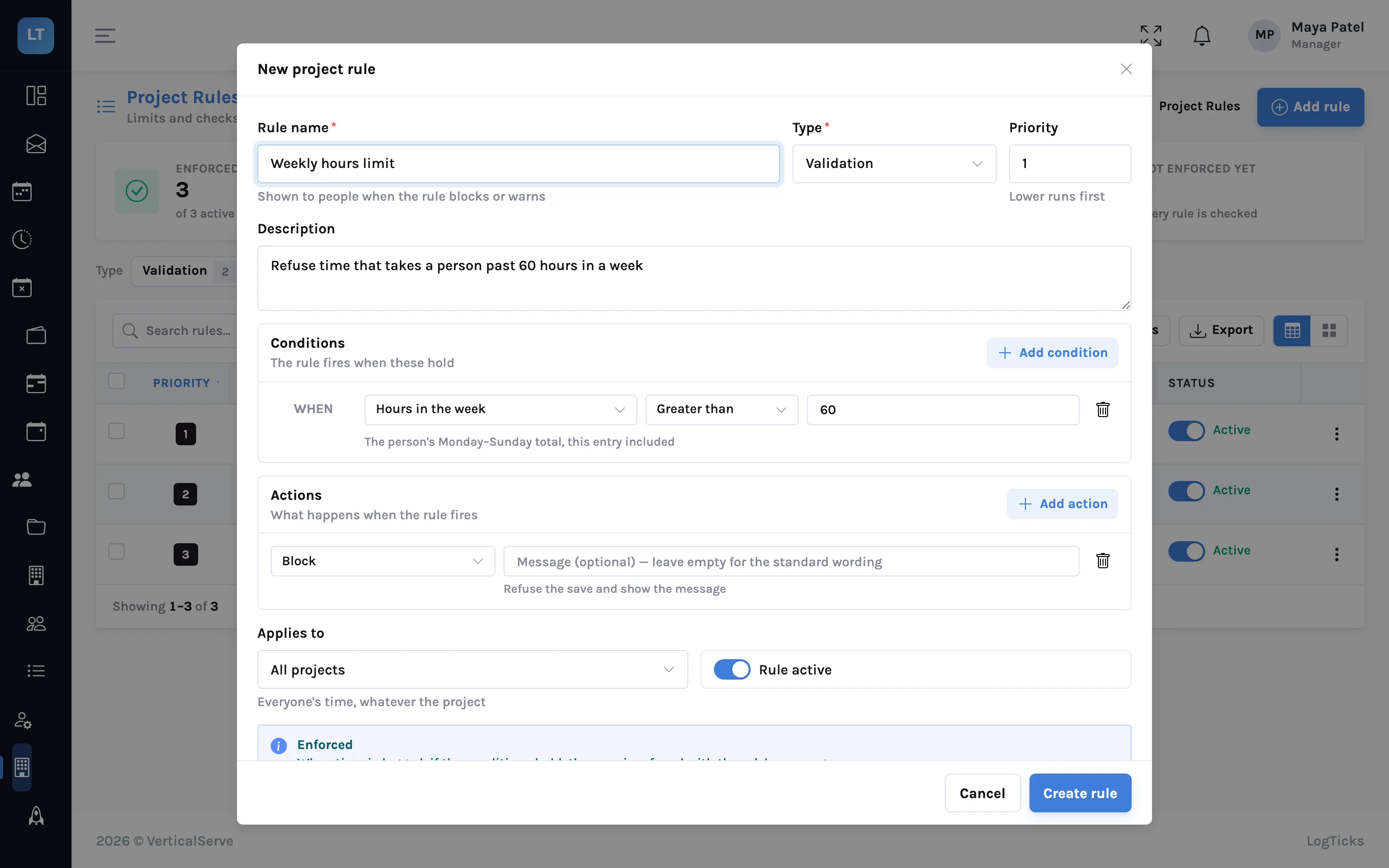
- Pick one, for example Weekly hours limit. It opens as a new rule you can adjust.
- Check the Rule name. It is shown to people when the rule blocks or warns, so make it something they will understand.
- Adjust the condition: what to check, the comparison, and the value.
- Choose the action, and write a message if the standard wording is not what you want to say.
- Under Applies to, leave it on all projects or choose the ones it covers.
- Press Create rule.
"Not enforced yet"
The form tells you if a rule cannot be applied. A rule type or condition that LogTicks does not check is labelled "Not enforced yet" on the form and counted in its own tile on the list, so a rule never looks active when it is not.
What happens when a rule fires
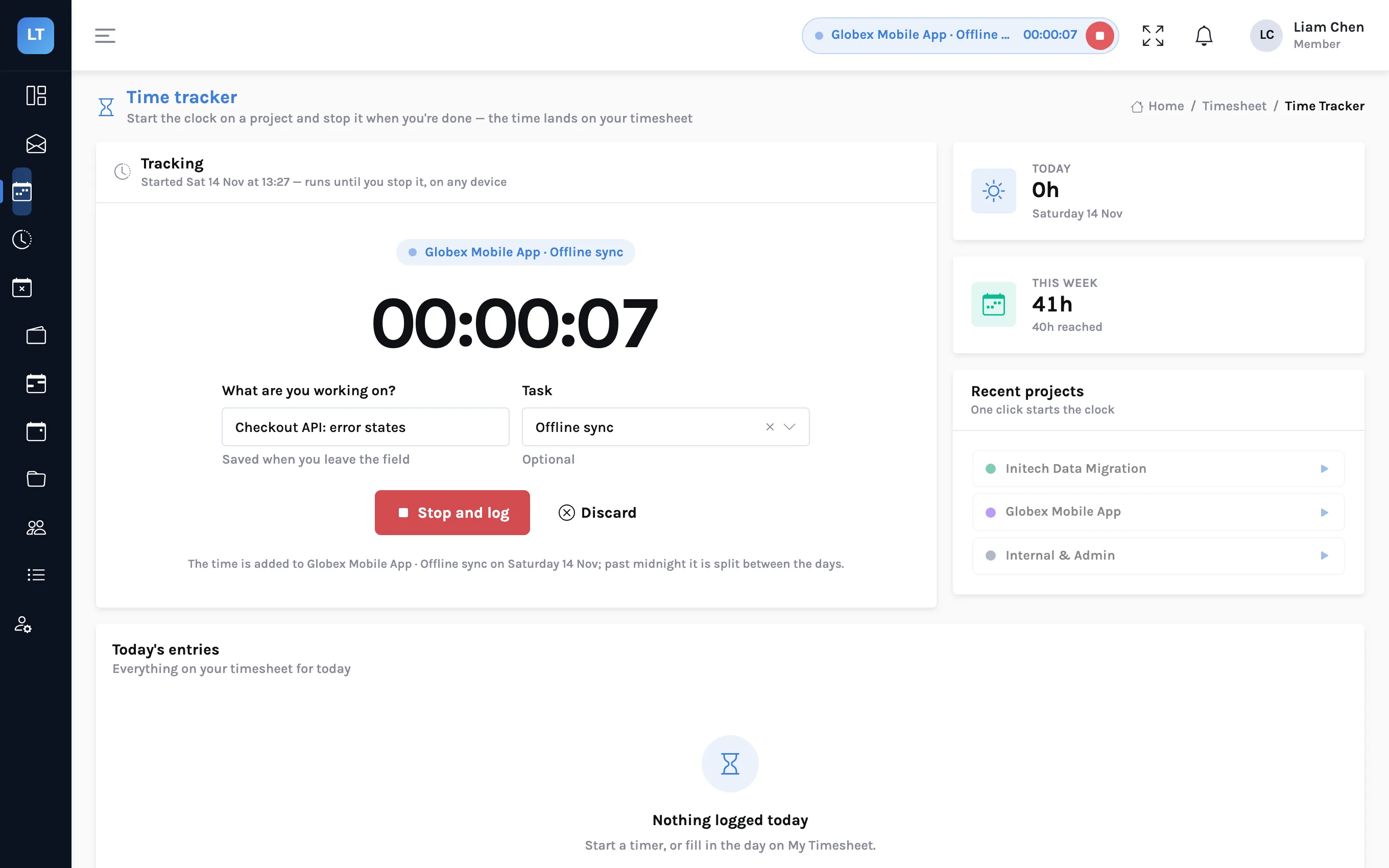
Liam opens his week and types 14 into Monday for a project that already has hours on other projects that day. The daily limit rule refuses it.
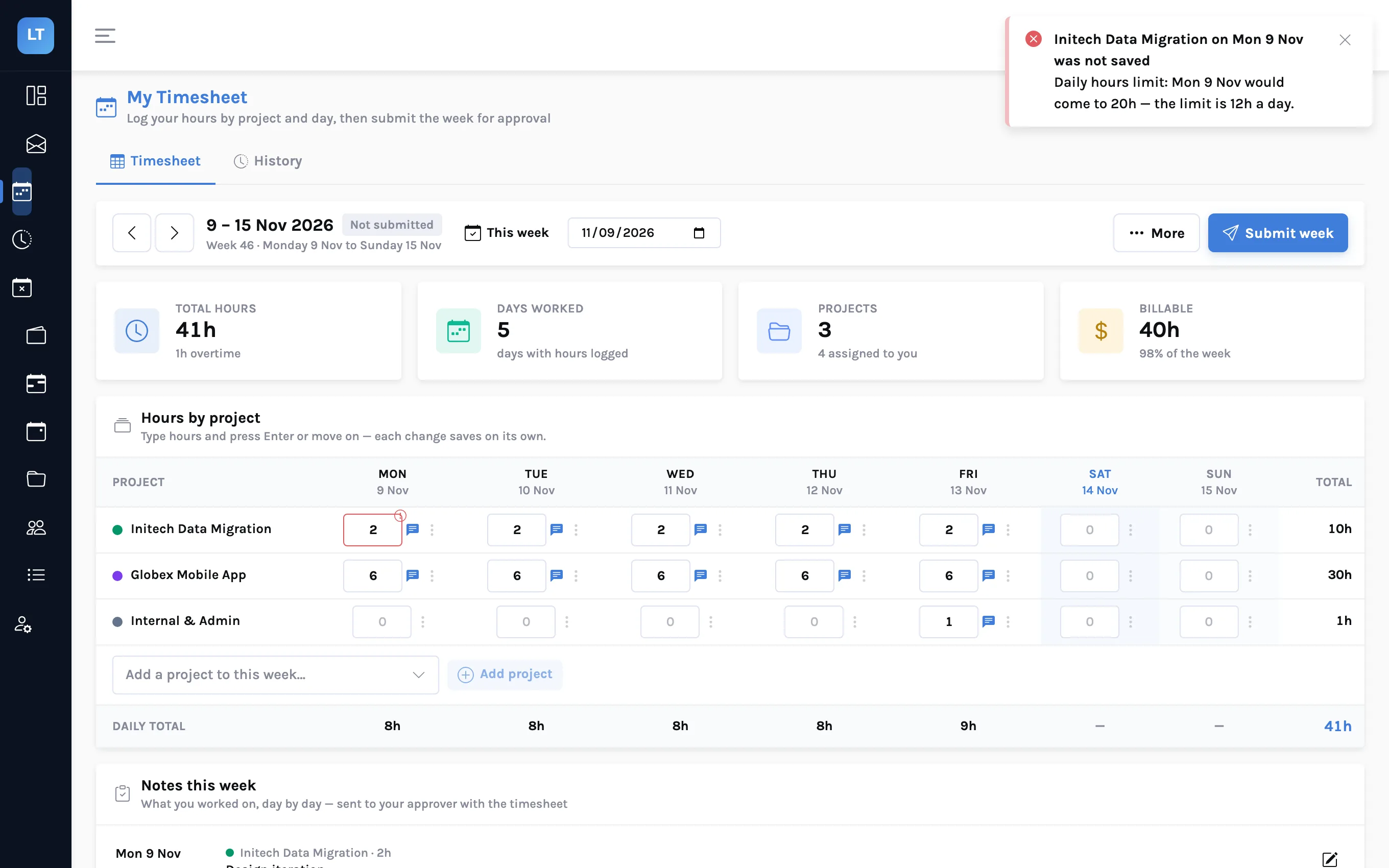
Three things about this are deliberate:
- The message is specific. It gives the total the day would have reached, not just "invalid entry".
- Nothing was saved. A blocked entry leaves the timesheet as it was.
- It applies everywhere time is saved. The grid, Quick entry, the timer and the API all go through the same check. A script that logs time gets the rule's message back as an error.
Back on the rules list, the rule's Fired count has gone up by one, and its run history has a line for it. If a rule fires fifty times in a week, either the team has a habit to change or the limit is wrong, and the count is how you find out.
A starter set
| Rule | Action | Why |
|---|---|---|
| Hours in the day over 12 | Block | Almost always a typo |
| Days in the past over 14 | Block | Keeps closed months closed |
| Days in the future over 0 | Block | Nobody has worked tomorrow yet |
| Hours in the day over 8 | Warn | Legitimate, but worth a second look |
| Type of day is weekend | Warn | Legitimate, but should be deliberate |
| Week's total under 40 at submit | Warn | Catches a forgotten day |
| Budget spent over 80% | Alert the manager | Time to talk to the client |
Block only what is certainly wrong. A rule that blocks legitimate work teaches people to enter false numbers that pass, which is worse than the mistake it was meant to stop.
Rules and the project's own settings
A project also has a Description required switch of its own. That one warns when time is saved without a description and again when the week is submitted. It does not block. If you want a missing description to be refused, add the Description required rule with the Block action.
- Block only what is certainly a mistake
- Give each rule a name a member will understand in an error message
- Scope budget alerts to the projects that have a budget worth watching
- Read the Fired counts after the first month and adjust
- Tell the team before you switch on a blocking rule
What it doesn't do (yet)
- A budget alert fires once per rule and project, when the threshold is first crossed. It does not repeat each day.
- Weeks are Monday to Sunday. A weekly limit cannot follow a different week.
- Some rule types are not enforced. They are labelled "Not enforced yet" on the form and the list.
- Rules check time as it is saved. Turning a rule on does not go back and flag time that is already there.
- The project's own "description required" warns; it does not block.
- Alerts go to the dashboard. A rule does not send an e-mail or a chat message.
Catch the typo while the person is still looking at the cell.
Add your first rule
Open Project Rules, pick the Daily hours limit template, and try to log a 20-hour day.
Start free