A weekly grid is the right tool for reviewing a week. It is a poor tool for capturing a day. At six in the evening you know one fact, "I spent about six hours on the Globex app", and the grid wants you to find the week, find the row, find the column and type a number in a small box.
LogTicks has three shortcuts that start from the sentence instead. They differ in how much they understand, and it is worth knowing the difference before you rely on one. This article goes through all three.
| Shortcut | Where | Understands | Saves by itself? |
|---|---|---|---|
| Describe it instead | Quick entry page in the web app | Days and durations written in plain words | No. It fills the form; you press Save |
/hours | Google Chat | Amount, project name, description | Yes |
/upload | Google Chat | An image or PDF of a timesheet, read by AI | Yes; review afterwards |
1. "Describe it instead" on Quick entry
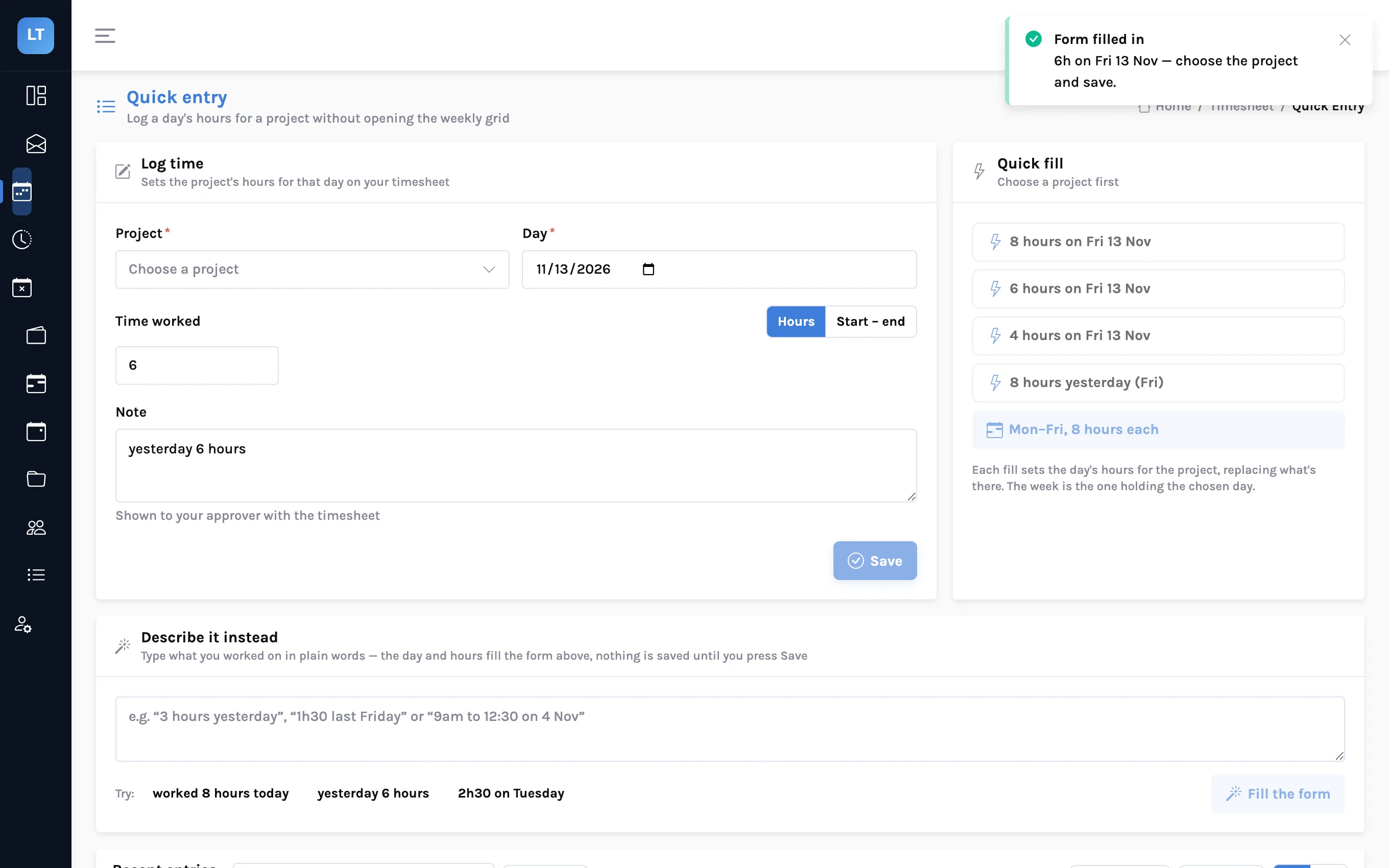
Quick entry is a short form under the Timesheet menu: a project, an optional task, a day, the time worked and a note. Below it is a box titled Describe it instead.
- Open Timesheet, Quick Entry.
- In Describe it instead, type a phrase such as yesterday 6 hours or 2h30 on Tuesday. The box takes up to 500 characters and suggests three examples.
- Press Fill the form.
- The Day and the Time worked fill in, and your phrase goes into the Note if the note was empty.
- Choose the Project, and a task if you use them, and press Save.
It reads two things out of the sentence, the day and the duration:
| You type | It picks up |
|---|---|
| worked 8 hours today | 8 hours, today |
| yesterday 6 hours | 6 hours, yesterday |
| 2h30 on Tuesday | 2 hours 30 minutes, Tuesday |
| last Friday 1h30 | 1 hour 30 minutes, last Friday |
| 9am to 12:30 on 12 November | 3 hours 30 minutes, 12 November |
Look before you save
It fills the form; it does not save. Glance at the Day and the hours it chose, then pick the project and press Save.
This box is pattern matching, not a language model. It understands "yesterday", weekday names, dates, and durations written as hours, as "1h30" or as a start and end time. It will not work out which project "the Globex thing" is, split a sentence into two entries, or understand "the usual". Its value is modest and real: on a phone, typing "last Friday 1h30" and tapping twice is quicker than a date picker and a number field.
Quick entry is also the one screen that works without a connection. If you have installed LogTicks from the browser and you are offline, what you enter here is queued and sent when you reconnect. More on the installable app and the timer.
The quick-fill buttons beside it
To the right of the form are one-tap fills that need no typing at all: 8, 6 or 4 hours on the chosen day, 8 hours yesterday, and Mon–Fri, 8 hours each, which fills a whole week for the chosen project. Each fill sets the day's hours for the project and replaces what was there, so pick the project first. For a regular schedule these are faster than any sentence.
2. /hours in Google Chat
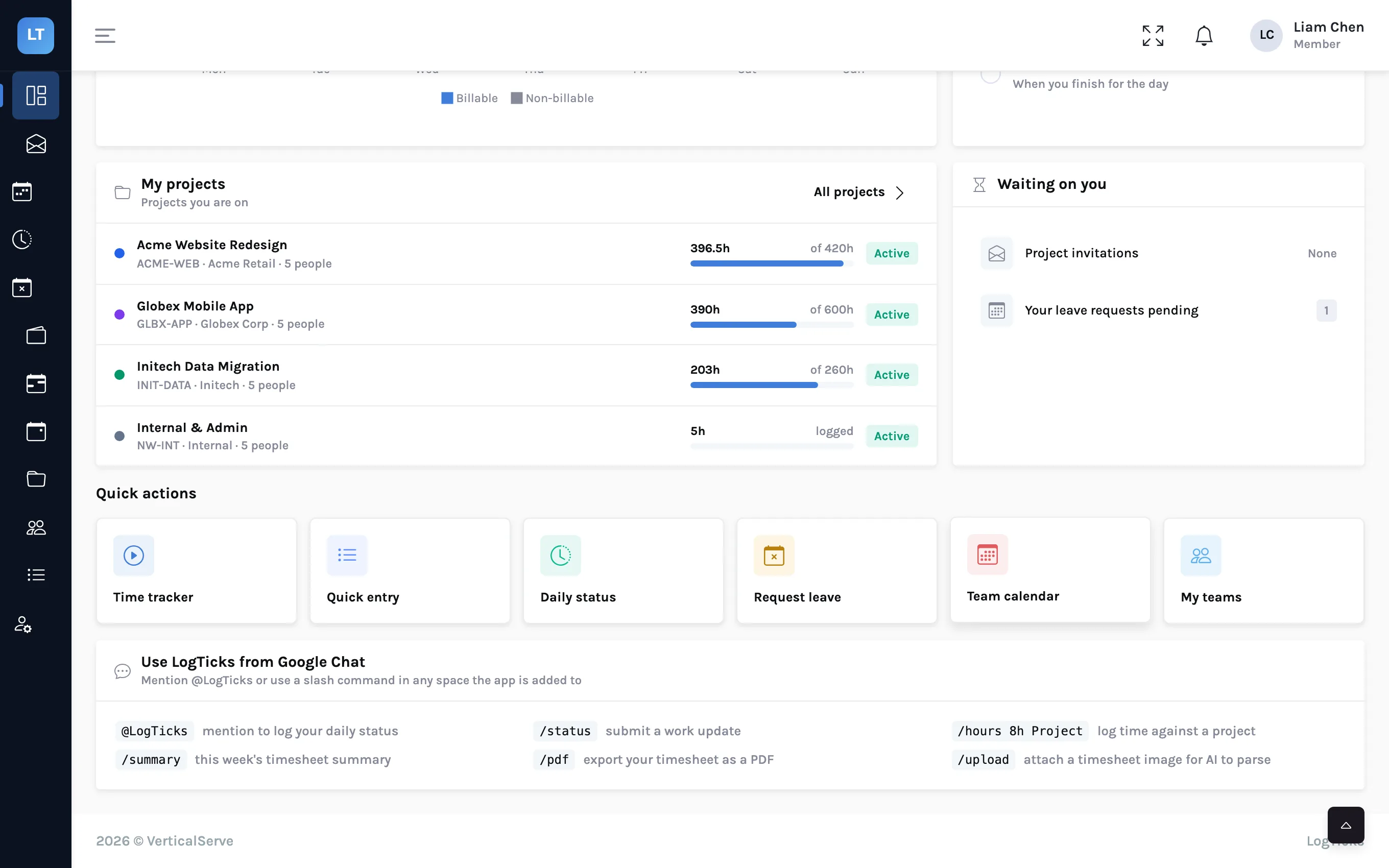
If your team uses the LogTicks app in Google Chat, /hours logs time from a message:
/hours 6h Globex Mobile App — checkout API integration- Unlike the web box, this one saves. The reply tells you what was logged and to which project.
- The project is matched by name. With an inexact name the app uses AI to choose among your projects, and if it still cannot tell it falls back to your first project. Read the reply.
- At most 24 hours per command. The time is for today.
3. /upload: an image or PDF of a timesheet
Sometimes the hours already exist, on paper or in a client's system. In Google Chat, attach the image or PDF to a message with /upload. An AI model reads the rows and creates time entries from them.
- Files up to 10 MB.
- It creates the entries directly. Open My Timesheet afterwards and compare the week with the original before you submit.
- Photos of handwriting are the hardest case. A 1 and a 7 look alike to a model as they do to a person.
- This is in Google Chat only. The web app has no upload-and-read button; its Documents panel stores a file with the week but does not read it.
The daily AI allowance
Features that call an AI model draw on a daily allowance for each user. Reading an uploaded file costs more of it than reading a sentence. When the allowance is used up, AI commands are refused until the next day. The "Describe it instead" box and the quick-fill buttons do not use it, and neither does /hours when the project name matches exactly.
Which one to use
- Same hours most days: the quick-fill buttons
- One odd day, on a phone: Describe it instead
- Already in chat: /hours with the exact project name
- Hours that exist on paper or in another system: /upload, then review
- Before submitting: always read the week in the grid
What it doesn't do (yet)
- The web box does not choose a project and makes one entry at a time.
- The web box is not a language model. It reads a day and a duration. A sentence with neither returns nothing to fill.
- No file reading in the web app. Image and PDF reading is a Google Chat command.
- No voice input and no background tracking of what you worked on.
Capture the day in a sentence. Review the week in the grid.