Ask a team why timesheets are late and the honest answer is that they have already reported the work once. On Tuesday they told the stand-up they spent the day on the checkout redesign. On Friday the timesheet asks them the same question, and by then Tuesday is a blur.
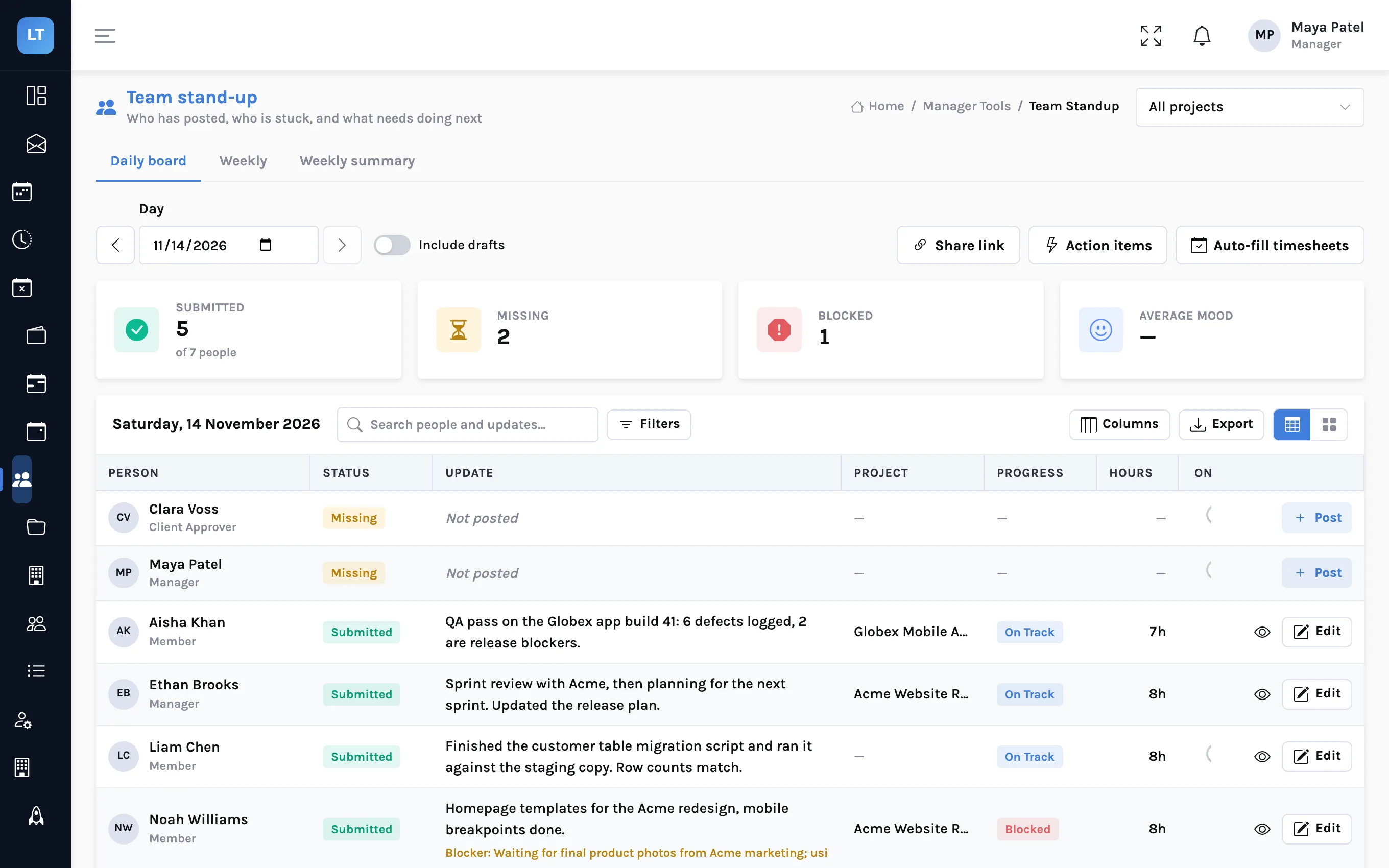
If the daily status already carries a project and a number of hours, the timesheet entry is mostly written. LogTicks has an auto-fill that does the copying: a manager previews the entries a week of statuses would create, then creates them. This article shows what makes a status usable for that, and what the preview tells you.
What a status needs to carry
Auto-fill reads three things from each daily status: the project, the hours, and the work summary. A status without a project or without hours produces no entry.
| In the daily status | Becomes in the timesheet entry |
|---|---|
| Project | The project the time is logged to |
| Productive hours | The hours for that day |
| Work summary | The entry's description |
| The day it was posted for | The entry's date |
People set the project at the top of the Post Status form. It is optional there, and "No specific project" is the default, so a team that wants auto-fill has to make choosing it a habit.
Posted on someone's behalf?
A manager can post a status for a team member from the board. That form has no project field, so a status posted this way does not feed auto-fill. If the person edits their status later and picks a project, it will.
Step by step: preview, then create
- Open Manager Tools, Team Standup, and stay on the Daily board tab.
- Press Auto-fill timesheets.
- Pick any day in the week you want to fill. The dialog shows the week it belongs to.
- Press Preview.
- Read the table. Each row is one entry that would be made: person, date, project, hours, description and a result.
- Press Create entries and confirm.
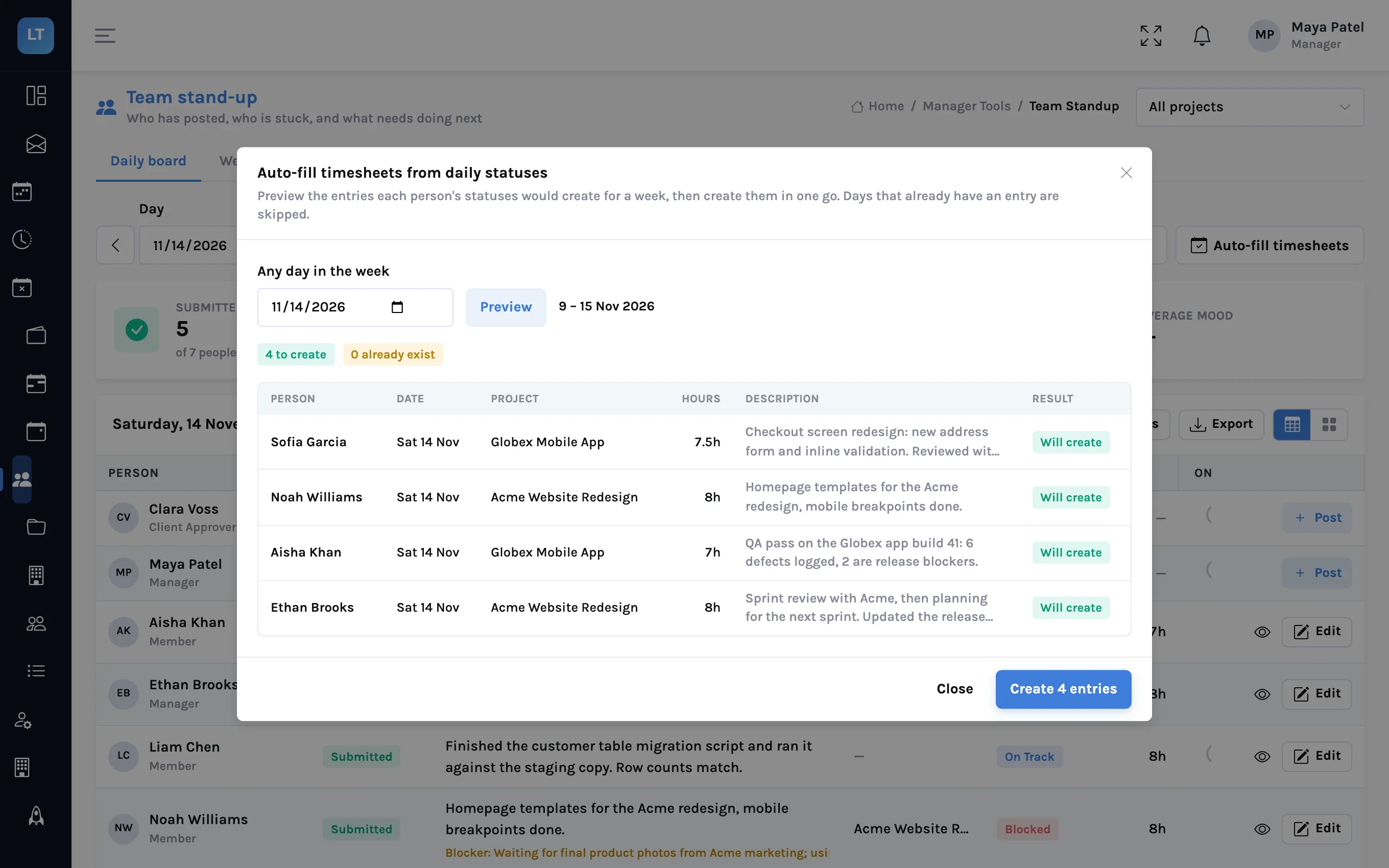
| Result | Meaning |
|---|---|
| Will create | There is no entry for that person, day and project yet, so one will be made |
| Exists — skip | An entry is already there. It is left exactly as it is |
The rule behind the second row is the important one: auto-fill never overwrites. If someone has already logged time to that project on Tuesday, their Tuesday is skipped. Anyone whose week is already submitted or approved is skipped altogether. That makes it safe to run on Friday for a team where half the people have kept their timesheet up to date and half have not.
Who can run it, and on what
- Auto-fill is a manager's tool. There is no button for a member to fill their own week from their own statuses.
- A manager fills entries for the projects they manage. Statuses on someone else's project are left for that project's manager.
- Each entry is an ordinary time entry: one per person, project and day, with the hours the status gave. It appears in that person's weekly grid, in reports and, once the week is approved, on invoices.
- People can still edit their week before they submit it.
- Statuses marked as on leave are ignored.
Getting good input
Auto-fill is only as accurate as the statuses. Three habits make the difference:
- Pick the project on every status, even when it feels obvious
- Enter the productive hours for the day, not a round 8 by default
- Post one status per project on days split between two, since a status belongs to one project
- Write the work summary as you would want it to read on a timesheet a client might see
What it doesn't do (yet)
- Manager only. Members cannot fill their own timesheet from their statuses.
- One project per status. A day split across projects needs a status for each, or a manual entry for the second.
- No meeting or admin split. The status form also records meeting and admin hours. Auto-fill uses the productive hours only.
- It does not submit. Auto-fill creates entries. Each person still reviews and submits their own week, and it still goes through approval.
- It does not touch a submitted week. If someone has already submitted, their statuses are not turned into entries; they would have to revoke the submission first.
If the work was reported on Tuesday, nobody should have to remember it on Friday.
Try auto-fill on one week
Have the team post statuses with a project and hours for a week, then run the preview on Friday.
Start free