Every services firm lives on one ratio: of the hours people worked, how many can be billed, and at what rate. Most firms learn that number at month end, from a spreadsheet, when it is too late to do anything about the month.
LogTicks holds the inputs: hours by project, which projects are billable, and a rate for each. Its Reports page turns them into a revenue view. This article explains where the inputs are set, how to read the report, how its numbers are produced, and how the report differs from an invoice.
Start with the inputs: billable, rate, budget
Three settings on a project decide what its hours are worth. Open a project and choose Edit.
| Setting | Where | Effect |
|---|---|---|
| Who is it for? | Basics | Internal work or a client. Client projects can be billed |
| Billable | Time rules | "Time logged here can be invoiced" |
| Hourly rate (USD) | Schedule and budget | The rate for the project |
| Budget (USD) | Schedule and budget | The amount you have agreed with the client |
| Estimated hours | Schedule and budget | The effort you expect |
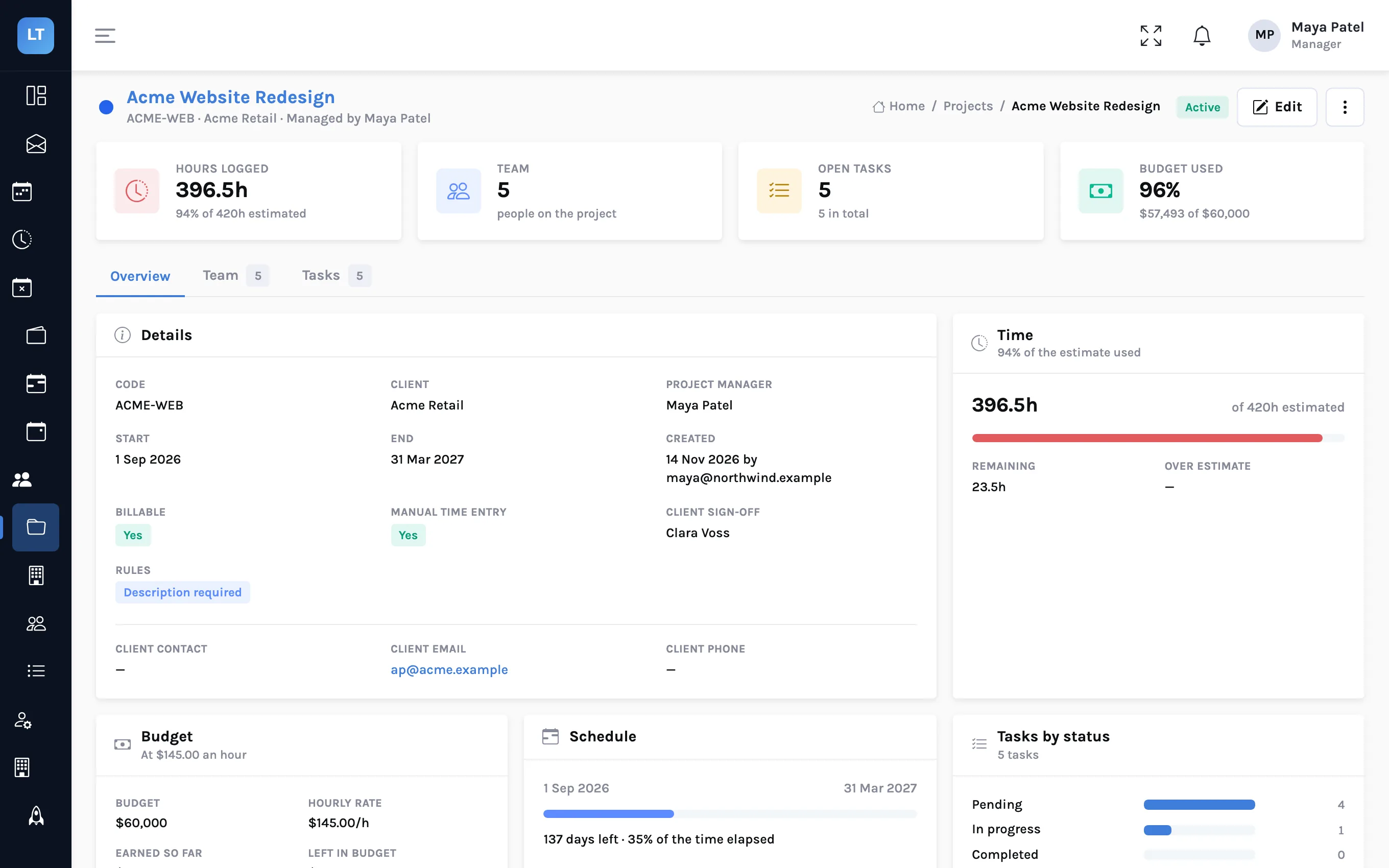
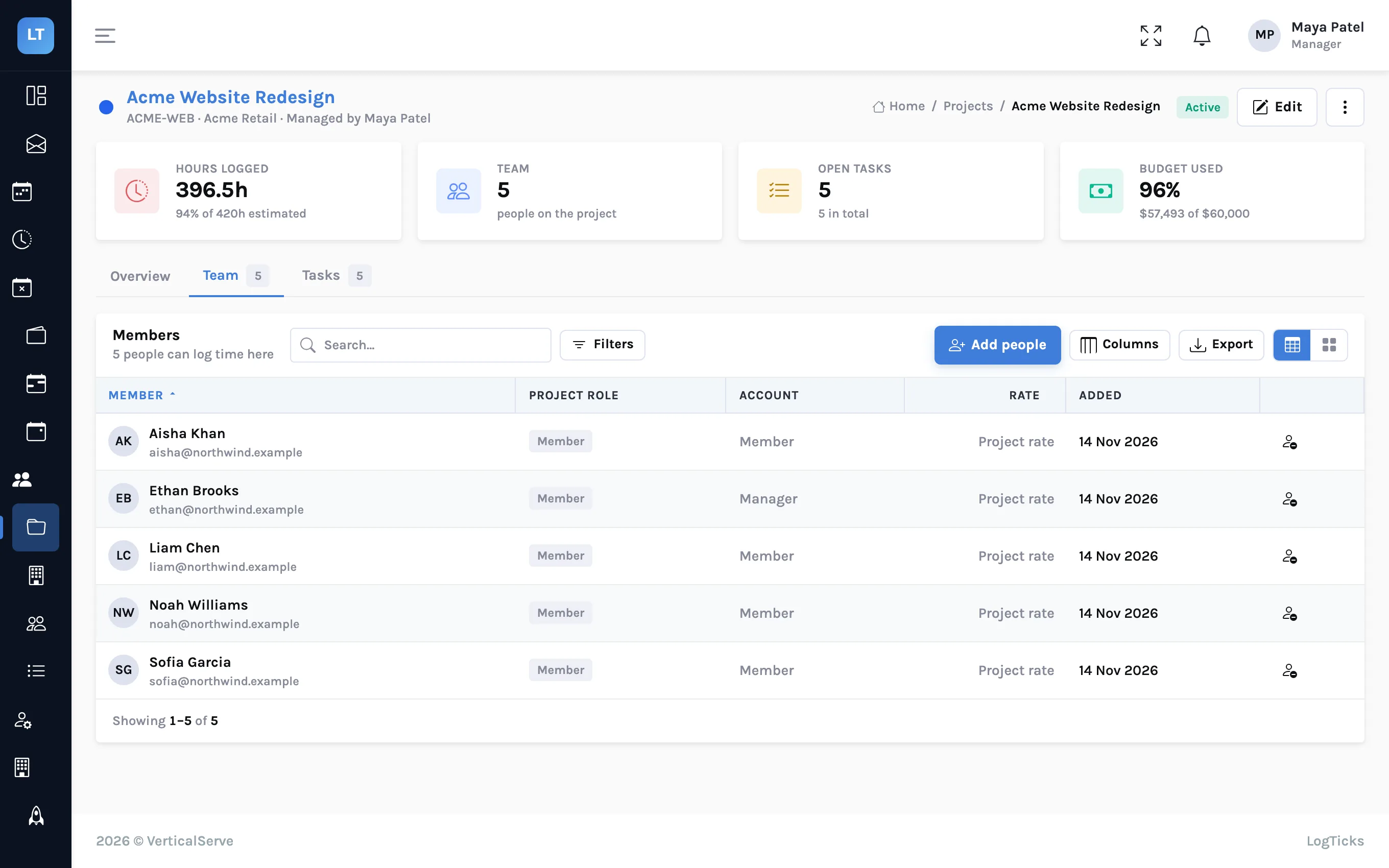
The overview does the first piece of arithmetic for you: hours logged multiplied by the project rate is Earned so far, shown against the budget with what is left. A project at 96% of budget and 94% of estimated hours, as here, is tracking its plan closely. A project at 96% of budget and 60% of its schedule is a conversation to have this week.
A different rate for one person
On the project's Team tab, adding a person offers an Hourly rate (USD) for them, with the hint "Leave blank for the project rate". Use it when a senior and a junior are billed differently on the same project. That rate is what the reports and invoices use for that person's hours.
Non-billable time is still time
An internal project, such as the demo company's "Internal & Admin", is not billable. Hours logged to it count toward a person's week and show as non-billable in their totals and on their dashboard chart. That is the other half of the ratio: a timesheet reading 41 hours with 40 billable is telling you one hour went to a team meeting.
Log internal time honestly. A firm whose timesheets show 100% billable has people who are hiding their meetings in client projects, which is worse for the client relationship than the non-billable hour would have been for the ratio.
The Revenue tab
- Open Manager Tools, Reports & Analytics.
- Choose the Revenue tab.
- Set the period at the top right: last 7 days, last 30 days, this month, last month, this quarter, or a custom range.
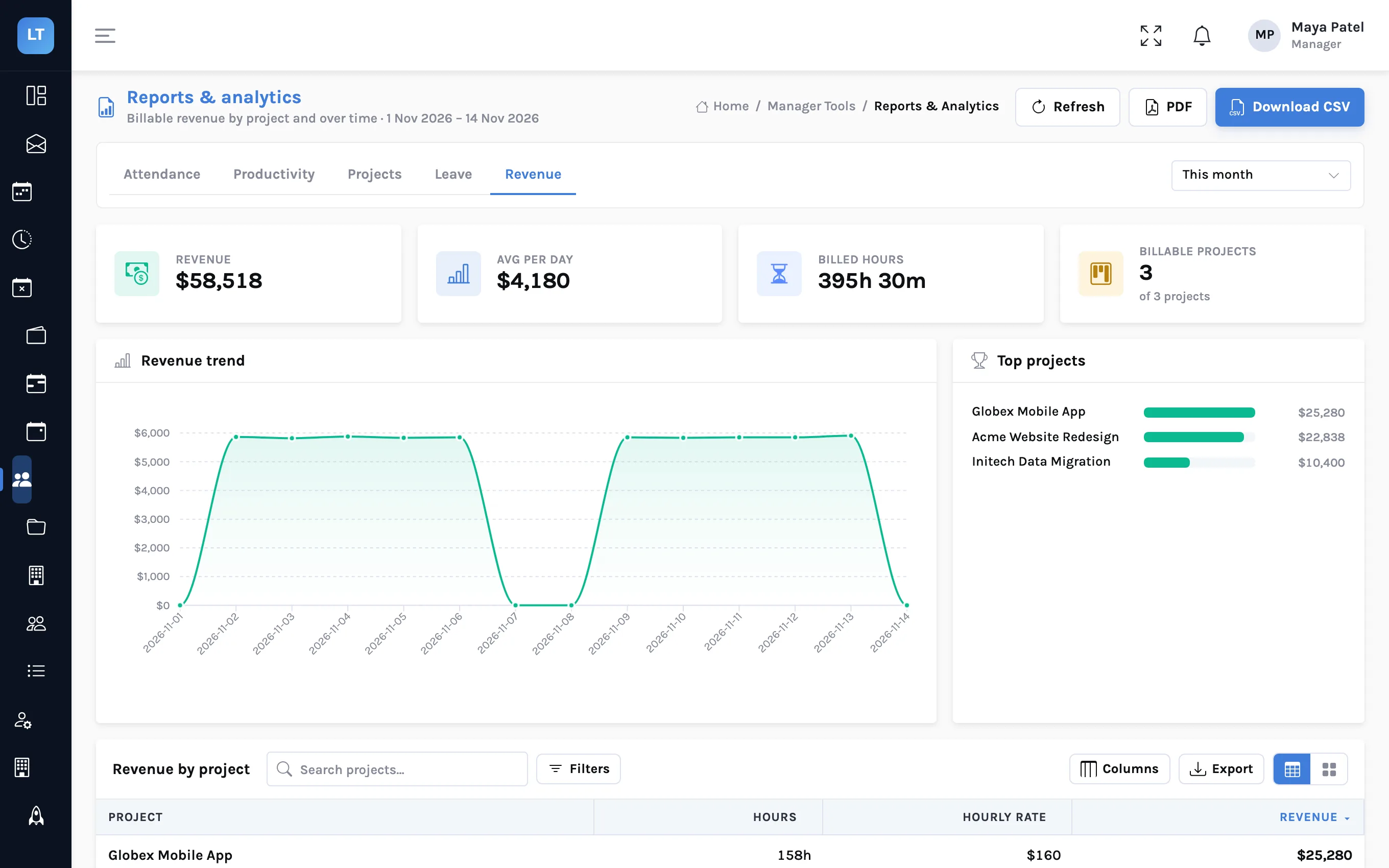
| Part | What it shows |
|---|---|
| Revenue | The total for the report |
| Avg per day | Revenue divided across the days of the period |
| Billed hours | Billable hours behind the figure |
| Billable projects | How many of your projects are billable |
| Revenue trend | Revenue by day. Weekends show as the dips |
| Top projects | Projects ranked by revenue |
| Revenue by project | A table: project, hours, hourly rate, revenue |
All amounts are in US dollars. The table can be searched, sorted and filtered.
How the figures are produced
A revenue figure is only useful if you can say what is in it. The rule is short:
- Revenue by project is the billable hours worked inside the period you chose, multiplied by the rate those hours are billed at.
- The rate is the person's own rate on the project if they have one, and the project's rate otherwise. A senior at a higher rate raises the project's revenue accordingly.
- Internal projects are left out. Time on a non-billable project is not counted as billable anywhere in the reports.
- The trend chart uses the same rule, day by day, so the days add up to the table.
- Approval does not matter here. The report counts all billable time in the period, whether the week has been approved or is still a draft.
The report is not the invoice
The Revenue tab answers "what was the work in this period worth?". An invoice answers "what can I bill now?", which is narrower: only weeks that are fully approved, and only time that is not already on an invoice. Early in a month the two differ a lot, because most weeks are not approved yet. Read revenue on the report; take billing figures from Invoices. From approved timesheets to an invoice shows how.
| Revenue report | Invoice | |
|---|---|---|
| Billable time on client projects | Counted | Counted |
| Rate | Person's rate on the project, else the project rate | The same |
| Period | The range you pick | The range you pick |
| Weeks not yet approved | Counted | Left out, and shown as not included |
| Time already invoiced | Counted | Never offered again |
The other four tabs, briefly
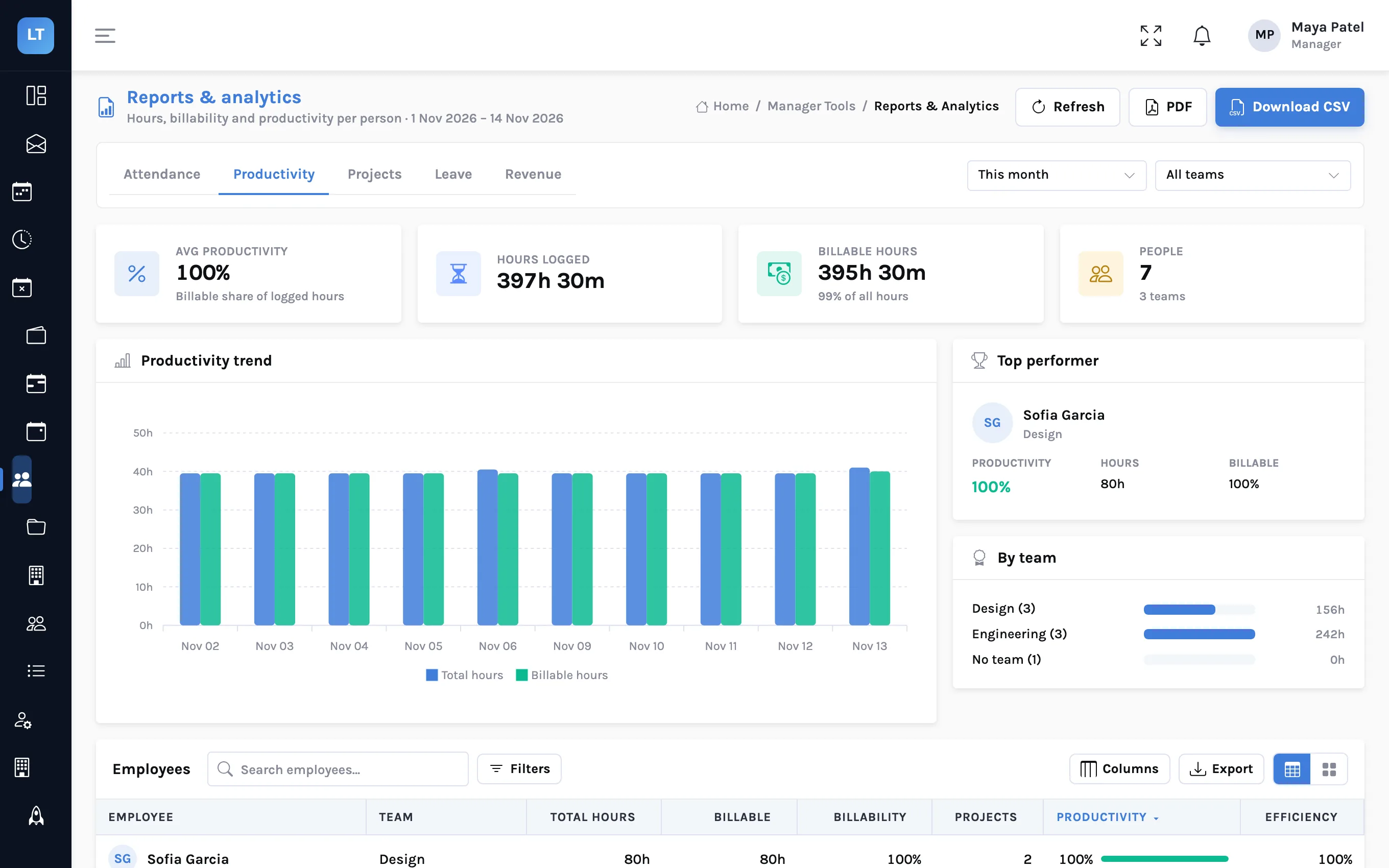
| Tab | Use it for |
|---|---|
| Productivity | Hours and billability per person, by worked day within the range: the billable ratio, by name. Filter by team |
| Projects | Hours and progress by project |
| Attendance | Presence, lateness and hours, if your team clocks in |
| Leave | Leave taken and pending. Filter by team |
For the billable-versus-non-billable question, the Productivity tab is often the more useful one. It answers "who is at 60% billable this month?" directly.
Exporting
Two buttons at the top of Reports: PDF and Download CSV. The CSV is for your spreadsheet or accounting tool. The PDF is for sending. Each table also has its own Export button.
A month-end checklist
- Every client project has a rate, a budget and an estimate
- Internal work is logged to an internal project, not hidden in a client's
- All of the month's timesheets are approved before you read revenue
- Projects above 85% of budget have an owner and a plan
- Billing figures come from Invoices, not from the report
What it doesn't do (yet)
- The report does not know about approval or invoicing. It counts all billable time in the period. Use Invoices for what can be billed.
- US dollars only. Rates and budgets are in USD; there is no currency setting.
- No expenses. Revenue is hours times rate. Costs, expenses and margin are not modelled.
- No scheduled reports. Exports are something you press, not something that arrives.
A revenue number is useful when you can say which hours and which rate produced it.
Put a rate on a project
Create a client project with a rate and a budget, log a week to it, and open the Revenue tab.
Start free