Monday morning sets a manager's week, and most of it is spent finding out what happened in the last one. Who has not submitted. Whose hours look odd. Who is away on Thursday. What was stuck on Friday and may still be stuck.
None of that is hard. It is scattered. This article is a routine for the first twenty minutes of the week, in four LogTicks screens, in the order that clears other people's blockers first.
1. The team dashboard: what is waiting for you
Open Manager Tools, Team Dashboard. Read it top to bottom once.
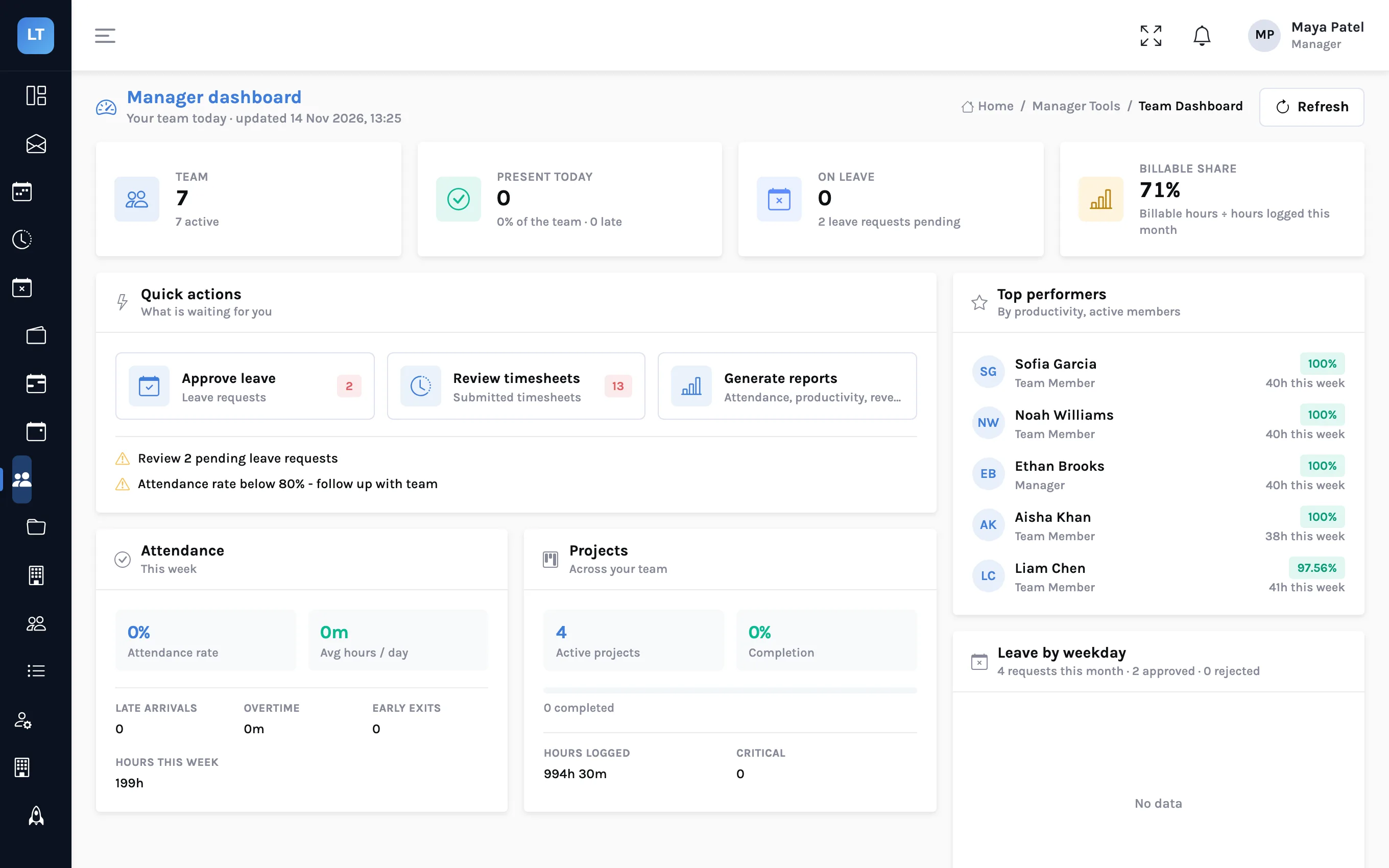
| On the page | The question it answers |
|---|---|
| Team, Present today, On leave | Who is actually here today? |
| Billable share | How much of this month's logged time is billable? |
| Quick actions, with counts | How many leave requests and timesheets are waiting on me? |
| Alerts | Is anything out of the ordinary, such as pending requests or low attendance? |
| Attendance, this week | Attendance rate, average hours a day, late arrivals, overtime |
| Projects | Active projects and hours logged across the team |
| Leave by weekday | Is leave bunching on Mondays and Fridays? |
You are not analysing anything yet. You are learning two numbers, timesheets to review and leave requests to answer, and whether anyone you were counting on is out.
About the figures on the right
The Billable share tile is billable hours as a share of all hours logged this month. The Top performers list is ordered by productivity, which is hours logged against hours expected. Use both to notice a week that looks wrong, not to rank people.
2. Approve timesheets: last week's hours
Press Review timesheets, or open Approve Timesheets from the menu. Stay on the Awaiting review filter.
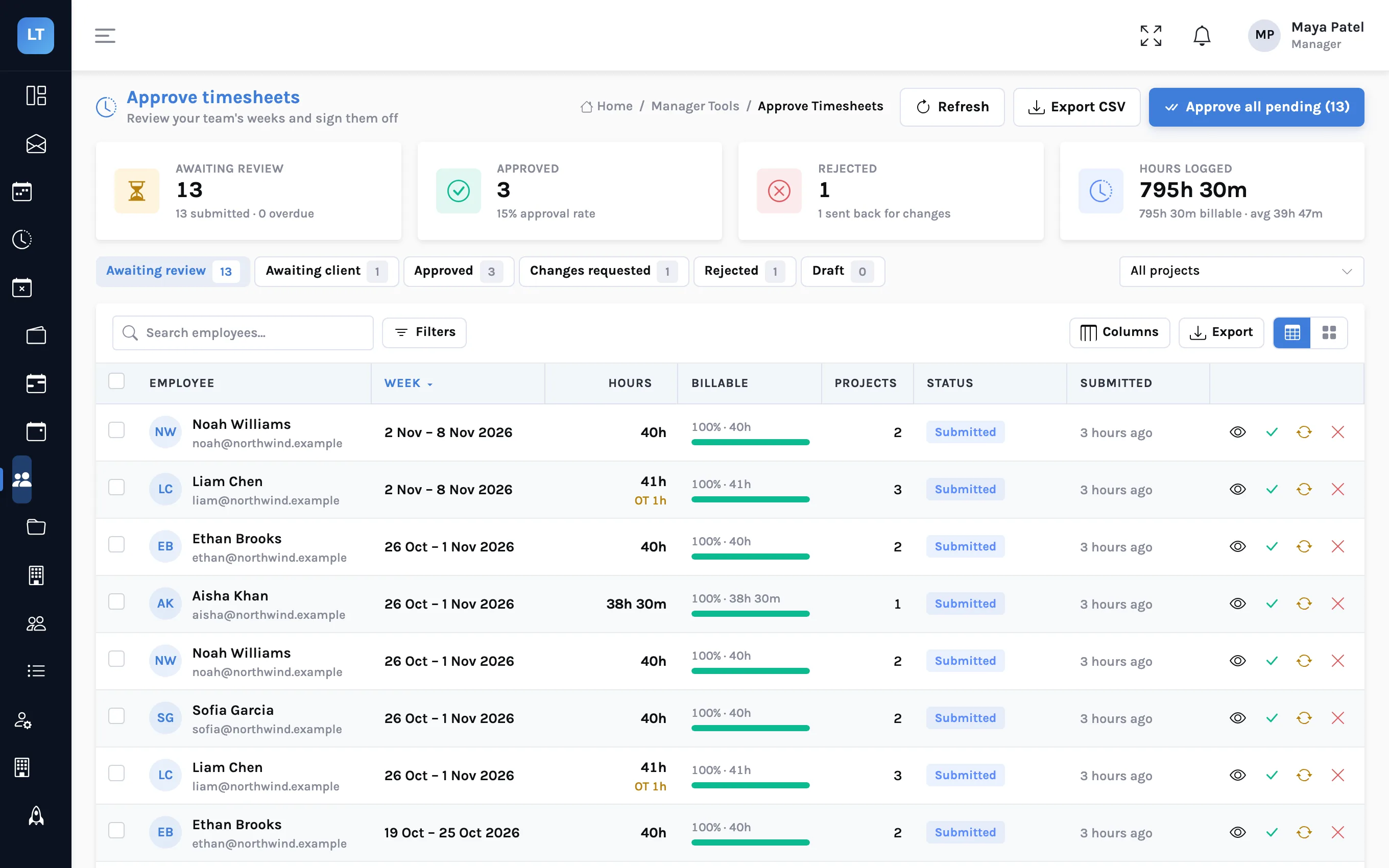
- Scan the Hours column. A 40 is unremarkable. A 52, or a 31 from someone full-time, is worth opening.
- Open the unusual ones. Click the row for the review sheet: every entry by day and project, the notes, overtime, and any attached documents.
- Decide. Approve; or Request changes with a reason the person can act on ("Thursday has 6 hours on Acme but your status says you were on Globex"); or Reject.
- Clear the rest. Tick the ordinary weeks and approve them together, or use Approve all pending if you have looked at every row.
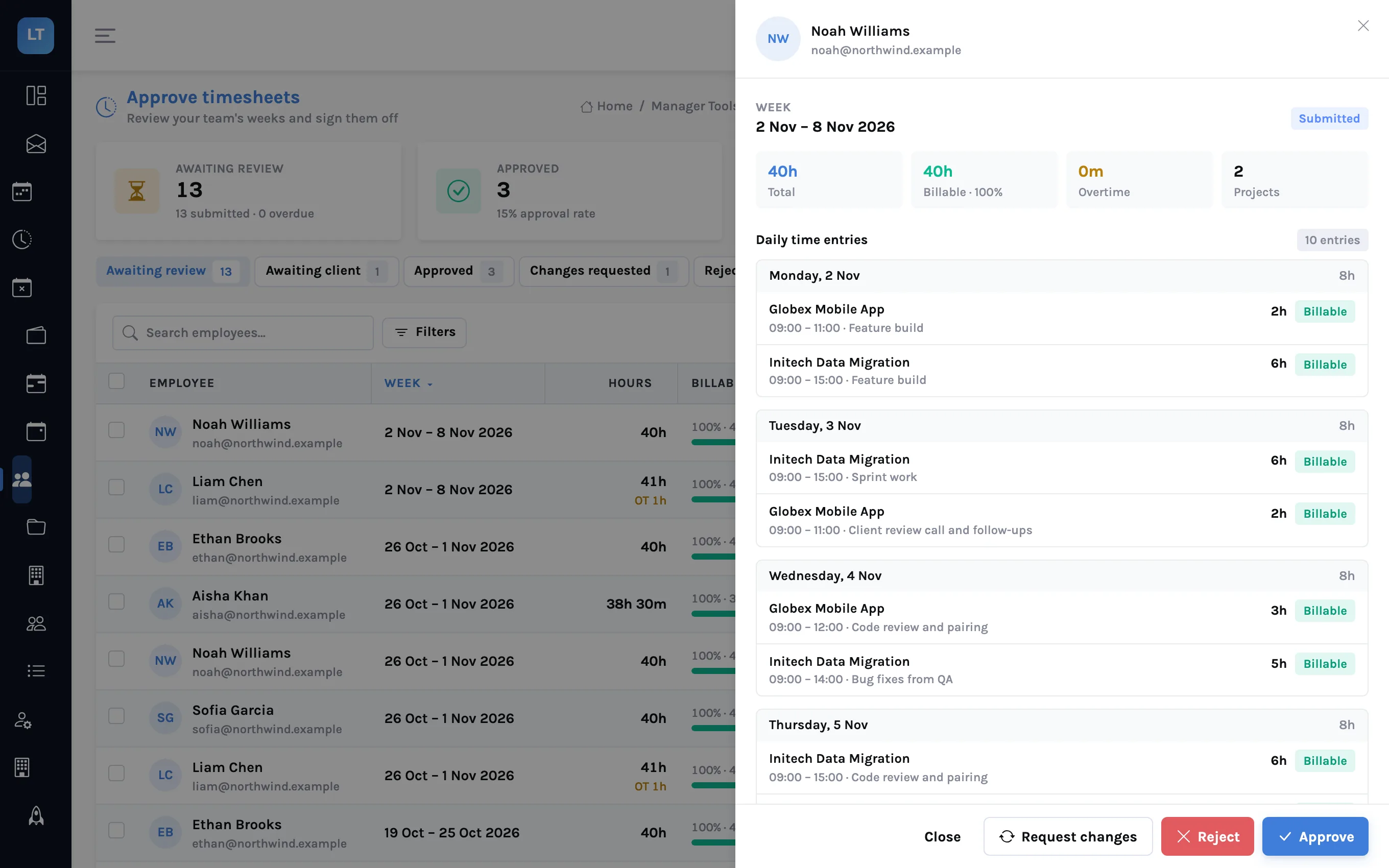
Then look at two other chips. Changes requested shows weeks you sent back that have not returned. Awaiting client shows weeks you approved that a client approver has not yet signed off; if one has sat there a week, a message to the client is due. How client sign-off works.
And notice who is not in the queue. Someone who has not submitted does not appear under Awaiting review. The Draft chip shows weeks that have hours but were never submitted, which is your list of people to nudge.
3. Approve leave: who is asking
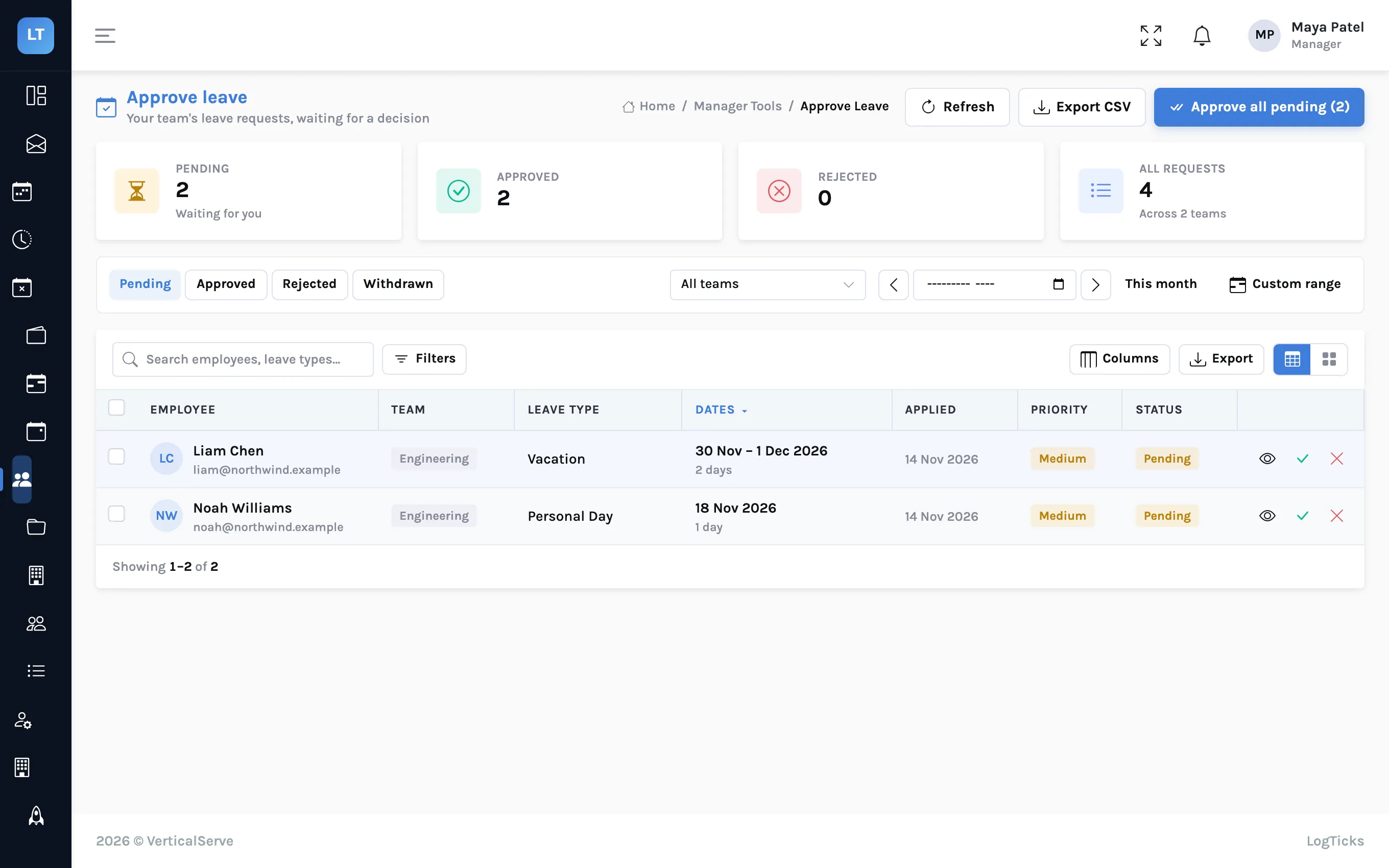
Leave requests are short to decide and costly to delay. For each one:
- Check the dates against the team calendar: is someone else on the same project away then?
- The leave type's rules, such as notice and longest stretch, were already applied when the request was made, and the days shown are working days. What is left for you is judgement: can the team spare this person then?
- Read the handover note, if there is one.
- Approve or reject. A rejection should say why.
While you are in Manager Tools, open Approve Expenses too. It works the same way: read the receipt, approve or reject with a reason, and the person stops waiting.
4. The stand-up summary: what is stuck
Open Team Standup and the Weekly summary tab. Step back to last week with the arrow.
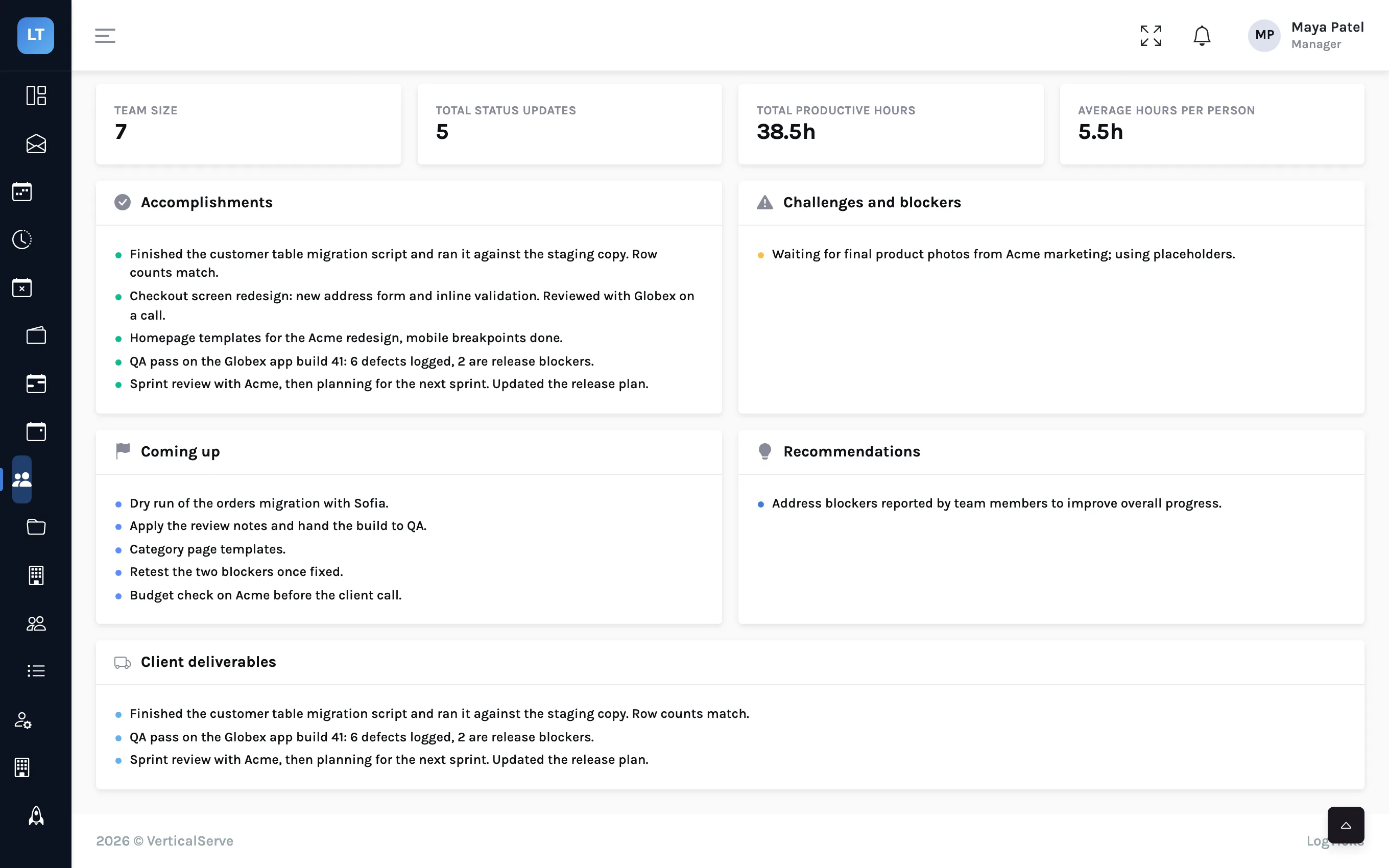
| Panel | Read it for |
|---|---|
| Accomplishments | What was finished. Useful for your own weekly report |
| Challenges and blockers | Anything raised last week. Is each one resolved? |
| Coming up | What people said they would do next, to compare with this week |
| Team size, updates, hours | Whether people are posting at all |
With the AI write-up switch on, the page also shows a written summary above the panels. It is assembled from the same statuses; read it as a digest of them, not as analysis.
Then go back to the Daily board for today. Anyone marked Blocked is your first conversation of the week. The Action items button drafts a list of follow-ups from the day's statuses using AI, with a priority and a suggested owner for each. Treat it as a draft to read, not a task list to obey.
The checklist
- Dashboard: note the two counts and who is out
- Timesheets: open the unusual, approve the ordinary, chase the missing
- Check Changes requested and Awaiting client for anything stale
- Leave and expenses: answer every request, with a reason for any no
- Stand-up summary: every blocker from last week has an owner
What it doesn't do (yet)
- Reminders are off until you switch them on. LogTicks can e-mail people who have not submitted last week, and send managers a digest of approvals that have waited too long, but only once a manager enables them under Company Settings, Reminders. There is no summary of the dashboard itself by e-mail.
- Action items cannot be ticked off. The list is generated again each time you ask; it is not tracked to completion.
- Attendance needs clock-ins. The attendance figures are only meaningful if your team uses clock in and out.
Approve the ordinary quickly so you have time to read the unusual.