Every team has people at its edge. A contractor on a three-month engagement. A specialist who gives you two days a week. They are doing real work on your project, and you want their daily update next to everyone else's. What you do not want is to make them learn another tool for it, and they will not anyway: an account they use once a day for thirty seconds is an account whose password they forget.
LogTicks has a shared stand-up link for this. It opens a page for one day's stand-up that needs no sign-in. A person on the team can post their status there by giving their work email, and anyone with the link can read the day's updates.
Create the link
- Open Manager Tools, Team Standup, on the Daily board tab.
- To limit the link to one project, choose the project in the picker at the top right. Leave it on All projects for the whole company.
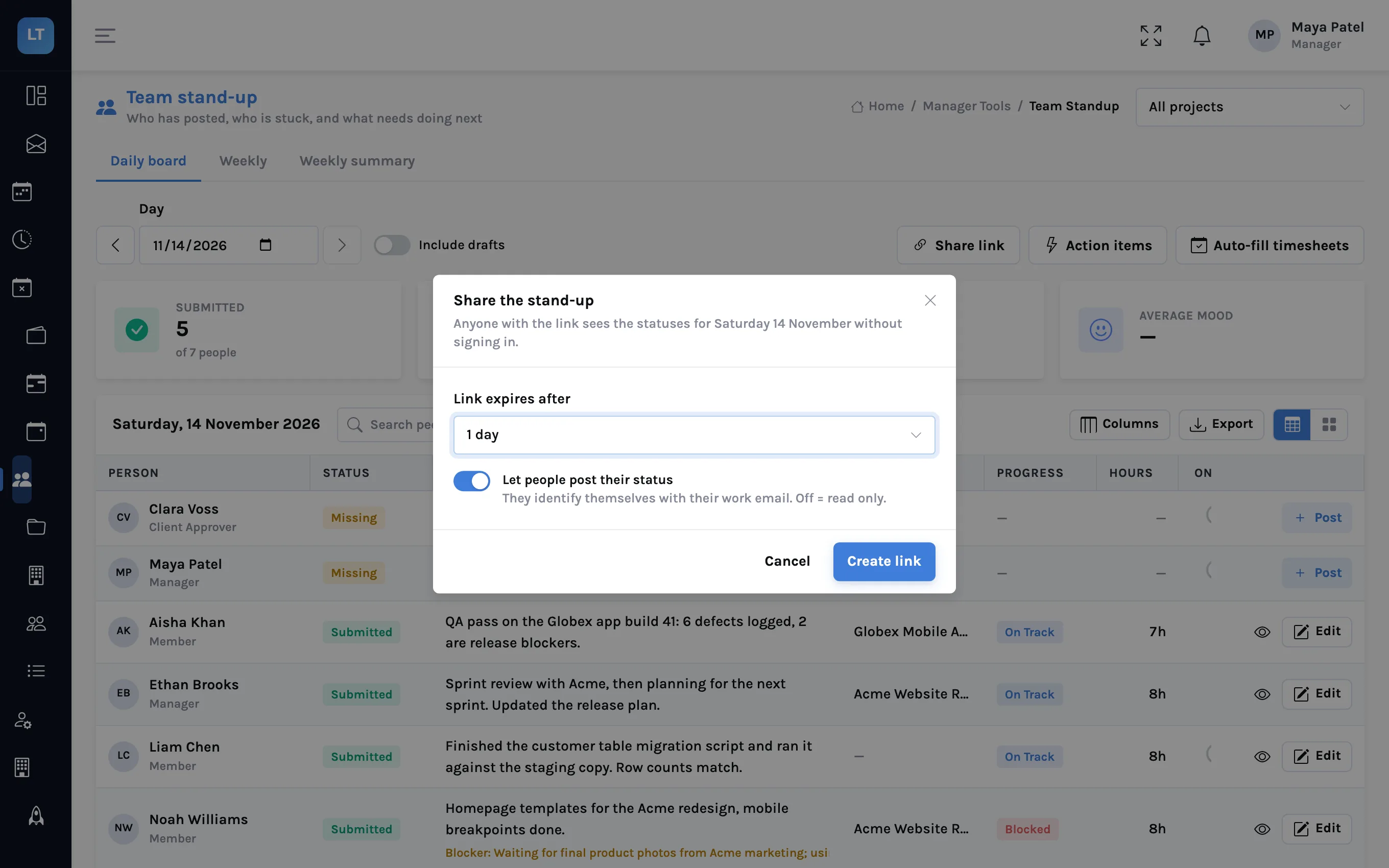
- Press Share link.
- Choose Link expires after: 4 hours, 8 hours, 1 day, 2 days, 3 days or 1 week. The default is 1 day.
- Leave Let people post their status on if contractors should post. Turn it off for a read-only link.
- Press Create link, then Copy link, and send it.
What the visitor sees
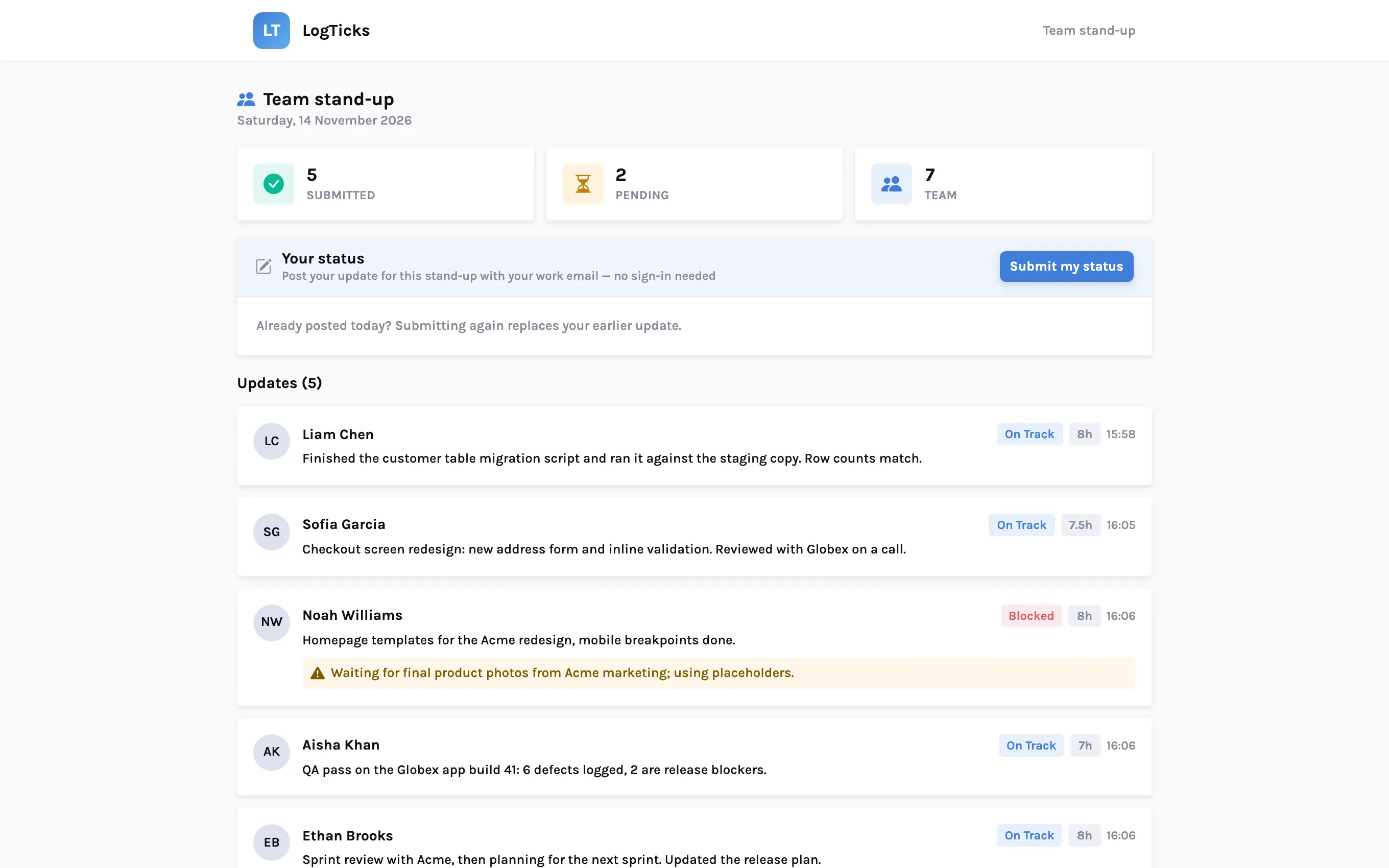
The link opens a plain page titled Team stand-up, with the date. At the top are three counts: how many have submitted, how many are pending, and the size of the team. Below is a list of the updates so far, each with the person's name, their summary, any blocker, their hours and progress. People who have not posted are listed by name under Pending.
How a contractor posts
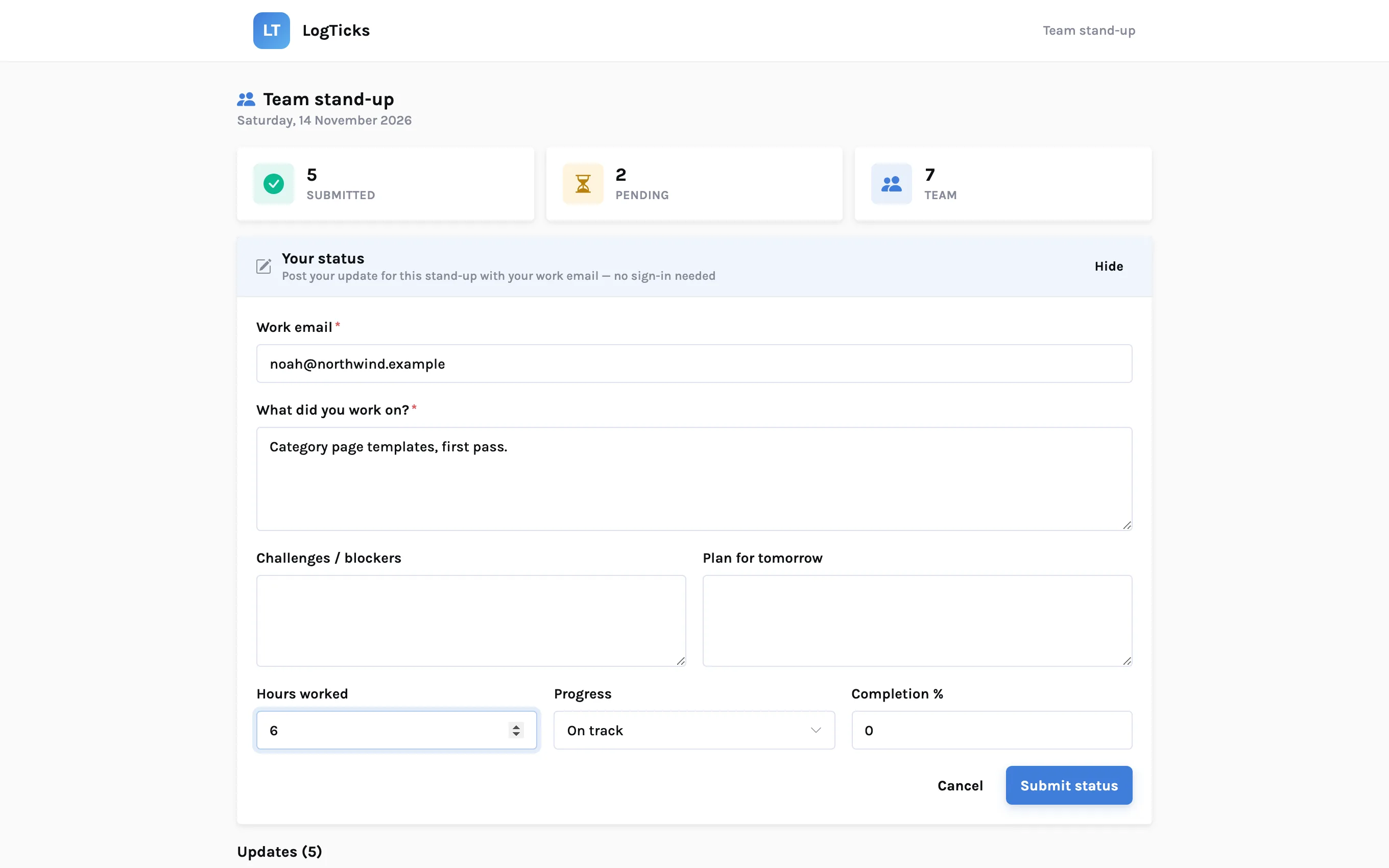
- They press Submit my status.
- They enter their work email. This is how the page knows who they are.
- They fill in What did you work on?, and optionally challenges or blockers, the plan for tomorrow, hours worked, progress (on track, ahead, delayed or blocked) and a completion percentage.
- They press Submit status. The page confirms and their update appears in the list.
"No login" is not "no account"
The email has to belong to an active user in your company, and for a project link that person has to be on the project's team. So you do add the contractor as a user once. What they are spared is ever signing in: no password to set, no app to open, just the link.
| Situation | What happens |
|---|---|
| Email of someone on the team | The status is saved for that person, for that day |
| Email LogTicks does not know | The status is refused |
| Link made for one project, person not on it | The status is refused |
| They post twice | The second post replaces the first |
| They already posted while signed in | The signed-in status is kept; the link cannot overwrite it |
| Read-only link | The page shows the updates and has no form |
Where the status goes
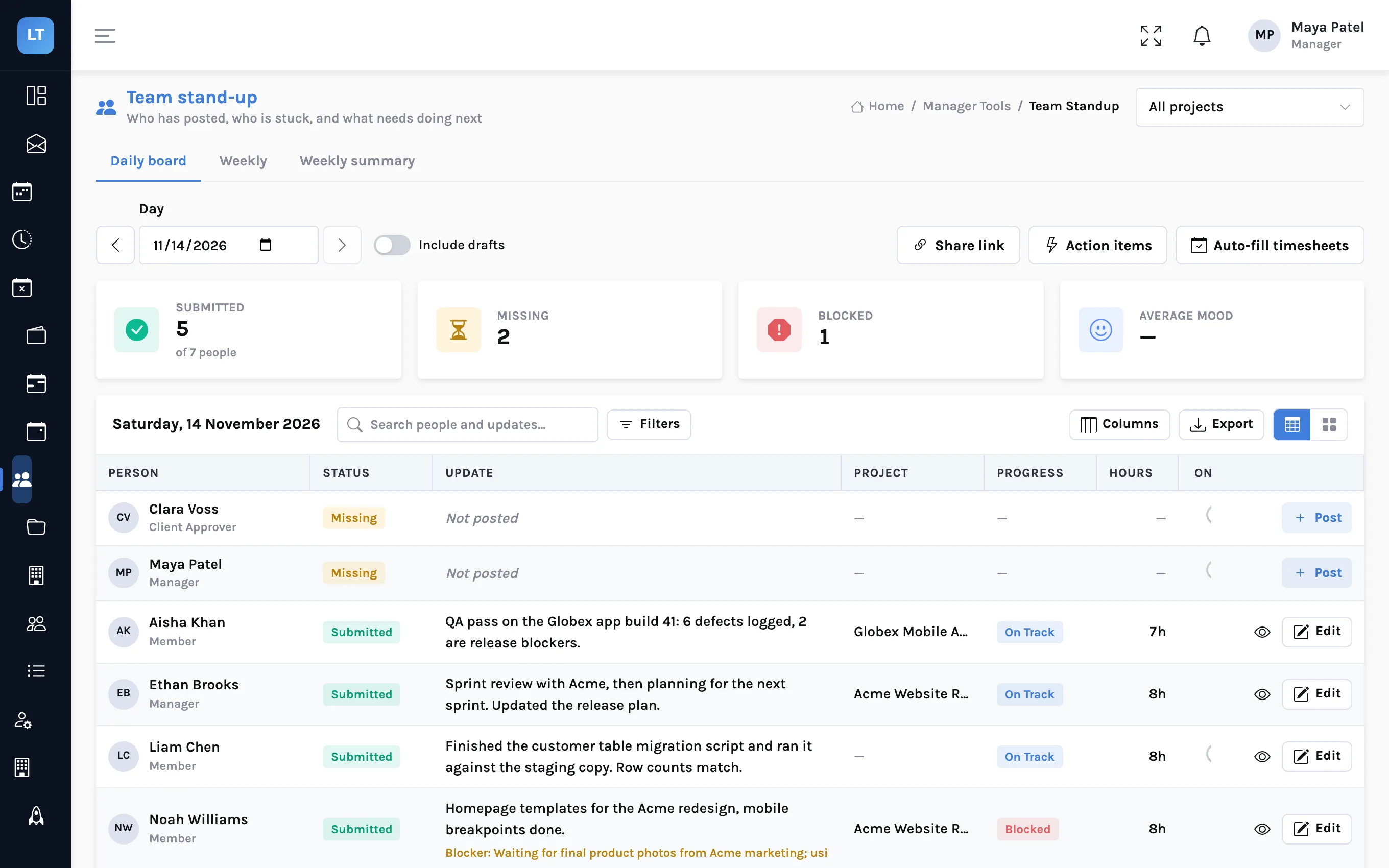
A status posted through the link is an ordinary status. It appears on the manager's daily board with the rest. If the link was made for a project, the status carries that project, which also makes it usable for filling timesheets from stand-ups.
Be careful who gets the link
The link is a key. Whoever holds it can read the names of your team and what each of them wrote that day, until it expires.
- Pick the shortest expiry that works. For a daily stand-up, 8 hours or 1 day
- Scope the link to a project when the audience is one project
- Send it in a private channel, not a public one
- Use a read-only link for stakeholders
- Remind people not to put client secrets or credentials in a status
What it doesn't do (yet)
- One day per link. A link is for a single day's stand-up. Tomorrow needs a new link, so this is a small daily task for the manager.
- No list of links and no revoke button in the app. Once created, a link works until it expires. If one goes to the wrong place, the only remedy in the app today is the expiry you chose, which is the reason to keep it short.
- The email is the only check. The page does not verify that the visitor owns the email they type. Someone holding the link who knows a colleague's address could post as them. The team is small and the board is read daily, so it would be noticed, but do not treat a link status as a signed statement.
- The contractor must exist as a user. The link does not create people.
Make it one link and thirty seconds, and the people at the edge of the team will tell you what they did.
Create a shared stand-up link
Open the daily board, press Share link and open the result in a private window.
Start free